
Import Sources to NotebookLM
Import supported AI chats, webpages, articles, and highlighted text into a selected NotebookLM notebook.
Use NotebookLM Hero import workflows to send useful source material into NotebookLM without repetitive copy-paste.
Import from the popup
Open a supported source page and click the extension icon. Choose Import, then select a destination notebook.
Supported workflows include:
- AI chat import from supported ChatGPT, Claude, Gemini, and Perplexity pages.
- Webpage and article import.
- Highlighted text import for selected passages.
- Creating a new NotebookLM notebook during import when needed.
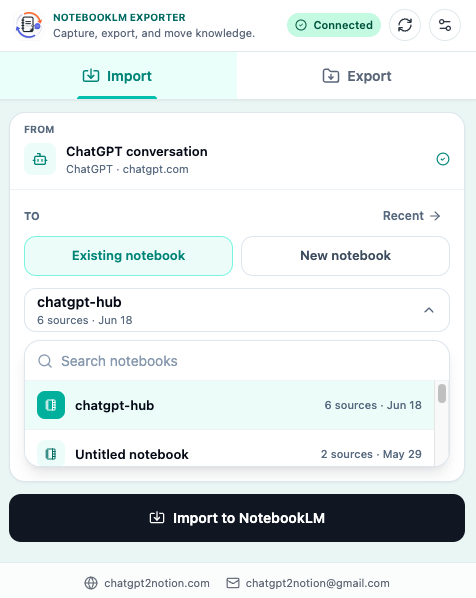
Select the destination notebook
Before sending content, choose where it should go:
- Search or browse available NotebookLM notebooks.
- Select the destination notebook.
- Create a new notebook if the destination does not exist.
- Start the import.
- Open the target notebook to confirm the source was added.
Good notebook naming makes this workflow much easier. Use clear project names such as Market research - Q3, Literature review - RAG, or Customer interview analysis.
Save highlighted text
Highlight import is best when you only need a focused passage from a webpage.
- Select text in the browser.
- Use the extension selection action or context menu.
- Choose the destination NotebookLM notebook.
- Send the selected passage.
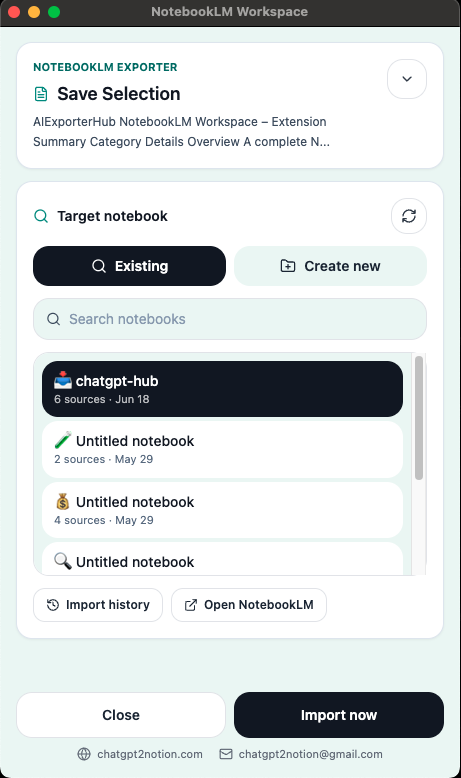
When to use full page import vs highlight import
| Workflow | Use it when |
|---|---|
| Full page import | The whole article or page is useful as a source |
| Highlight import | Only one passage, quote, or section matters |
| AI chat import | A conversation contains useful reasoning, drafts, or research |
Import quality tips
- Clean up the source page before importing if it contains unrelated expanded panels.
- Use highlight import for quotes, tables, or exact passages.
- Create separate notebooks for separate research projects.
- Review the target notebook after import so you know the source landed correctly.
Need more help? Contact Support