
How to Export ChatGPT Projects to Notion
ChatGPT Projects keep related conversations in one workspace. That is useful while you are working, but Notion is usually better for long-term project documentation, sharing, search, and handoff.
This guide shows how to use ChatGPT to Notion to export Project conversations into a structured Notion database.
Why Export Projects
Project conversations often contain:
- Product decisions
- Research summaries
- Code explanations
- Draft content
- Client context
- Reusable prompts
If that knowledge only lives inside ChatGPT, it is easy to lose, duplicate, or forget. Exporting Projects to Notion turns temporary AI work into a durable project archive.
Basic Setup
- Install ChatGPT to Notion.
- Connect your Notion workspace.
- Create or select a database for ChatGPT exports.
- Open the extension options page.
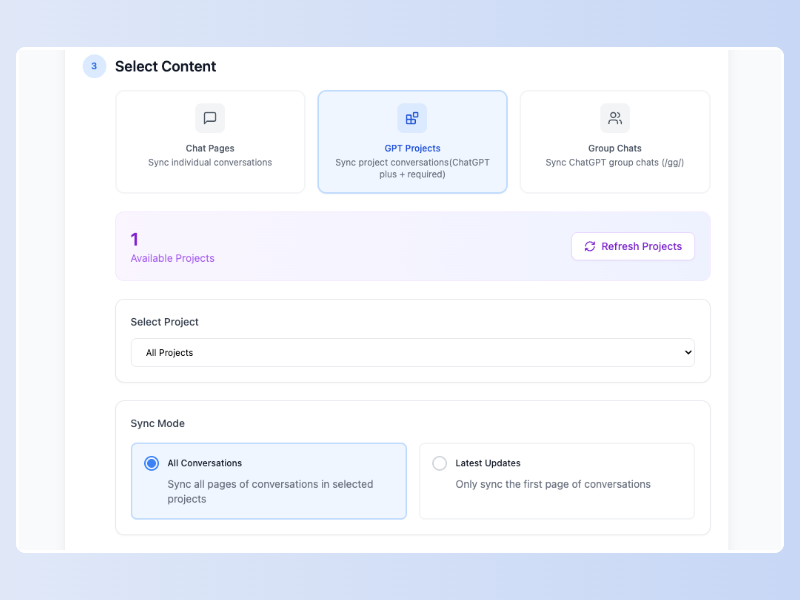
- Choose Projects sync mode.
- Select one Project or all Projects.
- Start the sync.
Suggested Notion Database
Use a dedicated database with these fields:
| Field | Type | Why it matters |
|---|---|---|
| Title | Title | Conversation name |
| Project | Select | ChatGPT Project name |
| Source URL | URL | Backlink to the original chat |
| Exported At | Date | Backup timestamp |
| Status | Select | Review, useful, archived |
| Tags | Multi-select | Topic, client, feature, research |
Sync Strategy
For small Projects, sync all conversations. For larger Projects, start with the first page or most recent conversations, then expand once you confirm the database structure works.
Keep “skip synced records” enabled for ongoing backups. This avoids duplicates and protects any manual edits you make in Notion.
Internal Linking in Notion
After export, link the saved pages from:
- Project home pages
- Meeting notes
- Research databases
- Product requirement documents
- Engineering docs
This is where Notion becomes more useful than a simple backup. The exported chat becomes part of the rest of your project system.
FAQ
Can I sync all Projects at once?
Yes, if your plan and current limits allow it. For very large workspaces, sync one Project first to verify formatting and database fields.
Can I update an existing Notion page?
The extension supports skip, overwrite, and duplicate behavior. Use skip for normal backups and overwrite when you intentionally want a fresh copy.
Where should I start?
Install the extension from the ChatGPT to Notion product page, then follow the batch sync guide.