
ChatGPT to Obsidian
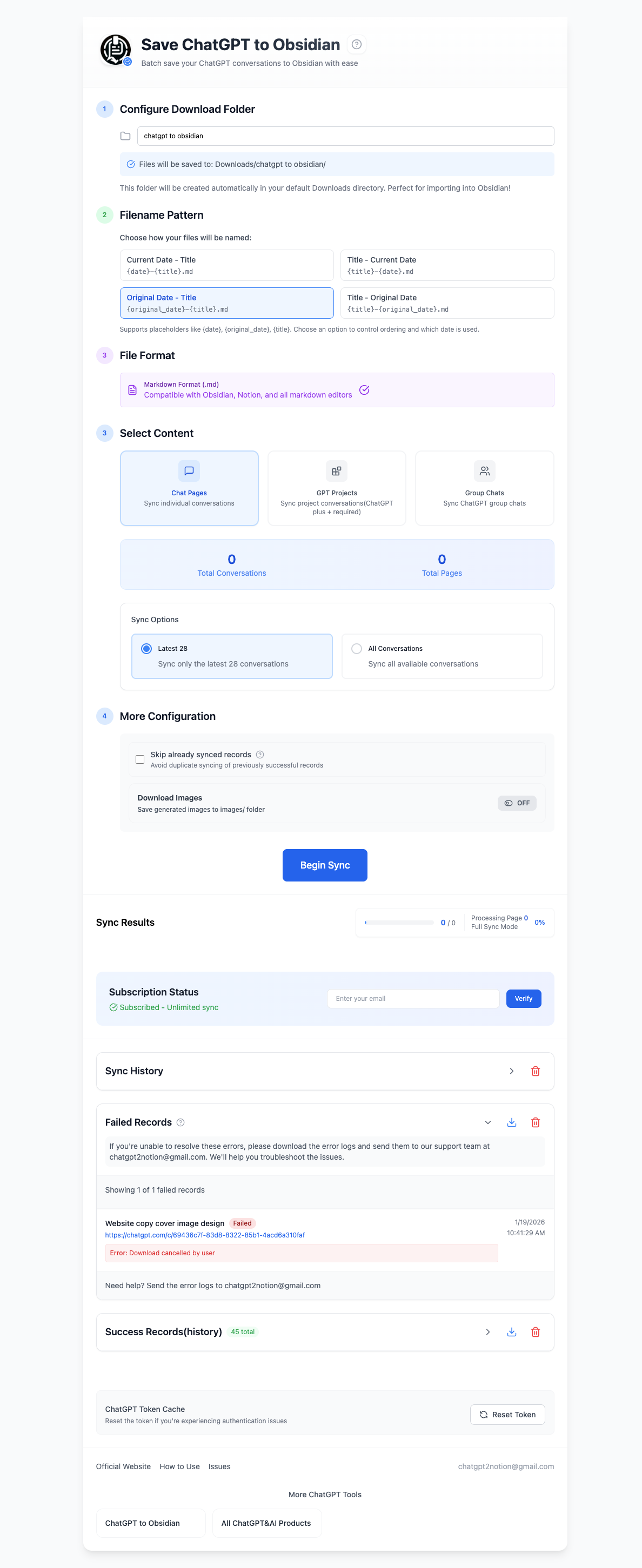
Export ChatGPT to Obsidian as clean Markdown with LaTeX and mathematical expressions preserved. Select complete chats for bulk export and save Projects, Group Chats, Deep Research, images, attachments, and archived conversations locally.
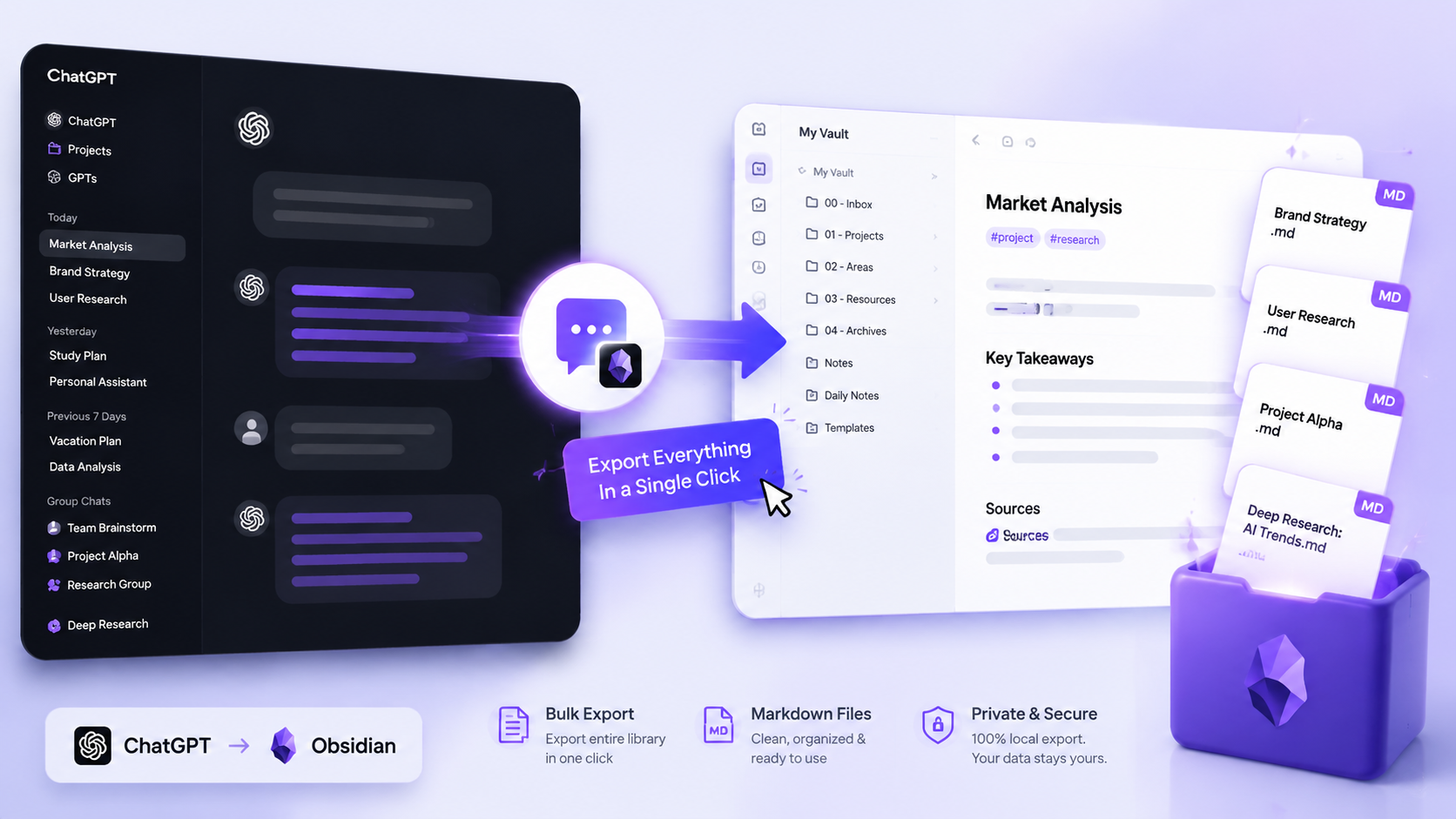
Turn valuable ChatGPT work into local, searchable Markdown notes you can keep, link, and reuse in Obsidian.
See it in Action
Key Features
LaTeX & Math in Obsidian
Preserve ChatGPT equations in Obsidian-friendly Markdown, including Greek symbols, fractions, gradients, matrices, vectors, and multiline mathematical expressions.
Complete Bulk Export Workspace
Back up Chat Pages, selected conversations, GPT Projects, Group Chats, Library Files, Images, or Archived Chats from one workspace.
Obsidian Metadata & YAML
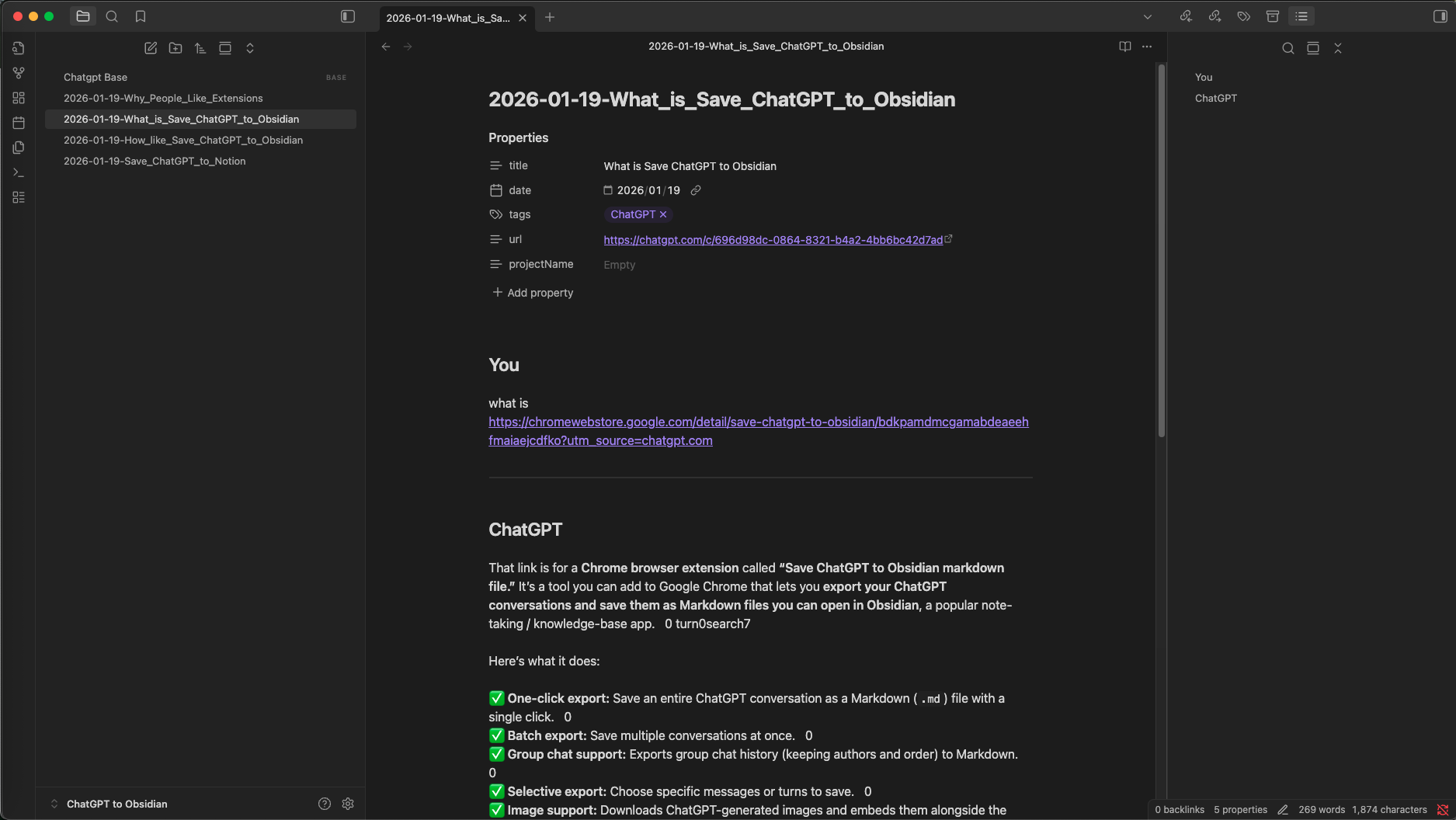
Exported notes include Obsidian-friendly properties such as date, originalDate, updatedDate, sourceUrl, sourceId, tags, projectName, and messageCount.
Deep Research Markdown
Save ChatGPT Deep Research reports as readable Markdown with safer handling for headings, lists, nested Markdown, and technical code fences.
Safer Sync Controls
Skip already synced records, preserve generated images, and tune request delays to reduce duplicate exports and avoid 429 rate-limit interruptions.
Library Files Export
Download ChatGPT Library images and document files as individual assets or a ZIP archive, with export records saved in Sync History.
ChatGPT Images Export
Batch export images from the ChatGPT Images page and save them into your Obsidian asset workflow as individual downloads or a ZIP package.
Archived Chats Folder
Archived Chat exports are saved under an Archived Chats folder, with project folders preserved when available.
A complete ChatGPT-to-Markdown backup workflow
Save one conversation or bulk-back up chats, Projects, Group Chats, Deep Research, Library files, Images, and Archived Chats as local Markdown.
Obsidian-Ready Markdown
Save clean .md files that open naturally in Obsidian and remain portable across Markdown editors.
LaTeX & Math Support
Preserve ChatGPT equations in Obsidian-friendly Markdown, including inline math, display math, Greek symbols, gradients, matrices, vectors, and common technical notation.
Flexible Naming
Use titles and conversation dates to create predictable filenames that are easier to sort and find later.
Image Download
Keep ChatGPT-generated images in an images/ folder with working links from the exported Markdown note.
Conversation Attachments
Optionally save supported uploaded and generated non-image files in a files/ folder and link them from the related Markdown note.
Bulk ChatGPT Export
Use seven content modes to back up history pages, selected conversations, Projects, Group Chats, Library files, Images, or Archived Chats.
Selective Batch Export
Load and search conversation history, choose the complete chats you need, and skip exporting everything else.
Copy as Markdown
Copy an individual question-and-answer pair as Markdown when you only need one useful part of a long conversation.
Group Chat Export
Archive ChatGPT Group Chats with message order and author attribution intact.
Deep Research Export
Keep final Deep Research reports readable in Obsidian, including headings, lists, citations, and technical code blocks.
YAML Frontmatter
Use source, date, project, tag, and message metadata with Obsidian Properties, Dataview, Bases, and search.
Canvas & Text Documents
Keep supported canvas, text-document, and code artifacts with the conversation that gives them context.
Library Files
Download ChatGPT Library images and documents as individual local assets or one convenient ZIP archive.
Images Page Export
Batch-download creations from the ChatGPT Images page for an Obsidian asset library or local creative archive.
Archived Chats
Bring archived conversations back into reach inside a dedicated Archived Chats folder.
Smarter Re-sync
Skip unchanged notes and export a conversation again when ChatGPT shows that it has been updated.
Local & Private
Conversation exports download to your machine, so you decide which files enter your vault and how they are backed up.
Obsidian Ready
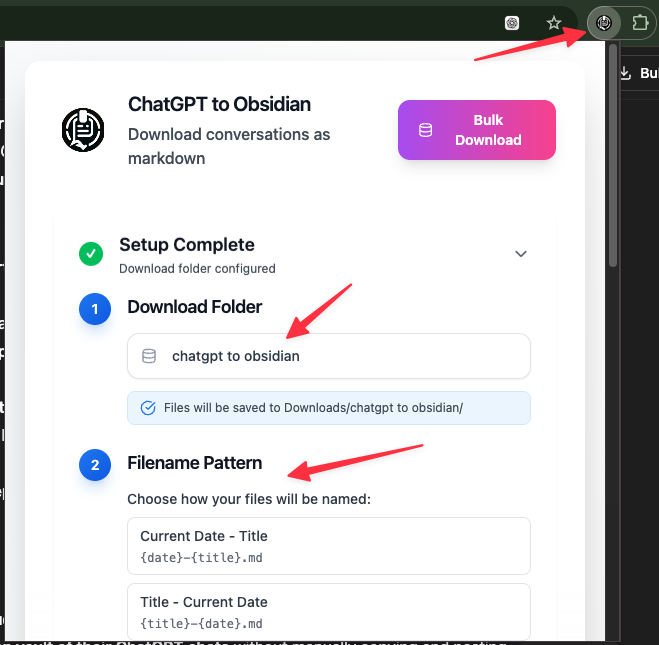
Start with the default Downloads/obsidian/ folder, then move or sync the exported notes into the vault you already use.
How it Works
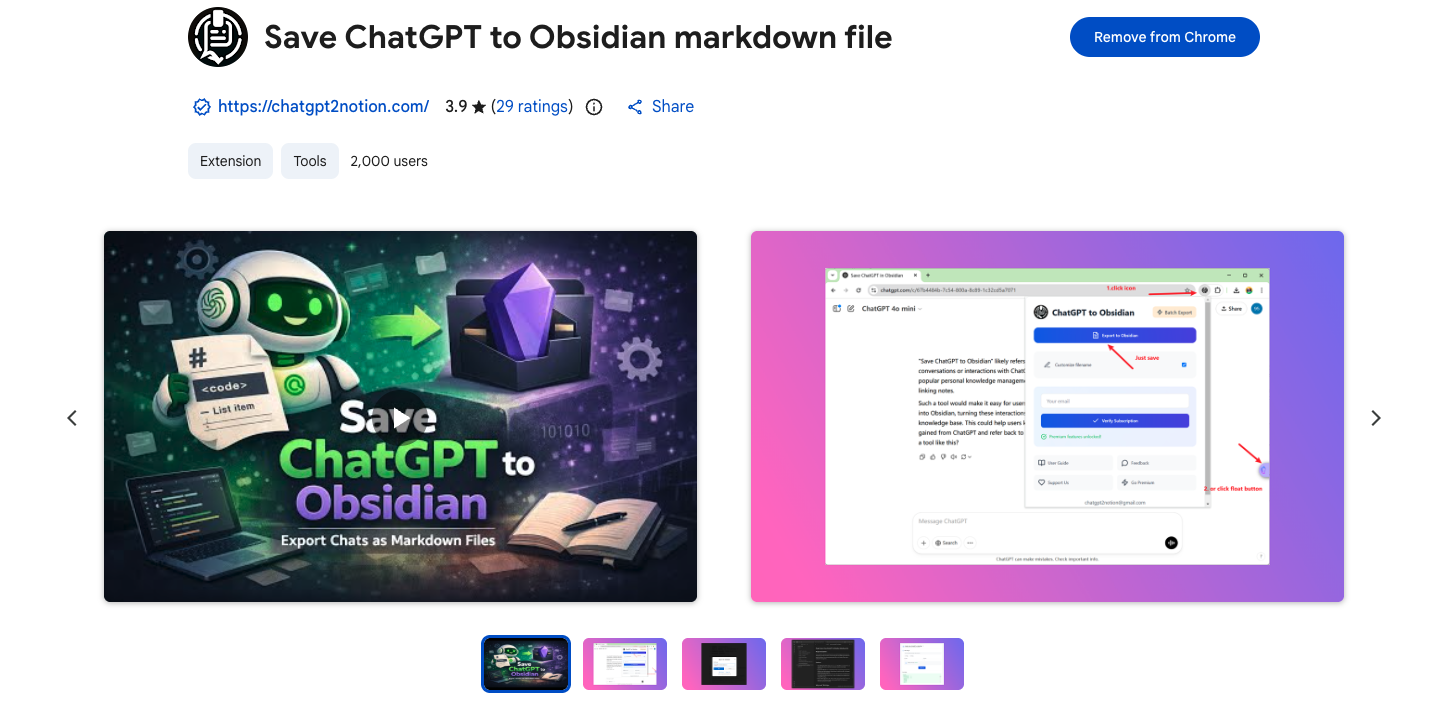
What Users Say About ChatGPT to Obsidian
Real workflows, backed up to Obsidian.
"Perfect for keeping my ChatGPT research notes in Obsidian. Local storage means I control my data."
"Selective export is great for long coding sessions. I extract just the solutions I need."
"Clean markdown export with code blocks and formatting intact. Imports beautifully into Obsidian."
"I download study sessions directly to my Obsidian vault. Everything stays organized and searchable."
"Group chat export helps us archive team brainstorming sessions. Author names stay intact."
"Simple, fast, and private. Downloads go straight to my local folder—no cloud dependencies."
Related resources ChatGPT to Obsidian
Use these guides and docs to solve common export, backup, and troubleshooting workflows.
Guides
How to export ChatGPT to Obsidian
Build a practical ChatGPT-to-Obsidian workflow with readable Markdown notes and local ownership.
How to bulk export ChatGPT conversations
Choose what to back up, verify the result, and scale from a small batch to a durable archive.
How to export ChatGPT Projects
Preserve valuable project conversations and organize them for long-term reference.
How to export ChatGPT Deep Research
Keep long research reports readable, searchable, and reusable outside ChatGPT.
What's New
NEW: Improved LaTeX and mathematical-expression export so equations are preserved in Obsidian-friendly Markdown and render correctly after download.
NEW: Selective batch export, searchable conversation selection, exported-status badges, optional Download Files support, and live bulk result counts.
Added conversation attachment handling, generated-file downloads, safer filenames, and more reliable Group Chat message retrieval.
Frequently Asked Questions About ChatGPT to Obsidian
Have another question? Contact us on Discord or by email.
How do I export ChatGPT to Obsidian?
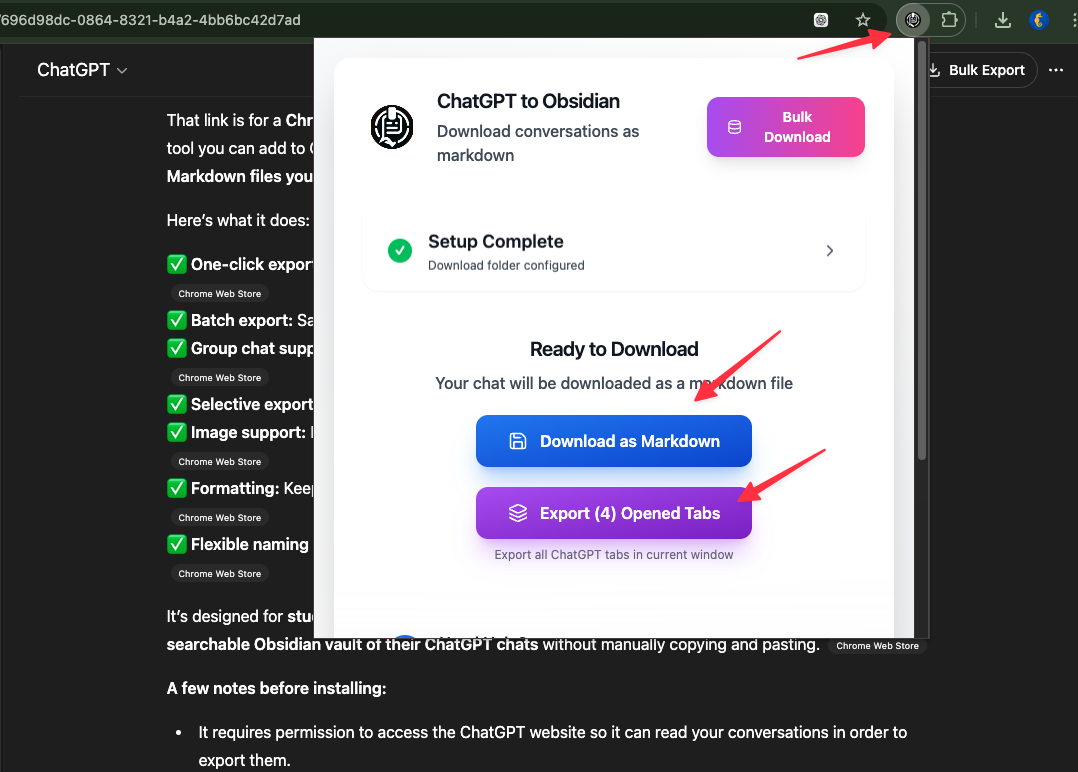
Install ChatGPT to Obsidian, open a conversation, and download it as a Markdown file. For a larger backup, use the bulk workspace to export history pages or selected conversations, plus Projects, Group Chats, Library files, Images, or Archived Chats, then move the downloaded folder into your Obsidian vault.
Can it export ChatGPT LaTeX and math expressions to Obsidian?
Yes. ChatGPT to Obsidian preserves common LaTeX commands and mathematical expressions and converts ChatGPT math delimiters into Obsidian-friendly Markdown so equations can render correctly after download.
Where are ChatGPT Markdown files saved?
Files are saved to Downloads/{folder}/, using the folder name you configure. The default is Downloads/obsidian/, and Chrome creates the folder automatically.
Does it sync with Obsidian automatically?
The extension downloads local files rather than writing directly into an arbitrary vault path. Move the exported folder into your vault or set Chrome's download location to a folder that fits your Obsidian workflow.
Can I export only part of a ChatGPT conversation?
Yes. Use the checkboxes next to assistant responses to select specific Q&A turns, then click 'Export Selected' to download only those parts.
Can I export ChatGPT Group Chats to Obsidian?
Yes. Group Chat export keeps author names and message order so team brainstorming and shared discussions remain understandable in Markdown.
Can I bulk export ChatGPT conversations to Obsidian?
Yes. Open Bulk Download from the extension popup and choose the content you want to back up. You can export multiple chat pages, selected conversations, Projects, Group Chats, Library files, Images, and Archived Chats.
Can I choose individual conversations during a bulk export?
Yes. Selective Export lets you load conversation history pages, search the loaded titles, and choose the complete conversations you want before starting the export.
Are ChatGPT images included in the Markdown export?
Yes, if you enable the 'Download Images' option. ChatGPT-generated images are saved to an images/ subfolder and linked from the exported Markdown.
Can it download files attached to a ChatGPT conversation?
Yes, for supported current-chat and conversation-based bulk workflows. Turn on 'Download Files' to save uploaded and ChatGPT-generated non-image files under a files/ subfolder and link them from the Markdown. The setting is off by default.
Does exported Markdown include Obsidian properties?
Yes. Exported notes include YAML frontmatter such as date, originalDate, updatedDate, sourceUrl, sourceId, platform, tags, projectName, and messageCount.
Can it export ChatGPT Deep Research reports?
Yes. Deep Research final reports are exported as readable Markdown, with safer handling for nested Markdown and code fences.
Can it export ChatGPT canvas or text document artifacts?
Yes. When a conversation references ChatGPT text documents, canvas-style documents, or code artifacts, the extension can include them with the related response when possible.
Can it export ChatGPT Library files?
Yes. The Library Files mode can download ChatGPT Library images and document files as individual assets or as a ZIP archive.
Can it export the ChatGPT Images page?
Yes. The Images mode can batch export images from https://chatgpt.com/images/ as individual downloads or a ZIP package.
Can it sync archived ChatGPT chats?
Yes. Archived Chats mode lets you export archived conversations separately, including the latest archived page or all archived history when available. Exports are saved under an Archived Chats folder.
Are my exported ChatGPT conversations stored on another service?
Conversation exports are processed by the extension and downloaded to your machine. The product does not provide a separate cloud workspace for storing your exported chats.
What filename formats are supported?
You can choose from: Current Date - Title, Title - Current Date, Original Date - Title, Title - Original Date, Updated Date - Title, or Title - Updated Date. Supports placeholders like {date}, {title}, {original_date}, and {updated_date}.
Can I customize the download folder?
Yes. In the extension popup, configure the 'Download Folder' field to any name you want (e.g., 'obsidian', 'notes', 'chatgpt').
Can I try ChatGPT to Obsidian for free?
Yes. Start with the free export allowance to test the Markdown format and your vault workflow, then upgrade when you need larger or more frequent bulk backups.
Keep more of your ChatGPT history in Obsidian
Start free, then upgrade when you need larger bulk backups across chats, Projects, Group Chats, files, images, and archived conversations.
View ChatGPT to Obsidian Plans