
Gemini to Obsidian / Markdown
Use Gemini to Obsidian / Markdown if you want a local knowledge base, clean Markdown files, image export, and long-term note management.
You are here
Export Gemini conversations to Obsidian-ready Markdown with support for generated images, Gems, selective bulk export, code blocks, and YAML metadata.
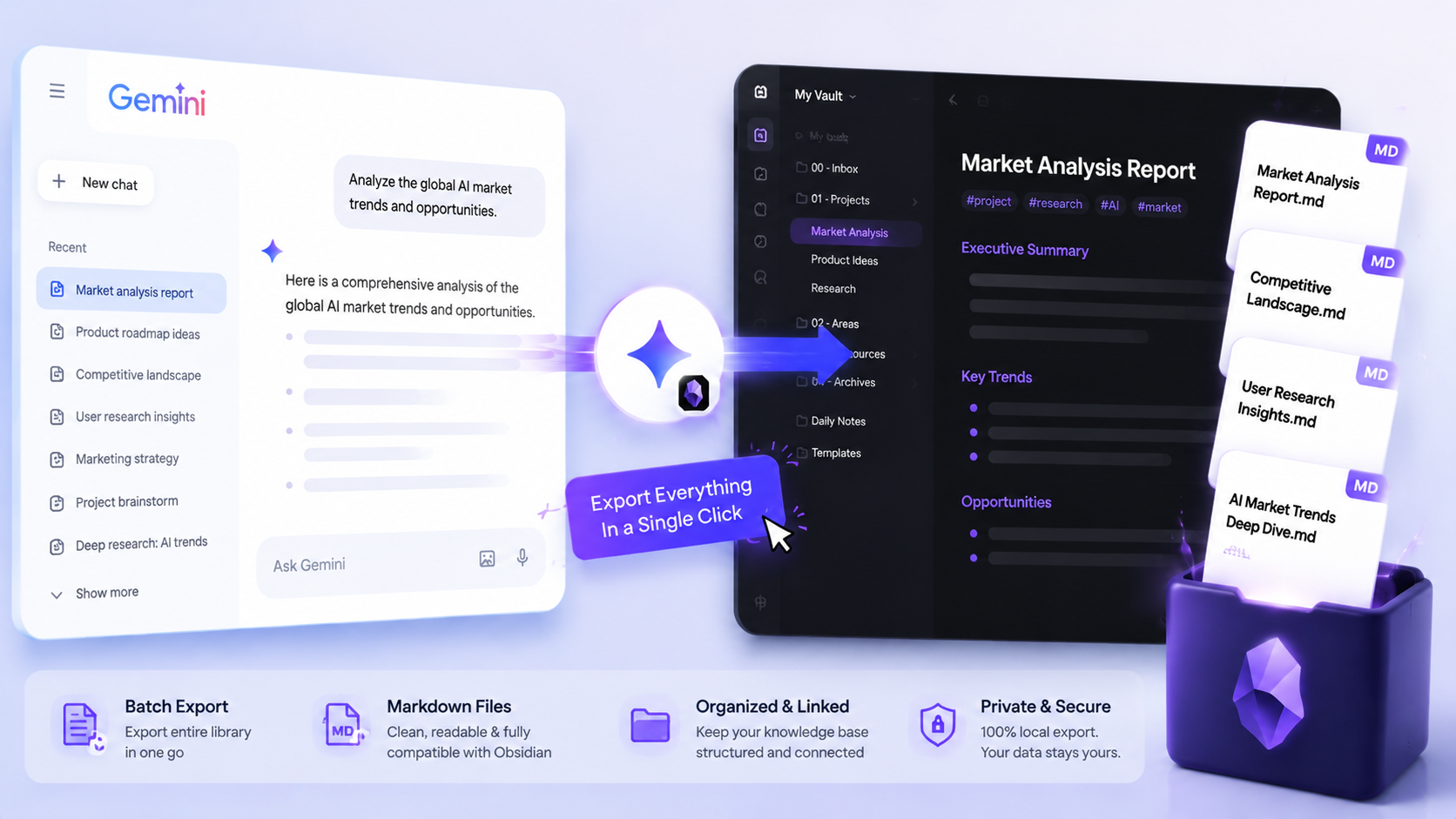
Gemini users rely on Export Gemini to Obsidian to turn AI research, Gems, generated images, and technical chats into a local Markdown knowledge base.
Compatibility matrix
A practical support table for real content types and destination behavior.
| Content type | Support | Export result | Notes |
|---|---|---|---|
| Current Gemini conversation | Supported | Downloads the open Gemini chat as an Obsidian-ready Markdown file. | Use the popup on any Gemini /app or /gem conversation page. |
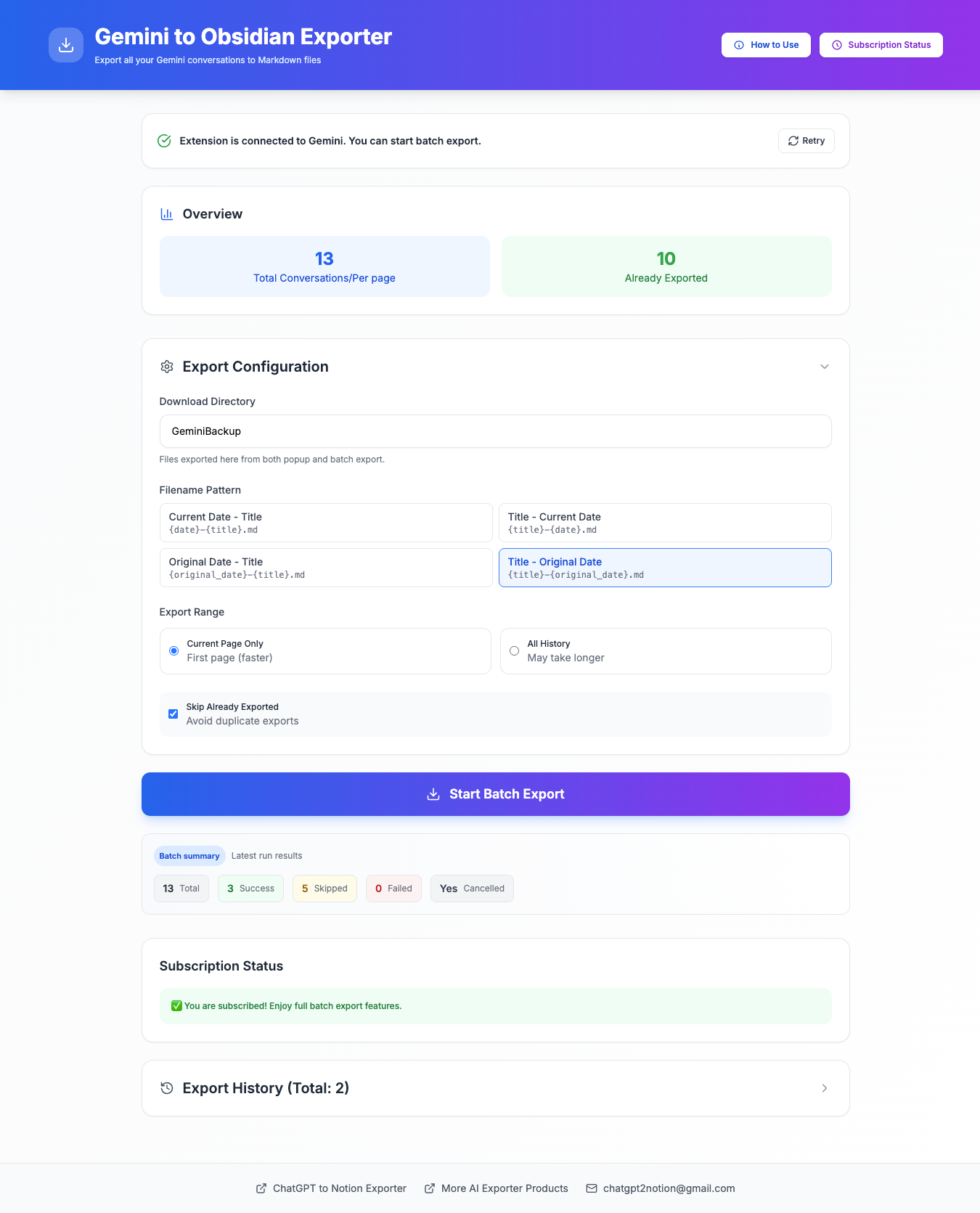
| Bulk Gemini history export | Supported | Exports Gemini history into separate Markdown files with progress tracking. | Use latest-page export or fetch full history from the options page. |
| Selective bulk export | Supported | Choose specific conversations before running a bulk export. | Best when you only need project-critical chats instead of every conversation. |
| Gems export | Supported | Export full Gems or select individual conversations inside a Gem. | Gem metadata is preserved in frontmatter when Gemini exposes it. |
| Generated images | Supported | Downloads generated images into a local images folder and inserts Markdown image links. | The Download Images setting is enabled by default and can be turned off. |
| Gem subfolders | Supported | Optionally organizes Gem conversations into folders named after the Gem. | Useful for vault structures based on project, assistant, or workflow. |
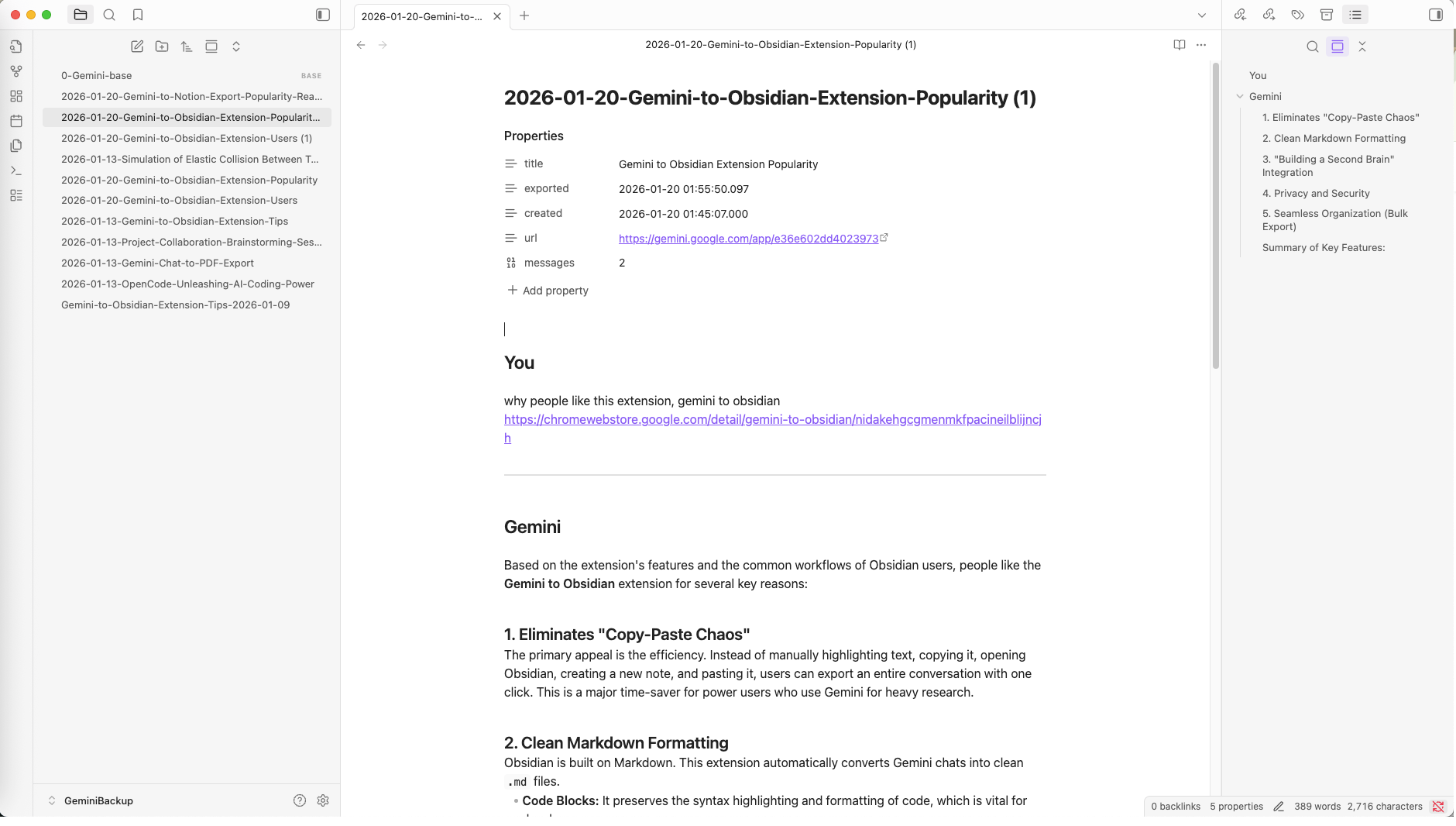
| Code blocks and formatting | Supported | Preserves readable Markdown structure, code blocks, user/Gemini sections, and attachments. | User-provided Markdown headings are escaped to avoid breaking the exported hierarchy. |
| YAML frontmatter | Supported | Adds title, uuid, created time, exported time, URL, gem, model, tags, and message count. | Frontmatter is designed for Obsidian search, graph links, tags, and Dataview-style workflows. |
| Date filters and filename dates | Supported | Uses the browser time zone and normalizes date filters to YYYY-MM-DD. | Useful for exporting only recent Gemini research sessions. |
| Need Notion instead? | Separate tool | Use Export Gemini to Notion when your destination is a Notion database. | Open the Gemini to Notion plugin. |
Output proof
Use these examples to verify what exported files, folders, or destination pages look like before installing.
A Gemini conversation exported as a Markdown note and opened inside Obsidian.
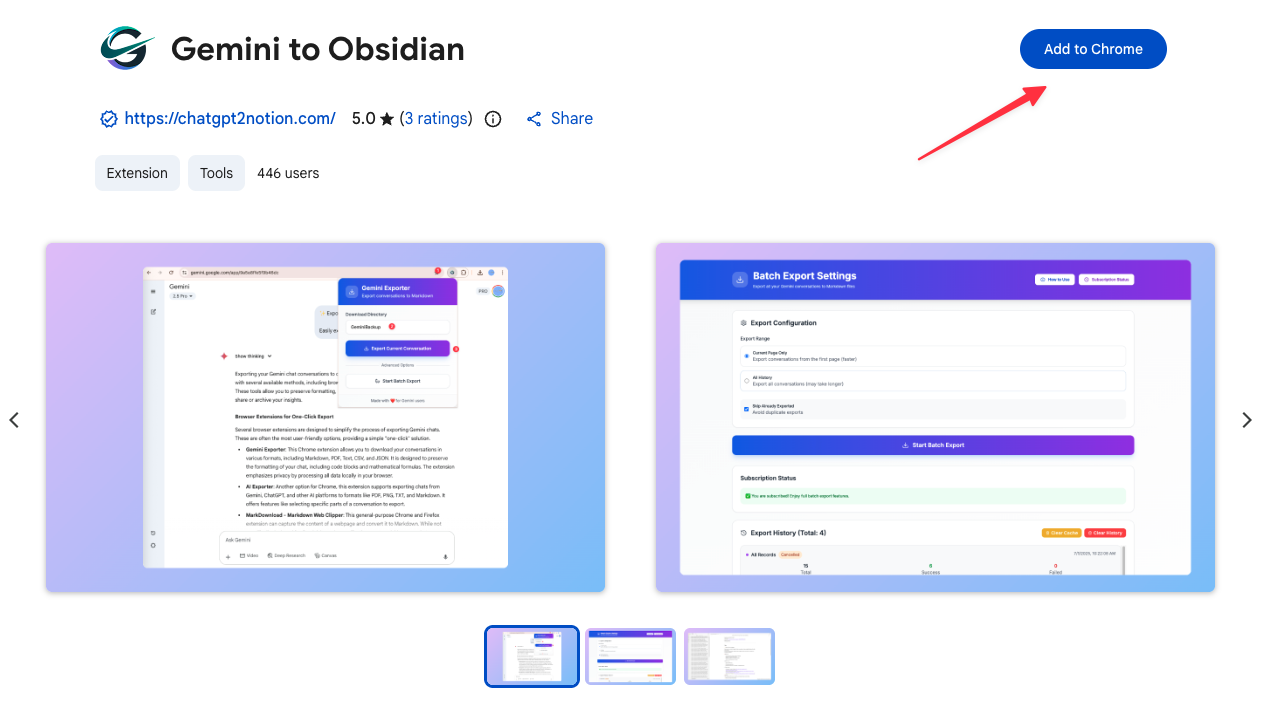
The options page showing the Gemini bulk export process, progress, skipped items, and export history.
An exported Gemini image note showing local images/ links and downloaded image files.
The Gems export mode where users select full Gems or individual Gem conversations.
The selective export list for choosing specific Gemini conversations before running a targeted bulk export.
Everything you need to organize your Gemini conversations quickly and efficiently.
Save Gemini-generated images into a local images folder and reference them from the exported Markdown note.
Export all conversations from selected Gems or pick individual Gem conversations for focused vault updates.
Choose only the Gemini conversations you need instead of exporting an entire page or full history.
Preserves conversation structure, code blocks, headings, attachments, and clean # You / # Gemini sections.
Adds title, uuid, created/exported timestamps, URL, gem, model, tags, and message count for search and Dataview workflows.
Optionally organize Gem conversations into folders named after each Gem for a cleaner Obsidian vault.
Filter exports by date and generate filenames using browser-time-zone dates and conversation titles.
Conversation parsing, Markdown generation, and download handling happen in your browser.
Gemini export chooser
Choose the best Gemini export format for your workflow.
Use Gemini to Obsidian / Markdown if you want a local knowledge base, clean Markdown files, image export, and long-term note management.
Use Gemini to PDF if you want printable, shareable, and archive-ready Gemini conversations with images and formatting preserved.
Use Gemini to Notion if you want to organize Gemini conversations inside a searchable Notion database for projects, teams, or research.
Note: Image export is not supported in Gemini to Notion. Use Obsidian / Markdown or PDF if you need images.
Known limits
Clear limits build trust. These are the cases to check before running large exports.
The extension can download generated images when Gemini still exposes a usable image URL or data source. Expired, blocked, or inaccessible image URLs may be skipped.
Keep Download Images enabled for visual chats, and re-open the original Gemini conversation if an older image cannot be resolved.
Troubleshooting guideFull-history exports need to load conversation list pages and fetch each conversation detail. Very large accounts may take longer and can hit Gemini-side throttling.
Use Selective Export, Gems Export, date filters, and Skip Exported to reduce the export set.
Troubleshooting guideThe extension can set a download subdirectory, but Chrome download settings and browser permissions still control where files land.
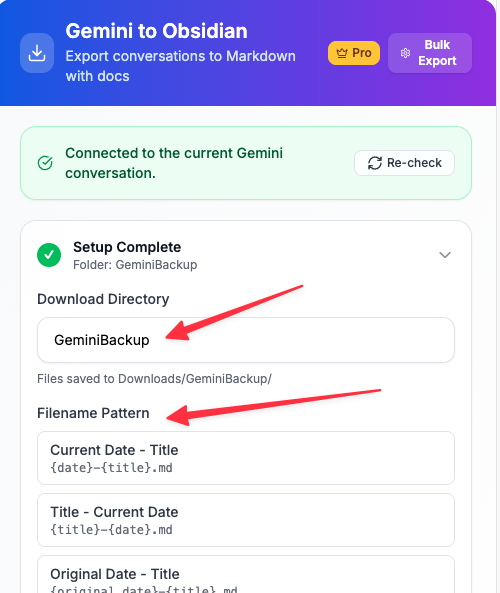
Set your Chrome downloads folder to your Obsidian vault or move the exported GeminiBackup folder into your vault.
Troubleshooting guideFree users can try exports with a daily limit of 5 exported conversations. Subscribed users unlock unlimited export workflows.
Use selective export for the most important conversations before upgrading.
Troubleshooting guideExport Gemini to Obsidian creates local Markdown files. It does not sync Gemini chats into Notion databases or generate PDF files.
Choose a dedicated Notion or PDF exporter when that is the required destination.
Real workflows, backed up to Obsidian.
"Gem export is perfect for keeping different research assistants separated in my Obsidian vault. The frontmatter makes everything searchable."
"Code blocks and long technical conversations export cleanly, and the generated image support means I no longer lose visual outputs."
"Selective export saves cleanup time. I can pick only the Gemini sessions that belong in a draft or project folder."
"I use Gemini for study help and export each topic into Obsidian. Tags, dates, and titles make review much easier."
"Bulk export plus skip-exported keeps my AI research archive current without duplicating old conversations."
"The local Markdown workflow is exactly what I wanted. My Gemini chats stay private and live in my own vault."
Use these guides and docs to solve common export, backup, and troubleshooting workflows.
Step-by-step tutorial with video and screenshots for exporting Gemini chats into an Obsidian Markdown vault.
Practical tips for preserving long Gemini research threads and avoiding partial exports.
Compare Markdown and Obsidian workflows across ChatGPT, Gemini, Claude, and other AI tools.
Pick the right export format for local archives, shareable reports, or structured databases.
Understand which destination fits each Gemini backup and knowledge-base workflow.
NEW: Added Export Mode with Bulk Export, Selective Export, and Gems Export, including full Gem selection and individual Gem conversation selection.
NEW: Added generated image export, local images folder downloads, Markdown image links, and an optional Download Images setting enabled by default.
Improved Markdown readability with # You / # Gemini conversation sections, clearer attachment hierarchy, and escaped user Markdown headings.
Have another question? Contact us on Discord or by email.
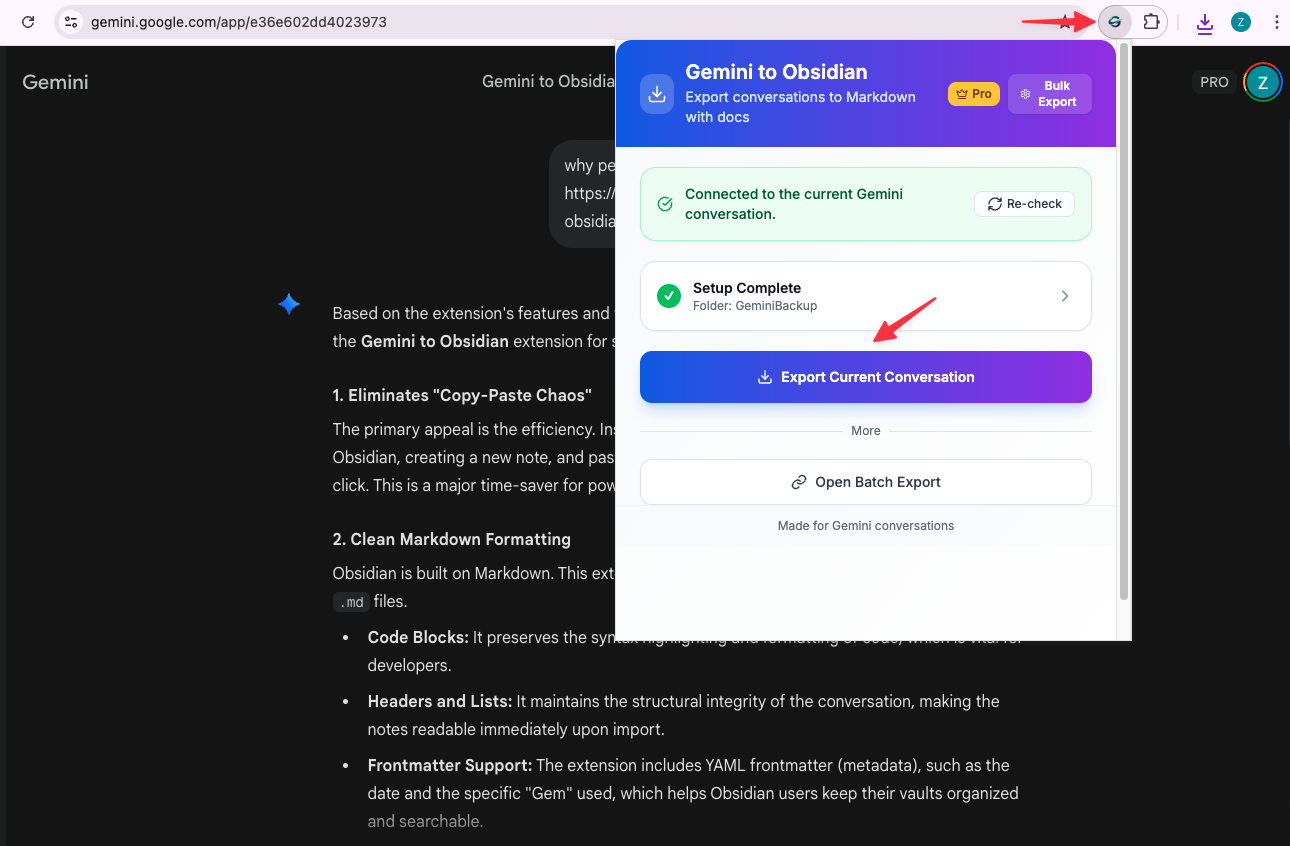
Install the extension, open a Gemini conversation, click the extension icon, and export the current chat as a Markdown file. You can set your Obsidian vault or a vault subfolder as the download destination.
Yes. The extension can download generated images into a local images folder and insert Markdown image links into the exported note. The Download Images setting is enabled by default and can be turned off.
Yes. The Gems Export mode lets you export entire Gems or select individual conversations inside a Gem. Exported files can also be organized into Gem-named subfolders.
Yes. Selective Export lets you load your Gemini conversations, tick the ones you want, and export only those selected chats.
Yes. The extension supports normal Gemini /app conversation pages and Gemini /gem conversation pages.
The exported Markdown includes Obsidian-friendly YAML frontmatter such as title, uuid, created time, exported time, source URL, gem, model, tags, and message count when available.
By default, bulk export can skip previously exported conversations. The options page tracks exported conversation IDs by Gemini account scope to reduce duplicates.
Yes. The export workflow runs locally in your browser. Your Gemini conversations are converted into local Markdown downloads instead of being sent to an external processing server.
Free users can try exports with a daily limit of 5 exported conversations. Subscribed users unlock unlimited export workflows.
No. Export Gemini to Obsidian is a local Markdown exporter for Obsidian and Markdown editors. Use a dedicated Notion or PDF exporter if you need those destinations.
Batch export 100+ chats, Auto-Sync, and priority support with Universal Pass.
Get Universal PassIndependent tool notice
Built for exporting from Google Gemini. This project is independent and is not affiliated with Google LLC.