
One-Click Export
Learn how to export individual Gemini conversations to Markdown files
Quick Start
After installing the extension, you can export any Gemini conversation to a Markdown file with a single click.
Export Current Conversation
Step 1: Open a Gemini Chat
Navigate to any conversation on gemini.google.com.
Step 2: Click Extension Icon
Click the Bulk Export AI Chats from Gemini to Obsidian icon in your Chrome toolbar.
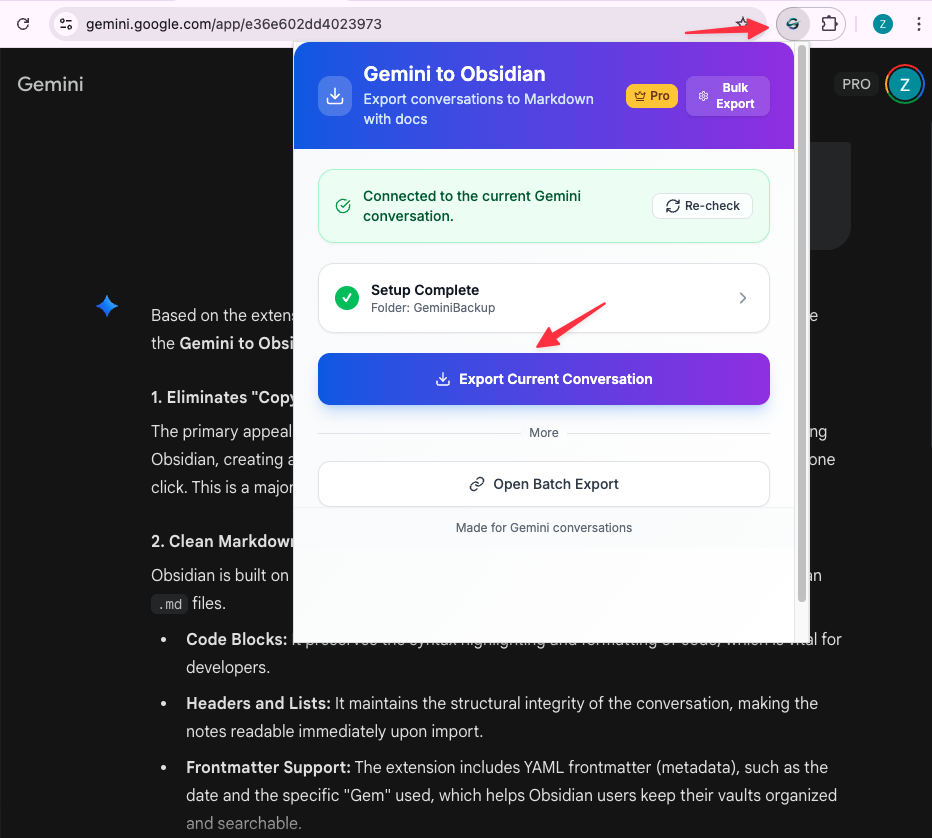
Step 3: Export
In the popup, you’ll see:
- Current conversation title
- Download directory setting (optional)
- “Export Current Chat” button
Click the green “Export Current Chat” button.
Step 4: File Downloaded
The Markdown file will be automatically downloaded to:
- Your configured download directory (if set)
- Your browser’s default Downloads folder (if not configured)
Configure Download Directory
To export directly to your Obsidian vault:
Step 1: Open Extension Popup
Click the extension icon on any Gemini page.
Step 2: Set Download Directory
In the popup, you’ll see a “Download Directory” input field.
Enter your desired folder name (e.g., ObsidianVault/GeminiChats).

Step 3: Save Setting
The setting is automatically saved. All future exports will go to this directory.
Note: The directory path is relative to your browser’s default Downloads folder. For example:
- Setting:
ObsidianVault/GeminiChats - Actual path:
~/Downloads/ObsidianVault/GeminiChats/
To export directly to your Obsidian vault, you can:
- Set your Obsidian vault location as your browser’s default download folder
- Or move the downloaded files to your vault manually
- Or use a symbolic link to connect your Downloads folder to your vault
File Naming Convention
Exported files are named using this format:
YYYY-MM-DDTHH-mm-ss-Conversation-Title.mdExample:
2026-01-18T14-30-00-How-to-build-a-Chrome-extension.mdThis naming convention:
- Sorts chronologically by default
- Includes timestamp for uniqueness
- Preserves conversation title for searchability
- Uses ISO 8601 format for international compatibility
Markdown Format
The exported Markdown file contains:
# Conversation Title

## User
Your prompt here...

## Gemini
AI response here...

## User
Next prompt...

## Gemini
Next response...
Code blocks, formatting, and structure are preserved:
## Gemini
Here's a Python example:

```python
def hello_world():
    print("Hello, World!")
```
What Gets Exported
The export includes:
- Complete conversation history
- All user prompts
- All AI responses
- Code blocks with syntax preservation
- Formatting and structure
- Conversation metadata
The export does NOT include:
- Images or attachments (not yet supported)
- Conversation settings or preferences
- Related conversations or suggestions
Tips
- Pin the extension: Keep it easily accessible in your toolbar
- Set download directory: Configure once, export seamlessly forever
- Export regularly: Build your knowledge base incrementally
- Use descriptive titles: Rename conversations in Gemini before exporting for better file names
Troubleshooting
Export button not working:
- Ensure you’re on a Gemini conversation page
- Refresh the page and try again
- Check browser console for errors
File not downloading:
- Check your browser’s download settings
- Ensure downloads are not blocked
- Verify you have write permissions to the download directory
Formatting issues:
- The extension preserves Gemini’s output format
- Some complex formatting may not translate perfectly to Markdown
- Code blocks should always export correctly
For more help, visit our Troubleshooting Guide.
Ready to try Export Gemini to Obsidian?
Open the product page for feature details, screenshots, pricing, and the Chrome Web Store install link.
Independent tool notice
Built for exporting from Google Gemini. This project is independent and is not affiliated with Google LLC.