
Gemini to Obsidian / Markdown
Use Gemini to Obsidian / Markdown if you want a local knowledge base, clean Markdown files, image export, and long-term note management.
Easily bulk export your Gemini AI conversations to Notion databases. Save time with batch processing and auto-sync features.
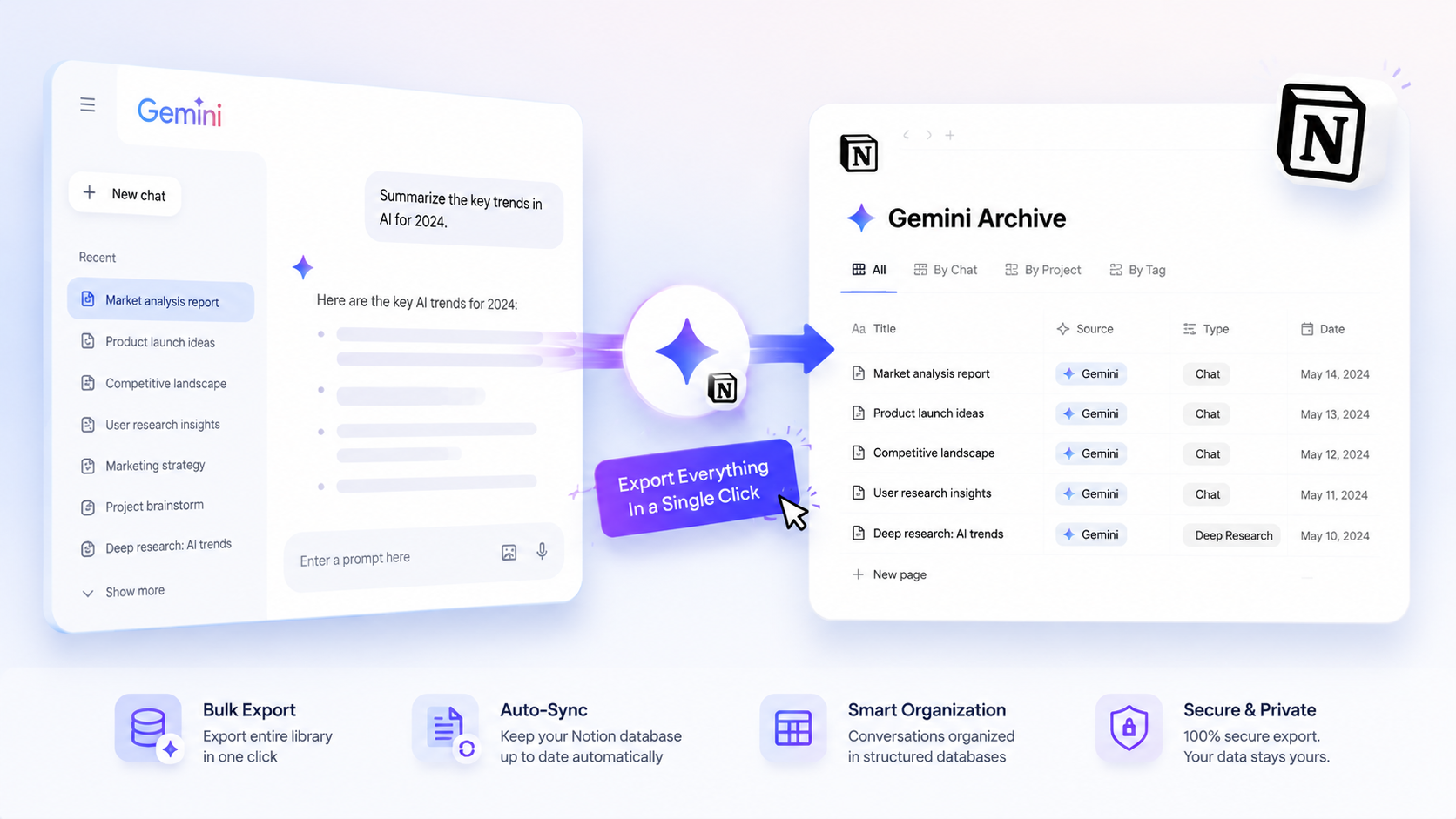
Teams and researchers use Bulk Export AI Chats from Gemini to Notion to keep conversations organized, searchable, and easy to revisit.
Stop saving chats one by one. Export your current Gemini conversation instantly, or bulk export your entire history in one go. Build a complete archive of your AI conversations hands-free.
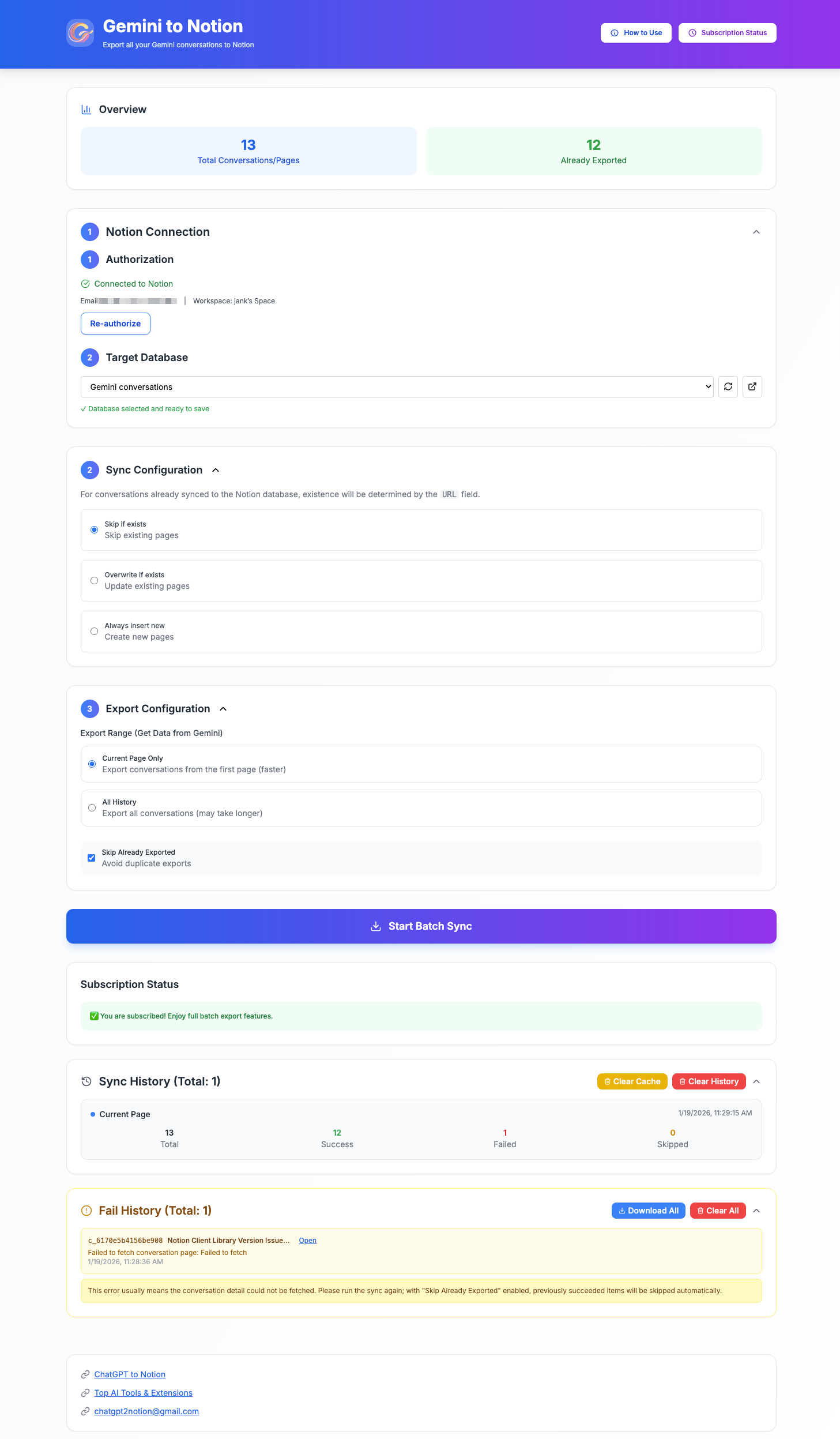
Full control over how conversations are saved. Choose to skip existing entries, overwrite with latest content, or always create new pages. Your data, your rules.
Track every export operation with detailed logs. Monitor real-time progress during batch exports. View stats and clear cache whenever needed. Complete transparency.
Everything you need to organize your Gemini conversations quickly and efficiently.
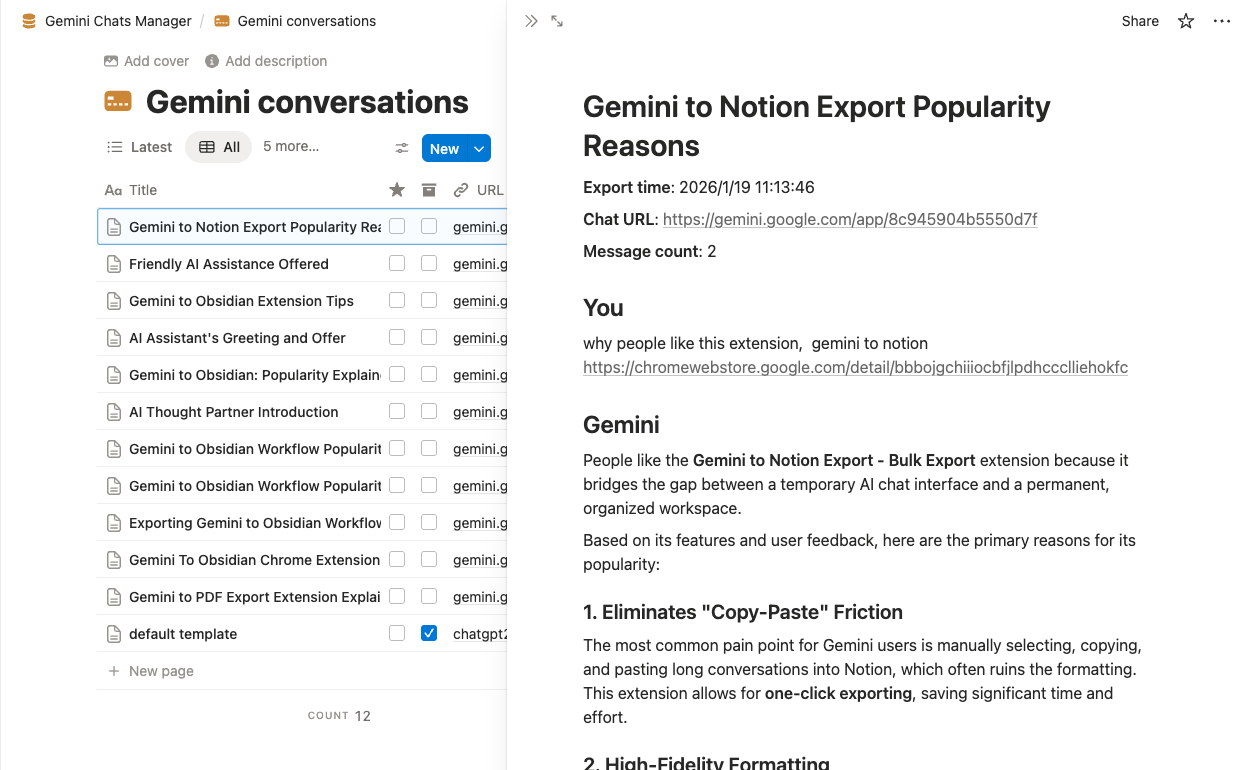
Preserves Markdown, code blocks, LaTeX, tables, and conversation structure when exporting Gemini chats to Notion.
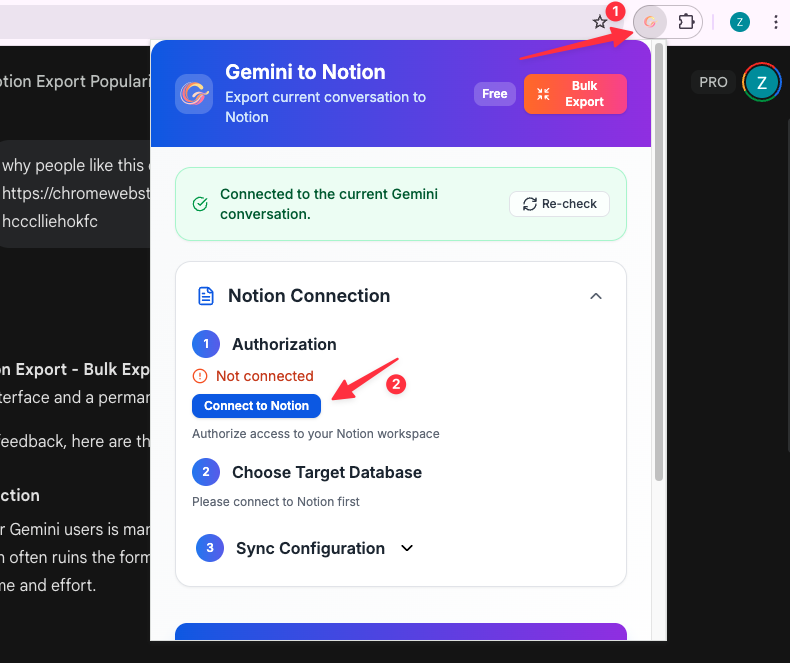
Choose your target Notion database from a dropdown. Switch databases anytime without re-authorization.
Skip, overwrite, or duplicate existing pages when syncing. You have full control over versioning.
Watch your batch export progress in real-time with detailed status updates for each conversation.
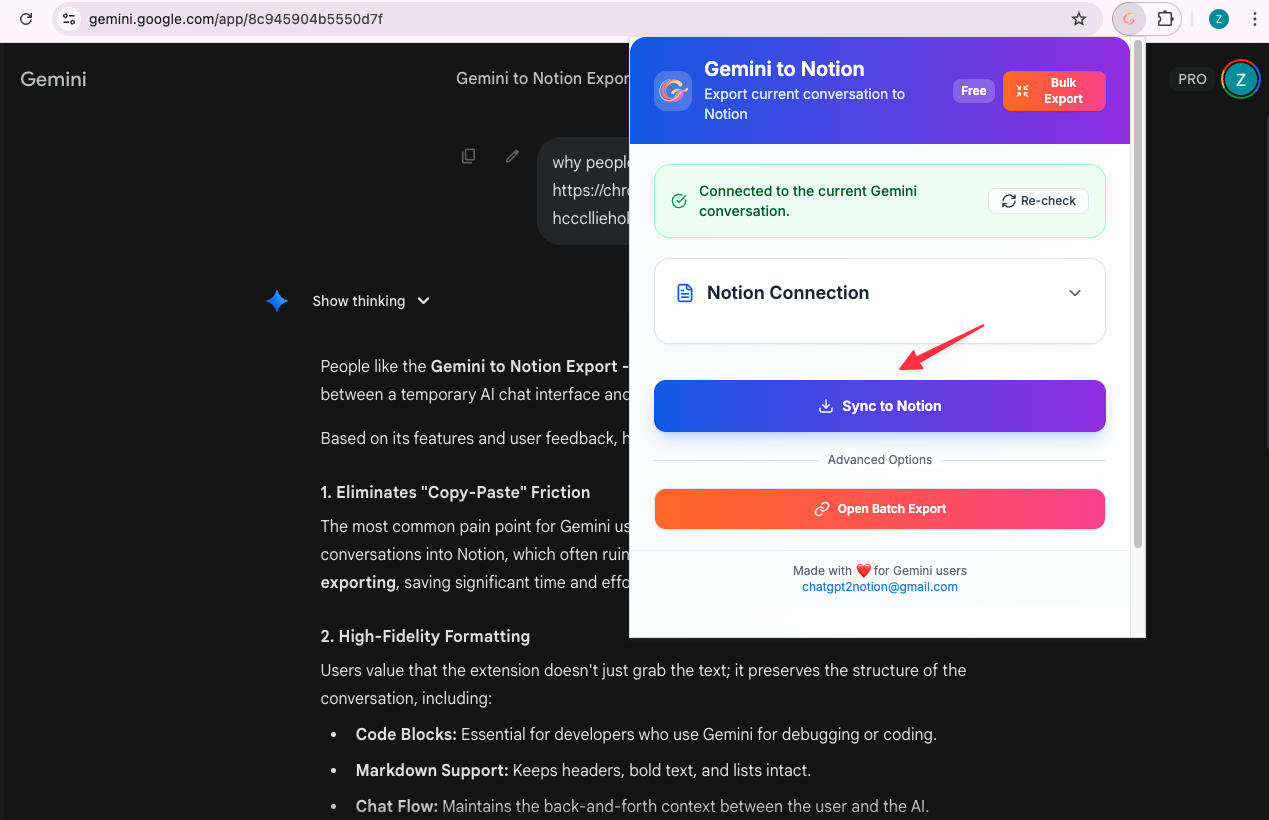
Just need to save the current chat? We do that too—instantly, with a single click from the popup.
View detailed logs of all your export operations. Track what was exported, when, and to which database.
Once synced to Notion, easily download your chats as PDF, HTML, or Markdown files for offline storage.
Your data flows directly from your browser to Notion. No middleman servers. All cache stored locally.
Gemini export chooser
Choose the best Gemini export format for your workflow.
Use Gemini to Obsidian / Markdown if you want a local knowledge base, clean Markdown files, image export, and long-term note management.
Use Gemini to PDF if you want printable, shareable, and archive-ready Gemini conversations with images and formatting preserved.
Use Gemini to Notion if you want to organize Gemini conversations inside a searchable Notion database for projects, teams, or research.
Note: Image export is not supported in Gemini to Notion. Use Obsidian / Markdown or PDF if you need images.
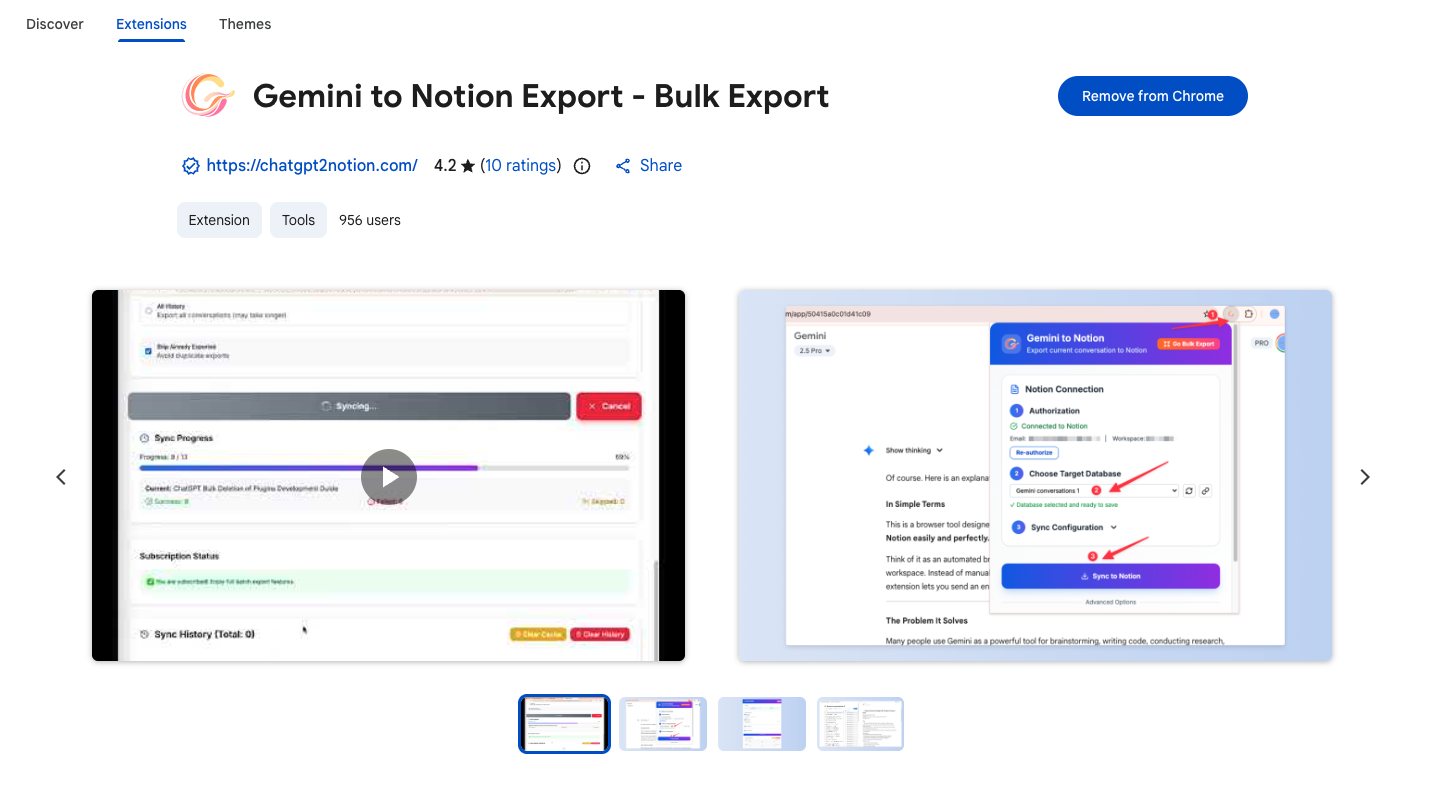
Real workflows, backed up to Notion.
"Batch export keeps all my Gemini research conversations backed up in Notion. Searchable and organized without any manual work."
"The sync configuration is perfect. I can overwrite existing pages when iterating on prompts, or create new ones for different experiments."
"Code blocks and formatting export cleanly to Notion. One click and my Gemini brainstorming sessions are ready to share."
"I export study sessions to Notion and use the export history to track what I've saved. Makes organizing my AI learning super easy."
"Real-time progress tracking during batch export is great. I can see exactly what's being saved and catch any issues immediately."
"Exporting to Notion gives me a durable archive I can tag, search, and download later. Perfect for client work documentation."
🚀 NEW: Initial release with one-click export, batch export, and smart sync configuration.
✨ Added: Export history tracking and real-time progress monitoring.
🐛 Fixed: Improved Notion API stability and error handling.
Have another question? Contact us on Discord or by email.
Use our Batch Export feature. It allows you to archive all your Gemini conversations to Notion in minutes. This creates a complete backup of your Gemini history that you can search and organize.
Yes. Our extension exports the chat to Notion first. From there, you can use Notion's built-in feature to download the page as a clean, formatted PDF or Markdown file for offline storage.
Our extension connects to both Gemini and Notion through secure authentication. When you export a chat, the extension captures the content from gemini.google.com and saves it to your selected Notion database.
Yes. Click the extension icon while on a Gemini chat page and use the popup to export the current conversation instantly to Notion.
Yes. Use the batch export feature in the options page to export all your Gemini conversations at once. Free users can export up to 5 conversations; subscribe for unlimited exports.
Currently, Gemini to Notion focuses on structured Notion database export and does not export images. If you need to save Gemini conversations with images, please use Gemini to Obsidian / Markdown or Gemini to PDF.
You have three options: skip (don't export if page exists), overwrite (update existing page with latest content), or always insert new (create a new page every time).
You can configure this behavior in settings. Choose to skip (leave unchanged), overwrite (replace with latest), or duplicate (create new entry).
We take security seriously. The extension uses OAuth2 authentication to securely connect to your Notion account, and we never store your conversation data on our servers. All data transfers happen directly between Gemini and your Notion account.
All export records and cache are stored locally in your browser using Chrome Storage API. This data will be lost if you clear your browser cache.
Free users can batch export up to 5 conversations. Subscribe to unlock unlimited batch exports and advanced features.
Batch export 100+ chats, Auto-Sync, and priority support with Universal Pass.
Get Universal PassIndependent tool notice
Built for exporting from Google Gemini. This project is independent and is not affiliated with Google LLC.