
AI Chat Exporter for ChatGPT, Claude, Gemini & Perplexity
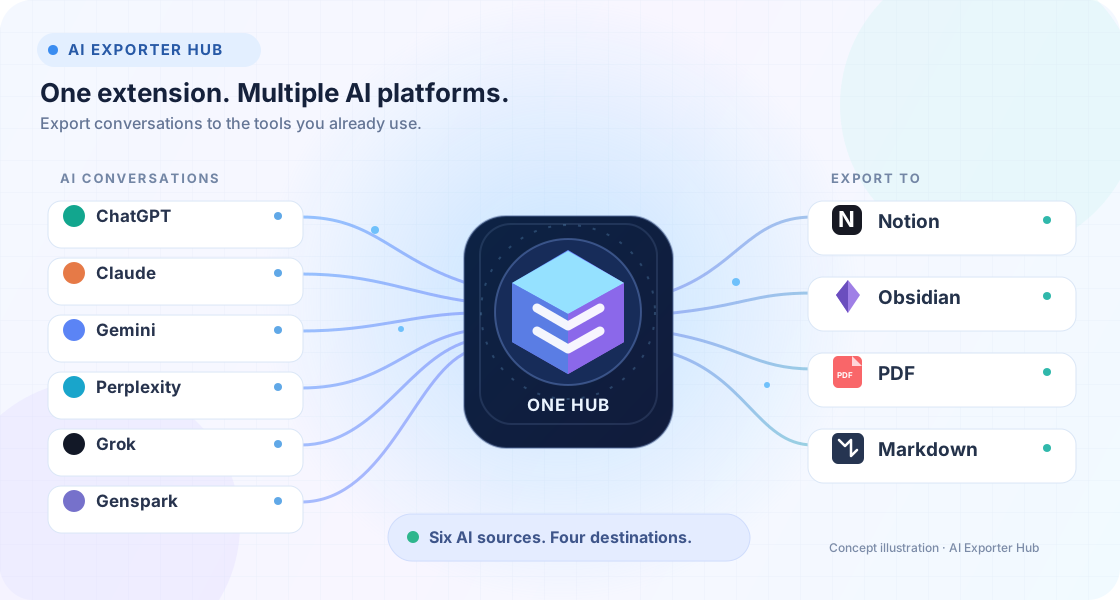
Export and back up conversations from ChatGPT, Claude, Gemini, Perplexity, Grok and Genspark to Notion, Obsidian, PDF and Markdown. Use one extension for your main AI workflows, or choose a dedicated exporter.
- 41+
- AI export tools
- 95,900+
- Chrome users
- 1M+
- Chats exported
FEATURED ALL-IN-ONE EXTENSION
AI Exporter Hub — One Extension for Your AI Chats
Save conversations and supported Projects, Gems and collections across ChatGPT, Claude, Gemini, Perplexity, Grok and Genspark. Keep your AI knowledge organized in Notion, Obsidian, PDF or Markdown.
- One extension
- Bulk & selective export
- Four export destinations
Prefer a dedicated exporter?
Pick a tool built around the AI platform you use most. Each platform hub helps you find the right destination and export workflow.
POPULAR SPECIALIZED TOOLS
Popular dedicated export extensions
Only need a specific platform and destination? Start with these focused exporters, or explore the complete product catalog.

ChatGPT to Notion
Backup, export, and download your ChatGPT history to Notion. The ultimate Chrome and Firefox browser extension to bulk export your entire library—including Group Chats, Projects, and Deep Research—in a single click.
ChatGPT to PDF
Export and download ChatGPT conversations as readable PDF documents with a Chrome extension. Save the current chat or use supported batch workflows for chat history, Projects, Group Chats, and Deep Research.

Export Gemini to PDF
Export current chats, selected messages, full history, or Gem conversations from Google Gemini into clean PDFs with Custom Preview, flexible naming, and local-only processing.

Perplexity to Notion
Export Perplexity to Notion in one click or in bulk. Save searches, Spaces, Computer Tasks, sources, and related questions in a searchable Notion database.
Claude to PDF
Turn Claude conversations into polished PDF archives—export the active chat, every open Claude tab, selected history, complete history, or conversations from Claude Projects.

Grok to Notion — Export & Backup Grok Chats
Export the current Grok chat, select messages, back up history, or export Project conversations to Notion with supported images, files, timestamps, and formatting.
Why the hub matters
AI work is no longer one app and one database.
People now research in Perplexity, write in Claude, brainstorm in ChatGPT, generate with Sora, and archive into different systems. The homepage makes that ecosystem obvious immediately.
One Hub, Many Workflows
Pick the exact exporter for your AI platform and destination instead of forcing every team into one rigid workflow.
Bulk Backup by Default
Batch export historical conversations, research threads, artifacts, prompts, and generated content before they disappear.
Formatting That Survives
Preserve Markdown, code blocks, tables, images, sources, LaTeX, and metadata for searchable long-term knowledge bases.
Local-First Privacy
Most exports are processed in your browser, with privacy-conscious flows designed for personal and professional archives.
FAQ
Frequently Asked Questions
Everything users need before exporting, syncing, troubleshooting, or choosing a plan.
What is AI Exporter Hub?
AI Exporter Hub is our all-in-one browser extension for exporting supported AI conversations to Notion, Markdown, Obsidian, and PDF. We also offer dedicated extensions for individual platforms and destinations.
Which AI platforms do you support?
We currently support popular AI platforms including ChatGPT, TypingMind, Claude, Google Gemini, DeepSeek, Grok, Perplexity, Sora, and Genspark. With our Universal Pass, you get access to all these extensions. If you need support for another platform, email [email protected].
Is it free to use?
Yes, we offer a Free Starter plan for casual users. You can export single conversations and use basic features for free forever. For power users who need Batch Export, Auto-Sync, Group Chats Support, and unlimited backups across all platforms, we recommend upgrading to our Single Pro or Universal Pass plans.
Can I batch export all my historical conversations at once?
Supported tools can export chats in batches, helping you back up larger histories without manually saving each conversation. The available modes and limits depend on your platform, browser, and extension.
Can I export chats as PDF or Markdown?
Absolutely. We support multiple export formats to fit your workflow. You can sync directly to apps like Notion and Obsidian, or download chats as PDF, Markdown, HTML, TXT, and JSON files. Our PDF exports are clean and well-formatted, perfect for archiving or sharing reports.
Do you preserve formatting (Images, Code, LaTeX)?
Supported formatting depends on the source platform and destination. Our exporters aim to preserve readable headings, code, tables, images, and other supported content, but some elements may need review after export.
How does the Notion sync work?
It's seamless. Once you link your Notion account, you can save any AI conversation to your chosen Notion database with one click. We handle all the property mapping (URL, Create Time, Tags) automatically. You can also use our Auto-Sync feature to backup new conversations in the background without lifting a finger.
How do I authorize Notion access?
Authorize Notion access from the extension, then choose either the recommended auto-clone template flow or a manually cloned Notion template. The setup guide walks you through both options.
See authorization guideIs my data private and secure?
Processing varies by extension and export destination. AI Exporter Hub creates Markdown and PDF files in your browser; sending content to Notion uses the workspace you explicitly authorize. Review the relevant product documentation before exporting sensitive information.
Can I export only part of a conversation?
Yes. You don't have to save the entire thread. We offer Selective Export, which allows you to select specific Q&A pairs or individual messages using checkboxes. This is perfect for saving just the key code snippets or insights without the clutter.
Why does Chrome ask where to save every downloaded file?
Chrome's download setting may be asking for a save location before each file. Turn off "Ask where to save each file before downloading" in Chrome download settings so batch exports can save automatically.
See download prompt setupWhy are my files saved to the Downloads root folder or renamed to a UUID?
This is usually caused by another browser extension intercepting downloads, such as Image Downloader. Disable other download-related extensions temporarily, then export again.
See troubleshooting guideHow do I fix rate limit or 429 errors during export?
429 errors happen when too many requests are sent in a short time during batch export. Increase the request delay settings, wait a few minutes before retrying, and export in smaller batches if needed.
See full guideHow do I activate my ChatGPT to Obsidian subscription?
Open the extension, enter the email you used for purchase, and activate your subscription from the extension UI. If activation does not work immediately, verify the email and try again.
See activation guideHow do I cancel my subscription?
You can cancel your subscription from the billing portal linked in your purchase email or follow the cancellation guide in our docs.
See cancellation stepsWhy do I need to refresh the page before exporting or syncing?
Refreshing ensures the content script is attached to the latest page state and the extension can read the conversation correctly. If export or sync buttons do not work, refresh the page and try again.
Learn moreBuild your AI archive
Choose how you want to save your AI conversations.
Try AI Exporter Hub for multi-platform exports, or browse dedicated exporters for a specific source and destination.