
Rate Limiting & 429 Error Handling
Understand ChatGPT rate limits, configure request-delay controls, and safely resume a ChatGPT to Obsidian batch export after a 429 error
This document explains what rate limiting is, why 429 errors occur, and how to configure the extension to avoid them during batch exports.
What is Rate Limiting?
Rate limiting is a mechanism used by APIs (like ChatGPT’s API) to prevent too many requests from being sent in a short period of time.
When you export chats in bulk, the extension makes multiple API requests to fetch conversation data. If these requests are sent too quickly, ChatGPT’s server may respond with a 429 error (Too Many Requests), temporarily blocking further requests.
Why Does This Happen?
Common Scenarios
- Large batch exports: Exporting 50+ conversations at once
- Fast consecutive exports: Running multiple exports back-to-back without waiting
- Network conditions: Unstable connections may trigger retries, increasing request frequency
- ChatGPT server load: During peak hours, rate limits may be stricter
What Happens When You Hit 429?
When a 429 error is detected:
- ✅ The sync stops immediately to prevent further blocking
- ✅ Already exported chats are saved successfully
- ⚠️ A warning message appears: “Rate limit (429) detected. Sync stopped.”
How to Avoid 429 Errors
The extension includes a Request Delay feature that adds a random pause between API requests, reducing the chance of hitting rate limits.
Configuration Location
Open Bulk Download, select Chat Pages, Selective Export, GPT Projects, Group Chats, or Archived Chats, then find Request Delay (Rate Limiting) under More Configuration.
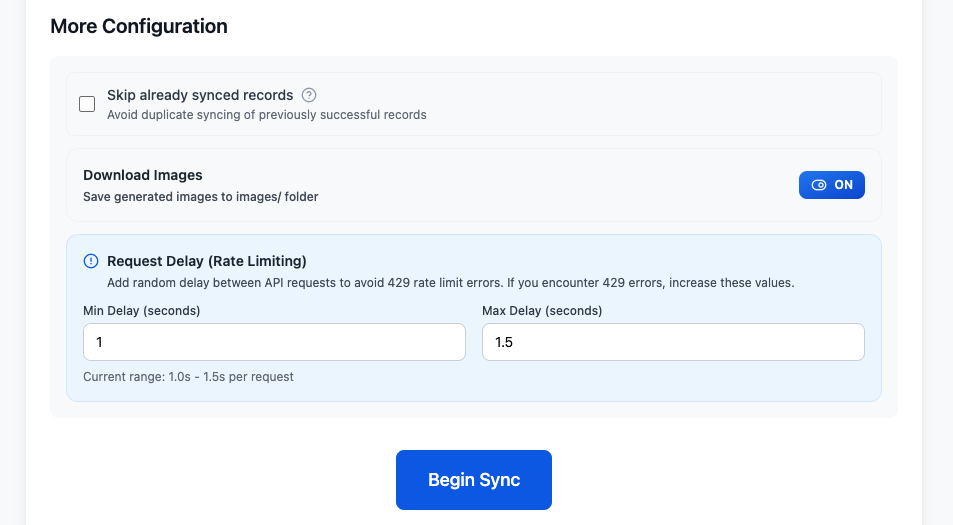
Request Delay Settings
Default Values
- Min Delay: 1.0 seconds
- Max Delay: 1.5 seconds
The extension will wait a random time between 1.0s and 1.5s after each API request.
When to Adjust
| Situation | Recommended Settings |
|---|---|
| Normal use (< 50 chats) | Min: 1.0s, Max: 1.5s (default) |
| Large exports (50-100 chats) | Min: 1.5s, Max: 2.5s |
| Very large exports (100+ chats) | Min: 2.0s, Max: 3.5s |
| Already hit 429 error | Min: 2.5s, Max: 4.0s |
💡 Tip: Higher delays = slower export but more stable. Lower delays = faster but higher risk of 429 errors.
What to Do If You Get a 429 Error
Step 1: Wait Before Retrying
After hitting a 429 error, wait at least 5-10 minutes before trying again. This allows ChatGPT’s rate limit to reset.
Step 2: Increase Delay Settings
Before retrying:
- Open Options Page → More Configuration
- Increase Min Delay to 2.0s or higher
- Increase Max Delay to 3.5s or higher
- Click Begin Sync again
Step 3: Enable “Skip Already Exported”
To avoid re-exporting chats that were already saved:
- Check “Skip already synced records” in More Configuration
- This ensures only new chats are exported, reducing total requests
Step 4: Export in Smaller Batches
Instead of exporting all chats at once:
- Export the latest page only, then continue with smaller batches after waiting
- Use Selective Export to choose only the conversations you need
- Wait a few minutes between batches
- Gradually export all conversations
How the Extension Handles 429 Errors
Automatic Detection
The extension monitors all API responses. When a 429 error is detected:
- ✅ Sync stops immediately
- ✅ Already processed chats are saved
- ✅ Failed chats are recorded in the failed list
- ⚠️ A clear warning message is displayed
The warning appears in the active bulk-sync result area as Rate limit (429) detected. Sync stopped. The current run stops, while completed downloads and local history remain available. Do not repeatedly trigger the limit to test this state.
What Gets Saved?
- Successfully exported chats: Saved to Obsidian as Markdown files
- Failed chats: Listed in the Failed Records section for retry later
- Export history: Recorded in Sync History with status details
Understanding the Configuration UI
Request Delay Section
┌─────────────────────────────────────────────┐
│ Request Delay (Rate Limiting)               │
│                                             │
│ Add random delay between API requests to    │
│ avoid 429 rate limit errors. If you         │
│ encounter 429 errors, increase these values.│
│                                             │
│ Min Delay (seconds)    Max Delay (seconds)  │
│ [  1.0  ]              [  1.5  ]            │
│                                             │
│ Current range: 1.0s - 1.5s per request      │
└─────────────────────────────────────────────┘
How It Works
For each conversation export:
- Fetch conversation data from ChatGPT API
- Save to Markdown file
- Wait random time (between Min and Max delay)
- Proceed to next conversation
This prevents requests from being sent too quickly.
Best Practices
✅ Recommended Workflow
- First-time export: Use default settings (1.0s - 1.5s)
- Enable “Skip Already Exported”: Avoid duplicate exports
- Monitor progress: Watch for 429 warnings
- If 429 occurs: Wait 5-10 minutes, increase delays, retry
✅ For Large Exports (100+ chats)
- Set Min Delay: 2.0s, Max Delay: 3.5s
- Export during off-peak hours (late night or early morning)
- Split into smaller batches if needed
❌ What NOT to Do
- ❌ Don’t run multiple exports simultaneously
- ❌ Don’t retry immediately after 429 error
- ❌ Don’t set delays too low (< 0.5s) for large exports
- ❌ Don’t clear browser cache (loses export history)
Troubleshooting
”I keep getting 429 errors even with high delays”
Possible causes:
- ChatGPT server is under heavy load
- Your account has stricter rate limits
- Network issues causing request retries
Solutions:
- Wait longer between export attempts (15-30 minutes)
- Export during off-peak hours
- Contact support if issue persists
”Export is too slow with high delays”
This is expected behavior. Higher delays = more stable but slower exports.
Options:
- Accept slower speed for stability
- Export in smaller batches with lower delays
- Export during times when you don’t need immediate results
”Some chats failed but others succeeded”
This is normal. The extension saves what it can before stopping.
Next steps:
- Check Failed Records section to see which chats failed
- Wait 5-10 minutes
- Increase delay settings
- Enable “Skip Already Exported”
- Retry export
Technical Details
Why Random Delays?
Using a random delay (instead of fixed delay) helps avoid synchronized request patterns that might trigger rate limits more easily.
Example:
- Fixed 1.5s delay: Requests at 0s, 1.5s, 3.0s, 4.5s… (predictable pattern)
- Random 1.0-1.5s delay: Requests at 0s, 1.2s, 2.6s, 4.3s… (irregular pattern)
Where Delays Are Applied
Delays are added in the conversation-based bulk workflows:
- Regular conversation exports (pages mode)
- Selective conversation exports
- Project conversation exports
- Group chat exports
- Archived Chat exports
Library Files and ChatGPT Images use their own paginated load/download workflow and are not configured through these Min/Max fields.
Each export type respects the configured delay settings.
Still Having Issues?
If you continue experiencing 429 errors after:
- Increasing delay settings
- Waiting between retries
- Exporting in smaller batches
Please contact support with:
- Your delay settings
- Number of chats being exported
- Time of day when error occurred
- Screenshot of error message
We’re happy to help troubleshoot further.
Summary
| Action | Purpose |
|---|---|
| Configure delays | Prevent 429 errors by spacing out requests |
| Increase delays if 429 occurs | Give ChatGPT server more breathing room |
| Enable “Skip Already Exported” | Avoid re-exporting and reduce total requests |
| Wait before retrying | Allow rate limit to reset |
| Export in batches | Reduce load on ChatGPT API |
By properly configuring request delays, you can export large numbers of conversations reliably without hitting rate limits.
Ready to try Chatgpt To Obsidian?
Open the product page for feature details, screenshots, pricing, and the Chrome Web Store install link.