
Installation
Install ChatGPT to Obsidian v8.4, pin it to Chrome, refresh ChatGPT, and configure a valid download folder
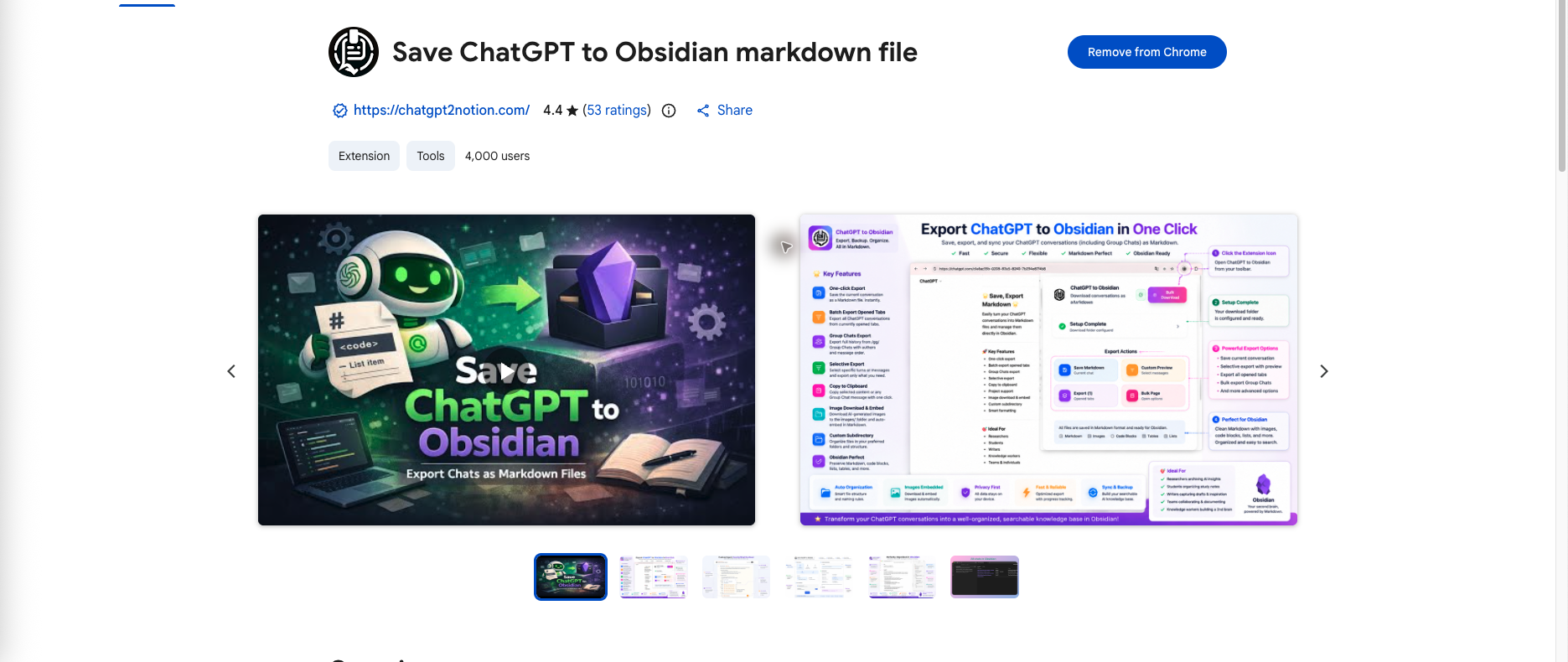
Install from the Chrome Web Store
- Open ChatGPT to Obsidian in the Chrome Web Store.
- Click Add to Chrome.
- Review the permissions and confirm the installation.
Pin the Extension
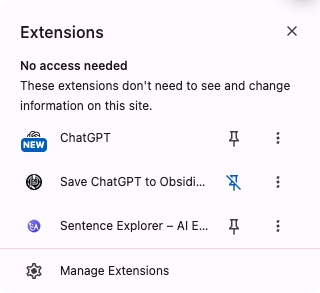
- Click Chrome’s Extensions puzzle icon.
- Find ChatGPT to Obsidian.
- Click the pin icon.
Refresh ChatGPT
If a ChatGPT tab was already open during installation, refresh it before using the extension. Chrome injects the extension’s page controls when the tab loads.
The popup distinguishes three states:
- Connected to ChatGPT
- ChatGPT is open but needs to be refreshed
- No ChatGPT tab is open
If the popup cannot connect:
- Open
https://chatgpt.com/. - Refresh the page.
- Wait a few seconds.
- Reopen the extension popup.
Configure the Download Folder
- Open a ChatGPT conversation.
- Click the extension icon.
- Expand Setup Required if necessary.
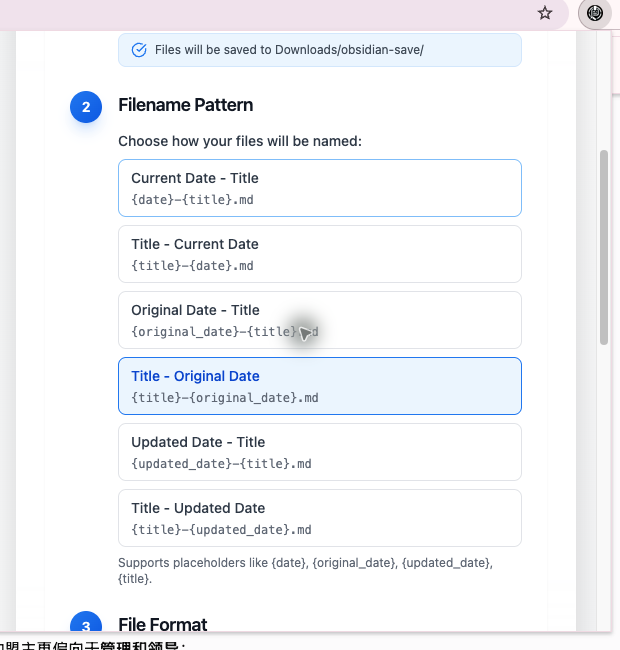
- Enter a relative folder such as
obsidianorobsidian/chatgpt.
The preview beneath the field shows the resulting location, for example:
Downloads/obsidian/chatgpt/
Valid Folder Rules
The folder must:
- Be relative to Chrome’s Downloads directory
- Use forward slashes (
/) - Avoid empty path segments and
.. - Use letters, numbers, spaces,
-,_,., and/
The popup rejects:
/Users/name/VaultC:\Vaultobsidian//chatgpt../Vault
Choose a Filename Pattern
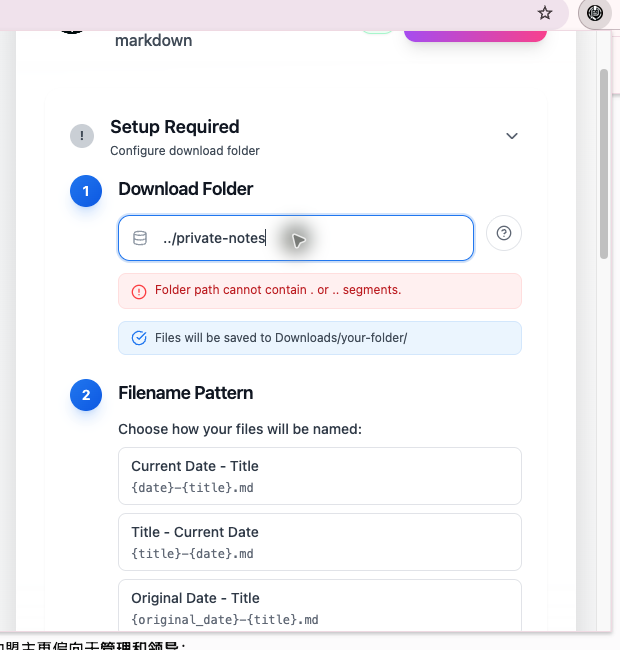
Choose one of the six available patterns. The default is:
{date}-{title}.md
You can instead place the title first or use the conversation’s original or updated date.
Choose Whether to Download Images
Download Images is on by default. When enabled, generated images are saved under:
Downloads/{your-folder}/images/
Turn it off if you only need Markdown text.
Choose Whether to Download Files
Download Files is off by default. Turn it on when you want non-image files uploaded by the user or generated by ChatGPT to be saved under:
Downloads/{your-folder}/files/
The extension writes local file links into supported current-chat and conversation-based bulk exports. Images remain controlled by Download Images. Files from the dedicated ChatGPT Library page are configured separately in the Library Files Bulk Download mode.
Verify the Setup
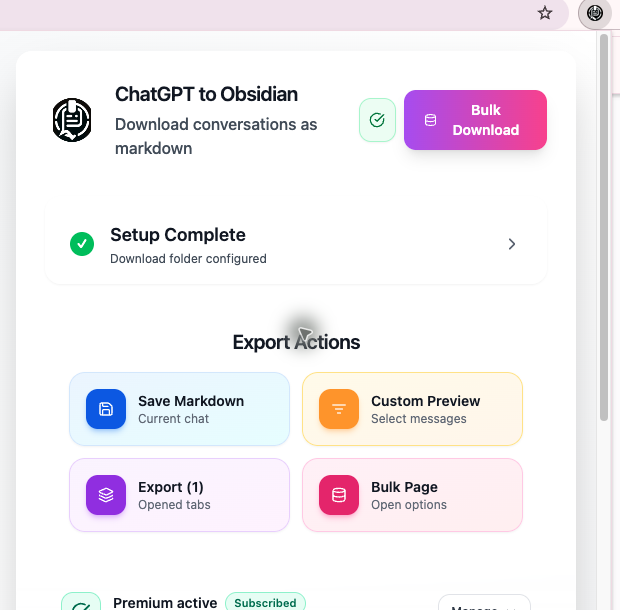
When the folder is valid, the popup changes to Setup Complete and collapses the setup section. The Save Markdown action is then available.
Next Steps
Ready to try Chatgpt To Obsidian?
Open the product page for feature details, screenshots, pricing, and the Chrome Web Store install link.