
Overview & Getting Started
Use ChatGPT to Obsidian v8.4 to export conversations, LaTeX and math expressions, selected messages, attachments, Projects, Group Chats, Library files, Images, and Archived Chats
ChatGPT to Obsidian 8.4.0 saves ChatGPT content as local Markdown files and downloadable assets. It supports individual conversations, LaTeX and mathematical expressions, selected Q&A turns, Custom Preview, opened tabs, full-history and selective bulk exports, Projects, Group Chats, Archived Chats, ChatGPT Library files, and ChatGPT Images.
What the Extension Exports
Conversations as Obsidian-ready Markdown
Regular conversations, Project conversations, Group Chats, and Archived Chats are saved as .md files. Exported notes use headings such as ## You and ## ChatGPT, preserve message order, and include message timestamps and block IDs when the source provides them.
LaTeX and Mathematical Expressions
ChatGPT to Obsidian preserves common LaTeX commands and mathematical expressions so technical conversations remain usable after export.
ChatGPT inline math written as \( ... \) is exported as $ ... $, while display math written as \[ ... \] is exported as $$ ... $$. These delimiters work with Obsidian’s built-in math rendering when you open the downloaded Markdown note.
The export preserves common technical notation including:
- Greek symbols such as
\alpha,\beta,\theta,\rho,\lambda, and\nu - fractions such as
\frac{a}{b} - gradients such as
\nabla_{\theta}L(\theta) - vectors and matrices using
\mathbf,\top, andbmatrix - multiline and aligned equations
Math normalization is kept separate from code content. Literal backslashes used in code blocks, regular expressions, escape sequences such as \n and \t, and Windows-style paths are preserved instead of being treated as mathematical syntax.
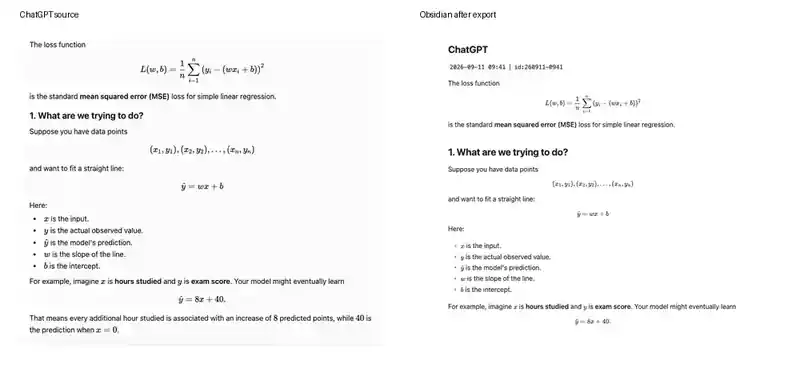
Note: Custom Preview is primarily for selecting export content and may show raw Markdown math delimiters. The final math rendering is expected after opening the downloaded
.mdfile in Obsidian.
YAML Properties
Every conversation export includes YAML frontmatter for Obsidian search, Bases, and Dataview. Current fields include:
titledateoriginalDateupdatedDateplatformsourceUrlsourceIdmessageCounttagsurlprojectName
Project, Group Chat, Archived, and selective exports add relevant tags or project metadata when available.
Images, Attachments, and Artifacts
Download Images is on by default. When enabled, ChatGPT-generated images are saved under an images/ subfolder and local image references are written into the Markdown.
Download Files is off by default. When enabled for the current-chat or conversation-based bulk workflows, non-image files uploaded by the user or generated by ChatGPT are saved under a files/ subfolder and their Markdown references are rewritten to the downloaded filenames. Library Files remain a separate Bulk Download mode.
Text documents, canvas-style documents, code artifacts, and Deep Research reports are included when the ChatGPT response exposes them.
Library Files and ChatGPT Images
The Bulk Download page has dedicated modes for:
- ChatGPT Library files from
https://chatgpt.com/library - Generated images from
https://chatgpt.com/images/
These modes can load one page, load additional pages, or load all pages; filter items; select specific files; skip previously downloaded IDs; and download individual files or a ZIP archive. They can also create a Markdown summary and HTML index.
Export Methods
Save the Current Chat
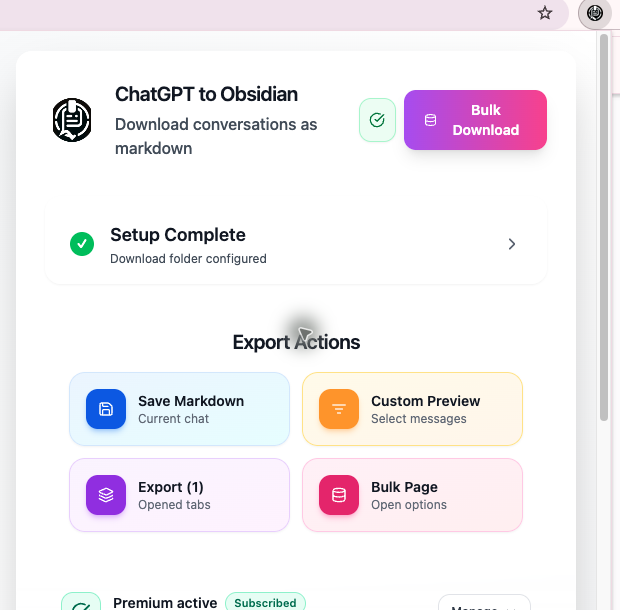
Open a specific ChatGPT conversation, open the extension popup, and choose Save Markdown.
Use Custom Preview
Choose Custom Preview to open a local preview page. You can select or clear individual messages, keep only prompts or responses, show or hide chat time, and save the selected content as Markdown.
Export Opened Tabs
The popup detects unique ChatGPT conversation tabs in the current Chrome window. Export (N) downloads those conversations one by one and shows progress as current/total.
Select Messages on ChatGPT
The extension adds a checkbox and copy action beside supported ChatGPT messages. Selecting items opens a floating action bar with:
- Copy Selected
- Export Selected
The same workflow is available for supported Group Chat messages.
Select Conversations for a Bulk Export
Choose Selective Export on the Bulk Download page when you want complete Markdown files for specific conversations rather than individual turns. Load one or more history pages, search the loaded titles, select the conversations you need, and start the export. Conversations found in local success history are marked Exported to help avoid accidental duplicates.
Use the Bulk Download Page
The full-page workspace supports seven content modes:
- Chat Pages
- Selective Export
- GPT Projects
- Group Chats
- Library Files
- Images
- Archived Chats
It also provides duplicate skipping, image and file-download controls, request delays, progress, results, Sync History, Failed Records, and Success Records.
Local File Locations
The Download Folder setting is a path relative to Chrome’s default Downloads directory.
Examples:
obsidian→Downloads/obsidian/obsidian/chatgpt→Downloads/obsidian/chatgpt/
Do not enter an absolute path such as /Users/name/Vault or C:\Vault. Use forward slashes only. The extension validates the folder before enabling export actions.
Filename Patterns
Six filename patterns are available:
- Current Date - Title
- Title - Current Date
- Original Date - Title
- Title - Original Date
- Updated Date - Title
- Title - Updated Date
The underlying placeholders are {date}, {original_date}, {updated_date}, and {title}.
Free and Premium Access
The current code applies separate limits:
- Popup current-chat, Custom Preview, opened-tabs, Chat Pages, Selective Export, Projects, and Archived Chat workflows share a 5-item daily allowance for free users
- Group Chat bulk export: up to 2 Group Chats per day for free users
- Library Files: up to 10 successful unique files for free users
- ChatGPT Images: up to 10 successful unique images for free users
Inline copy and inline selective export do not use that daily counter in the current implementation. Premium access removes the limits from the gated workflows. You can verify an existing purchase by email or sign in with an AIExportHub account so the extension can check account access automatically.
Privacy
Conversation Markdown and downloaded assets are written through Chrome’s download system to your local machine. Export history, successful IDs, failed records, settings, and duplicate-detection data are stored in the browser extension’s local or sync storage.
The extension still sends requests to ChatGPT to retrieve conversation or asset data and contacts the subscription service when verifying access.
Requirements
- Google Chrome or a compatible Chromium browser
- An active ChatGPT session
- At least one open
https://chatgpt.com/tab - A valid relative Download Folder
- A refreshed ChatGPT tab after installation or extension updates
Next Steps
Ready to try Chatgpt To Obsidian?
Open the product page for feature details, screenshots, pricing, and the Chrome Web Store install link.