
How to Export Claude to Notion (4 Methods, 5 Extensions)
Claude has no built-in button that sends a conversation to Notion. That is the whole reason this article exists: there are four workable routes, and they produce very different results.
The short version: for anything beyond a one-off, use an extension. For a single conversation you want to keep, Markdown plus Notion’s importer is free and good enough. Asking Claude to rewrite the chat as a Notion document works but costs tokens and loses fidelity. Claude’s official data export is a compliance backup, not a readable archive.
Disclosure: we build Save Claude AI to Notion, one of the five extensions compared below. It is not first on every line, and its limitations are listed alongside everyone else’s. All user counts, ratings, free limits and prices were read from the Chrome Web Store listings and developer pricing pages on October 30, 2026.
Quick answer: four ways to get Claude into Notion
| Method | Best for | Effort | Keeps Artifacts? | Bulk? |
|---|---|---|---|---|
| 1. Claude to Notion extension | Regular use, whole history | Low | Usually | Yes |
| 2. Markdown, then Notion import | One chat, zero budget | Medium | What you saved | Manual |
| 3. Ask Claude to produce a Notion-ready doc | Rewriting one chat | Low | No | No |
| 4. Claude’s official data export | Account backup | High | Raw data only | Yes, raw |
Method 1 — Use a Claude to Notion extension
This is the only route that scales. The extension reads the conversation from the page you are already looking at and writes it into your own Notion workspace.
The steps:
- Install the extension and open claude.ai.
- Open the conversation you want to save.
- Trigger the export and choose Notion as the destination.
- Authorise Notion and pick the target database.
- Review the preview and deselect any messages you do not want saved.
- Confirm, then open the page in Notion and check it.
Step 5 is the one that separates good tools from basic ones. A tool that exports everything, including your false starts and the three attempts before the answer that worked, produces a page you will never read again.
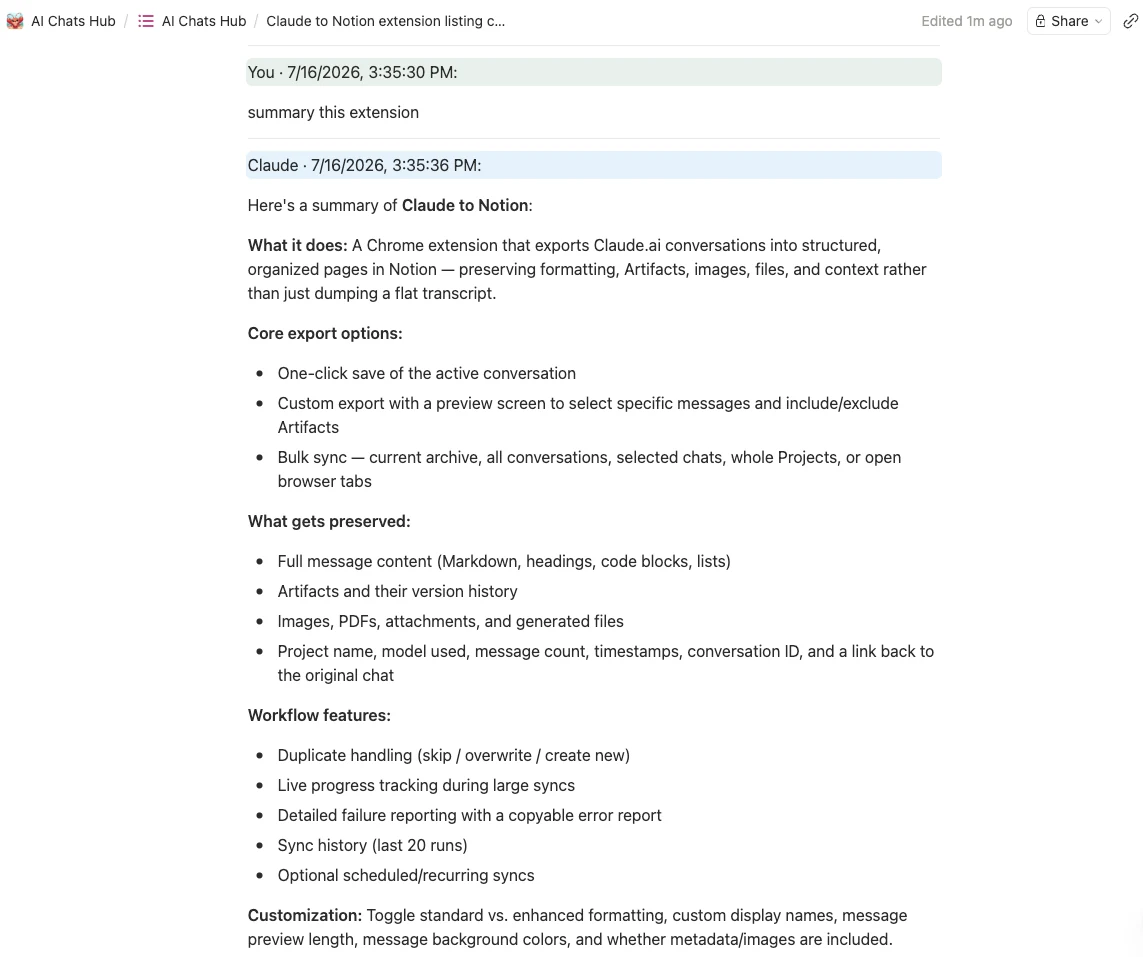
What to check before committing your history: whether Artifacts come across as content or as a link, whether the Project name and instructions are preserved, and what happens when you export the same conversation twice.
Method 2 — Export Markdown, then import into Notion
Free, portable, and better than most people expect for plain text.
The steps:
- Get the conversation as Markdown — either from a Markdown-capable exporter or by copying and saving it as a
.mdfile. - In Notion, open Settings → Import → Markdown & CSV.
- Select the file and let Notion create the page.
- Fix what the importer flattened.
What survives: headings, paragraphs, lists, fenced code blocks and most tables. What usually does not: images (Claude hosts them remotely, and the import creates broken references), Artifact contents, and any structure above a single page.
The real limitation is scale. Notion imports one file at a time, so a hundred conversations means a hundred imports. If you only need to keep a handful of important chats, this is a perfectly good method and costs nothing. If you want your history, it is not.
For a local-first version of the same idea, see exporting Claude Artifacts to Notion or Obsidian and Claude to Obsidian, which writes Markdown files you own outright.
Method 3 — Ask Claude to produce a Notion-ready document
No tools, no install, no cost beyond the tokens.
Ask for it explicitly, because the default answer will be prose:
Rewrite this entire conversation as a single document for Notion. Use one H1 title, one H2 per topic in the order we discussed them, keep every code block fenced with its language, convert any table to a Markdown table, and end with a “Sources” section listing every link we used. Do not summarise — preserve the actual content.
Then copy the result into Notion.
The catch: you are asking the model to reproduce its own output. In a long conversation it will silently compress sections, and you will not notice which parts went missing because the result reads perfectly well. It is fine for a short chat you want tidied up. It is a bad way to archive something you might need to quote later.
Method 4 — Claude’s official data export
Settings → Privacy → Export data produces an account-level archive, delivered by email.
This is the most complete record of your account and the right thing to run before deleting anything. It is also not an archive you can read: you get JSON and HTML, with conversations as data structures rather than documents. Turning that into Notion pages is a conversion project.
Use it as the safety net behind whatever else you do, not as the thing you work in. We covered what it does and does not protect in how to back up Claude chats, projects and Artifacts.
Claude to Notion extensions compared
| Extension | Users | Rating | Free tier | Paid | Notes |
|---|---|---|---|---|---|
| Save Claude AI to Notion | 7709 | 4.7 (14) | 5 saves, lifetime | $4.90/mo | Artifacts + versions, Projects |
| Claude Exporter (Backrun) | 6,000 | 4.3 (38) | 5 full + 7 single/mo | $8/mo | Also PDF, Word, Docs |
| Pactify | 393 | 5.0 (5) | 30 synced/mo | $4.90/mo | Six platforms |
| Export ChatGPT, Gemini & Claude | 990 | 4.5 (17) | Free in full | Free | Also Docs, Obsidian |
| XWX AI Chat Exporter | 1,000 | 4.6 (36) | Check listing | Check listing | Five output formats |
Where a listing does not state a figure, the table says check listing. We would rather show a gap than invent a number.
Save Claude AI to Notion
Best for: people who want Projects, Artifacts and their whole history in one Notion database, with control over what happens on re-export.
- One-click export of a single conversation, or a preview step where you pick exactly which messages to keep.
- Bulk export across your whole history, a hand-picked set, entire Projects, or every open tab.
- Artifacts are saved with their version history, plus images, PDFs and attachments, and metadata including Project, model, timestamp and source URL.
- On a re-export you choose to skip existing pages, overwrite them, or create a new one — and there is a sync history if you want scheduled re-syncs.
Limitations
- Notion only. If you need local Markdown or a fixed document, this is not the tool for that — the same team ships Claude to Obsidian for Markdown and Claude to PDF for PDF. If you would rather have one extension covering several destinations, AI Exporter Hub is the combined product. Still a limitation: no Word or Google Docs output, and Backrun’s exporter covers more formats than any of ours.
- Five free saves is a trial, not a tier. It is enough to judge the output, and it is not enough to archive a year of work. We would rather say that plainly than dress it up as generous.
Claude Exporter (Backrun)
Best for: people who need Word or Google Docs alongside Notion, or who want to choose which messages get exported.
- Four destinations from one tool: PDF, Word, Google Docs and Notion.
- Per-message selection rather than all-or-nothing.
- The largest install base on this list, which means the most public reports when something breaks.
Limitations
- Its help page says Notion export is included in paid plans, while the pricing page describes the free tier as covering all formats. We are not going to resolve that for the developer — check the current listing before planning around the free tier.
- The target Notion database must have a title field. A small requirement that people usually discover after the export appears to fail.
Pactify
Best for: a continuously updated archive across several AI platforms rather than a one-shot export.
- Six platforms under one roof, the widest coverage here.
- Specific free tier: 30 newly synced conversations per month, unlimited Markdown and PDF, 100 Notion, Word or Google Docs exports per month.
- Starter plan at an early-bird $4.90 per month.
Limitations
- Sync is not the same as exporting this specific old conversation right now. If your need is immediate and one-off, a direct exporter is simpler.
- Small install base, so fewer people have already hit the edge cases for you.
Export ChatGPT, Gemini & Claude (Daniel Li)
Best for: zero budget, especially if you work across more than one AI platform.
- Covers Claude, ChatGPT and Gemini.
- Three destinations: Google Docs, Notion and Obsidian.
- Handles mathematical formulas and code, which many free tools flatten.
Limitations
- The “Get Pro” button collects interest rather than selling anything today, so there is no paid support tier behind the tool.
- Small independent project. Judge it on whether it works for you now, not on a roadmap.
XWX AI Chat Exporter
Best for: people who export from several AI platforms and want one consistent workflow.
- Five output formats including JSON, which matters if you want to process the data.
- Multi-platform by design.
- Recently updated — version 3.2.3 shipped on October 28, 2026.
Limitations
- The Notion free quota is not pinned to a number on the listing. Check it before a large migration.
- Claude-specific features are not described. Artifacts and Projects are not mentioned.
Exporting Claude Projects and Artifacts
This is the part most Claude export guides skip, and it is where the tools differ most.
Projects. A Project is more than its conversations: it has a name, instructions, and knowledge files. Export the chat alone and you keep the answers while losing the thing that shaped them. When comparing tools, ask three specific questions — is the Project name recorded, are the instructions saved, and are the knowledge file names preserved? An export that keeps none of the three gives you a folder of transcripts you cannot reconstruct.
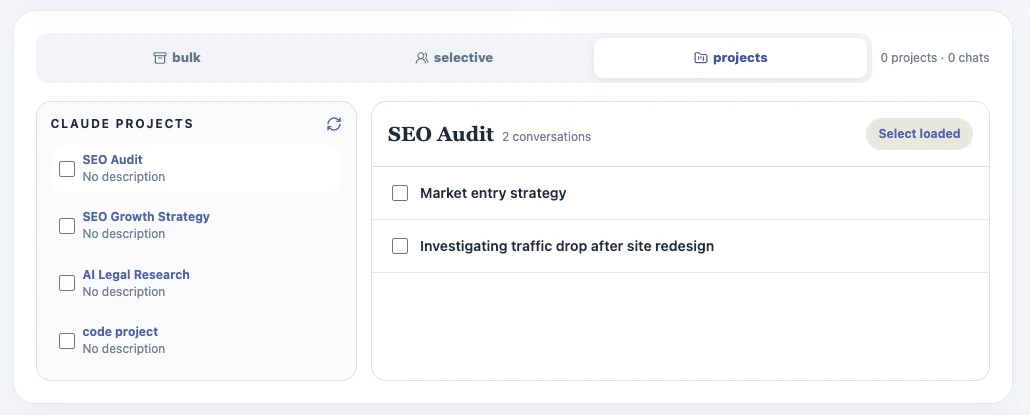
Artifacts. An Artifact is a live document with versions. Saving only the final state throws away the history, which is often the useful part — especially for code, where the version that worked may not be the last one. Only some exporters capture versions at all.
Attachments. Images, PDFs and other files you uploaded are usually referenced rather than re-uploaded. A PDF may appear as a filename and nothing else. If the attachment was the point of the conversation, save it yourself.
Avoid duplicates when you re-sync
The first export is easy. The second one is where databases fall apart.
There are three sensible behaviours, and a tool should let you choose:
- Skip existing pages — right for a routine re-sync where most conversations have not changed. It adds new conversations and leaves everything else alone.
- Overwrite existing pages — right when you know the source has changed and you want the Notion copy to match it exactly. Destructive if you edited the page by hand.
- Create a new page — right when you want to keep both versions, for example before a major rewrite. It also doubles your database, so use it deliberately.
Without this control, every re-export silently creates a second copy of the same conversation. The damage is quiet: the database still works, it just becomes untrustworthy.

Which method should you use?
| If you want… | Use |
|---|---|
| Your whole Claude history in Notion, once | Method 1 with a bulk-capable extension |
| To keep a single important conversation, free | Method 2 |
| To turn one messy chat into a clean document | Method 3 |
| A complete account backup before deleting something | Method 4, plus a readable export |
| Projects and Artifacts preserved | An extension that states it handles both |
| Ongoing sync rather than a one-time migration | An extension with duplicate control and sync history |
FAQ
Can you export a Claude conversation to Notion?
Not with a native button. Claude has no built-in Notion export, so you either use a browser extension, convert the conversation to Markdown and import it, ask Claude to rewrite the conversation as a Notion-ready document, or pull your account data export and convert it yourself.
Is there a free way to save Claude to Notion?
Yes. Markdown export plus Notion’s own importer costs nothing, and several extensions have free tiers. Save Claude AI to Notion allows five successful saves free, Claude Exporter by Backrun gives five full and seven single-message exports per month, and the extension by Daniel Li is free in full.
How do I export Claude Projects to Notion?
Only some extensions handle Projects as a unit. What matters is whether the export keeps the project name, the project instructions and the knowledge file names alongside the conversations. A plain chat export keeps none of the three.
Do Artifacts and attachments transfer?
Artifacts transfer in some tools and not others, and Artifact version history is rarer still. Uploaded attachments are usually referenced rather than re-uploaded, so a PDF you gave Claude may appear only as a filename. Check a sample before assuming your files are safe.
What is the difference between the Claude Notion connector and an export extension?
The connector lets Claude read from and write to your Notion workspace while you work. It does not save the conversation itself. An export extension takes a finished conversation and creates a Notion page from it. They solve different problems and are not substitutes.
How do I avoid duplicate pages when re-syncing?
Pick a tool that lets you choose what happens to an existing page: skip it, overwrite it, or create a new copy. Without that control, every re-export adds a second copy of the same conversation and your database stops being usable.
Is Claude’s official data export enough?
It is the most complete record of your account, but it arrives as a data archive rather than a readable Notion workspace. You get JSON and HTML, and converting that into structured pages is manual work. Use it as a compliance backup, not as your working archive.
Methodology note and update log
Data checked: October 30, 2026. User counts, ratings, free-tier limits and prices were read from the Chrome Web Store listings and developer pricing pages on that date.
Not verified: output quality for competing extensions. We did not run a controlled export comparison for this version, so we make no claims about which tool renders Artifacts or tables best. Where a listing does not state a feature, the table says check listing.
Update log
- 2026-10-31 — First published. Four methods and five extensions compared.
If you are a developer listed here and something is wrong, tell us and we will verify and correct it within 48 hours, with the change noted above.
Claude and Notion are trademarks of their respective owners. This site is not affiliated with Anthropic or Notion.
Try it on a Project
If Projects and Artifacts are what you need, Save Claude AI to Notion gives you five successful saves free — enough to check whether the instructions and Artifact versions survive. The batch export guide covers the database setup, and the step-by-step guide with seven methods goes deeper on the manual routes.
Related reading
- How to export Claude conversations to Notion: 7 ways
- Exporting Claude Artifacts to Notion and Obsidian
- Can you recover a deleted Claude Project?
- What happens when a Claude Project hits its context limit
- Claude Projects backup guide: chats, files, Artifacts and context
- 7 Gemini to Notion extensions compared
- The best AI chat exporter tools
- Pricing