
How to Export Claude Conversations to PDF
Claude conversations often become working documents before anyone calls them documents.
A single thread can contain the research brief, the argument, code, tables, revisions, attachments, and the final recommendation. Saving that work as a PDF makes sense when you need an offline archive, a stable handoff, or a document that can be read without opening Claude.
The right export method depends on what you are trying to preserve. This guide covers six practical workflows: one active chat, selected messages, open tabs, a page of history, complete history, and Claude Projects.
What a useful Claude PDF should preserve
Printing a browser page can capture the visible screen, but it is a weak archive for a long or structured conversation. A purpose-built export should preserve:
- The conversation title and source URL
- Every selected message in the correct order
- Clear user and Claude role separation
- Headings, lists, links, code blocks, and tables
- Supported images and attachment references
- Claude Artifact versions when the source exposes them
- Optional creation date, update date, model, Project, and message count
- A linked outline for navigating long conversations

Before you export
- Sign in at claude.ai.
- Open the conversation you want to save.
- Wait for long responses and images to finish loading.
- Install and pin Claude to PDF.
- Decide whether you need the full chat or a curated document.
The final choice matters. A complete archive is best for backup; a selected export is usually better for sharing.
Method 1: Export the active Claude conversation
For a complete copy of the chat currently open:
- Click the Claude to PDF icon.
- Choose Export this conversation.
- Keep the Claude tab open while Chrome creates the file.
- Open the PDF and check the first and last messages.
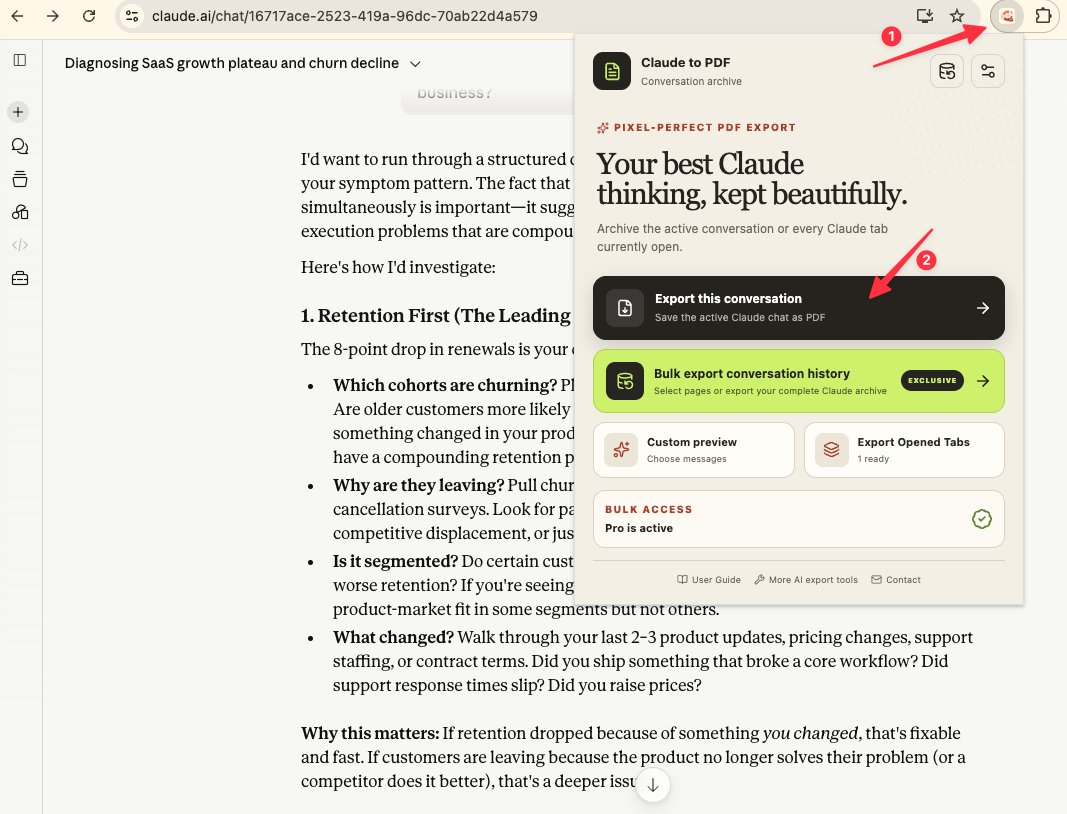
This is the fastest option for meeting notes, a finished research thread, or a conversation that is already clean enough to archive as-is.
Method 2: Export only selected messages
Long chats often include false starts, repeated prompts, or private details. Open Custom preview when the PDF should contain only the useful parts.
You can select individual messages or use filters for:
- All messages
- Only prompts
- Only Claude responses
- A completely manual selection
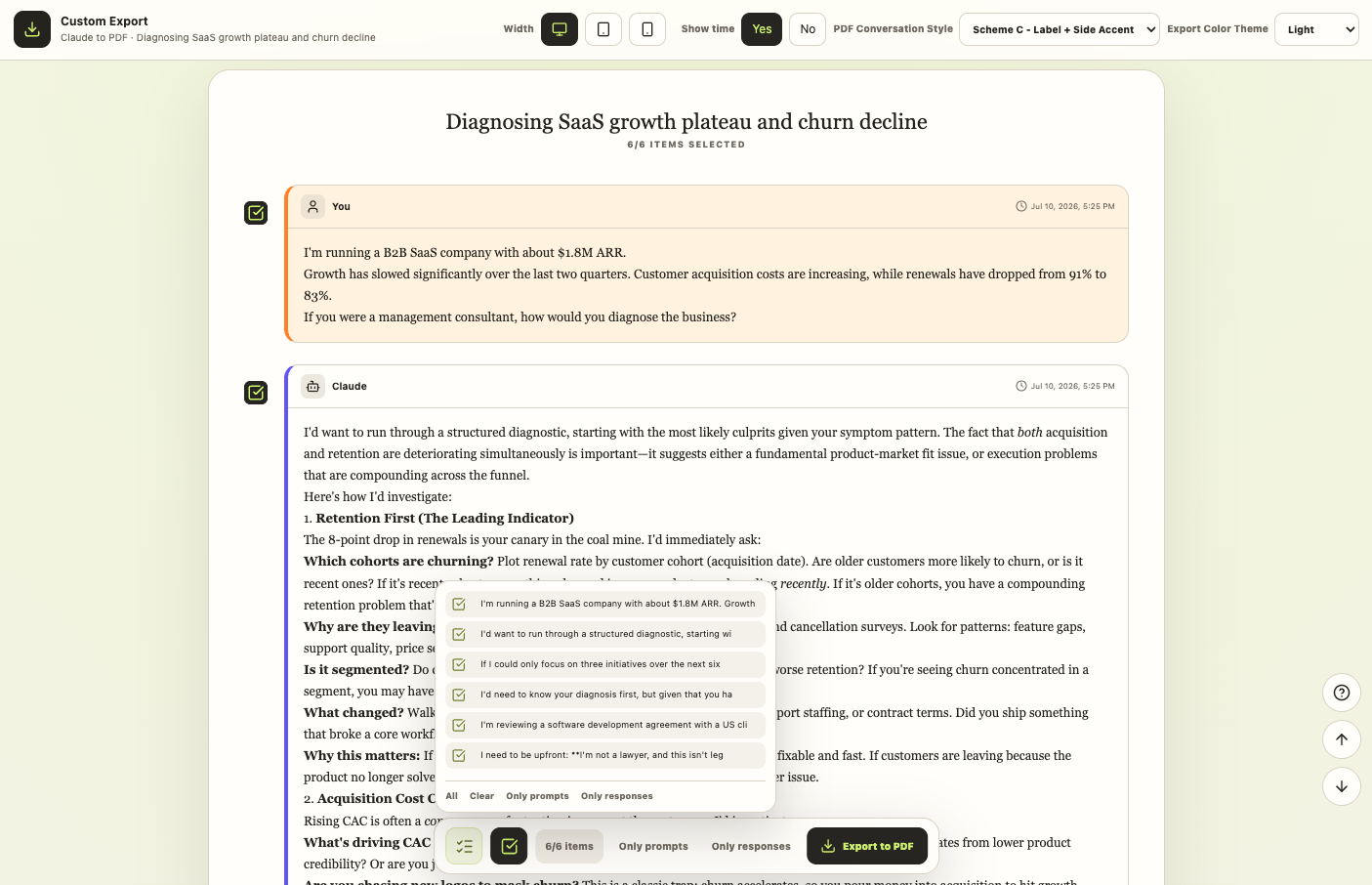
Custom Preview also lets you compare message styles, switch between Light, Dark, and Eye-care themes, show or hide timestamps, and check desktop, tablet, or mobile widths before exporting.
Method 3: Export all open Claude tabs
When one work session spans several conversations, keep those chats open and choose Export Opened Tabs.
The extension counts valid Claude conversation tabs and processes them in one run. Unrelated websites and Claude pages that are not conversations are ignored.
This works well for:
- A research session split across topics
- Several client conversations opened for a handoff
- A set of chats you reviewed and approved manually
Method 4: Export a page or complete Claude history
Open the Export Center and choose Bulk Export.
- Current Page Only handles the first loaded history page and is faster.
- All History progressively loads the complete conversation list and can take longer.
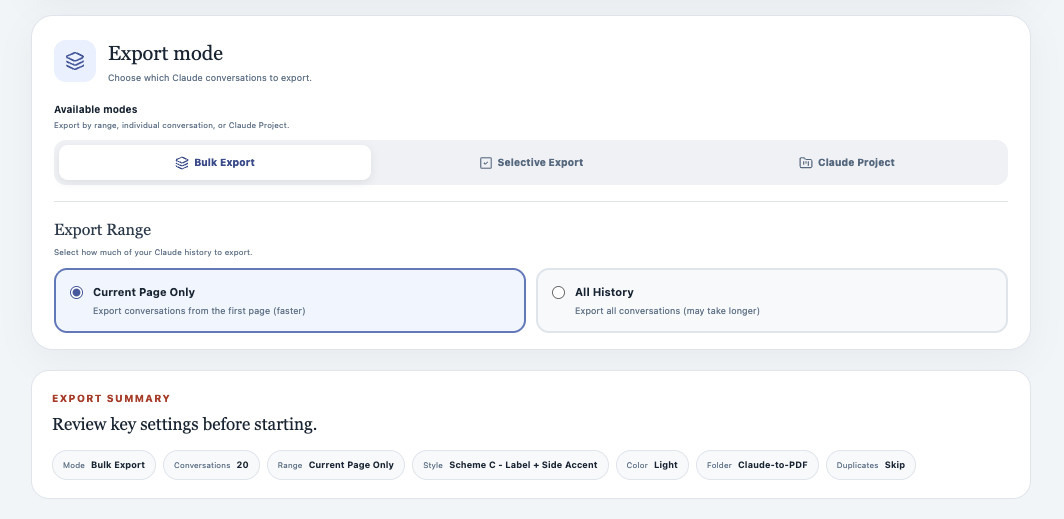
Keep Skip Already Exported enabled for recurring backups. The extension stores exported conversation IDs locally, so the next run can avoid creating the same PDFs again.
Method 5: Select conversations from history
Choose Selective Export when you know which chats matter but do not want to open each one.
The list supports search, per-conversation checkboxes, and an Exported marker for items saved before.
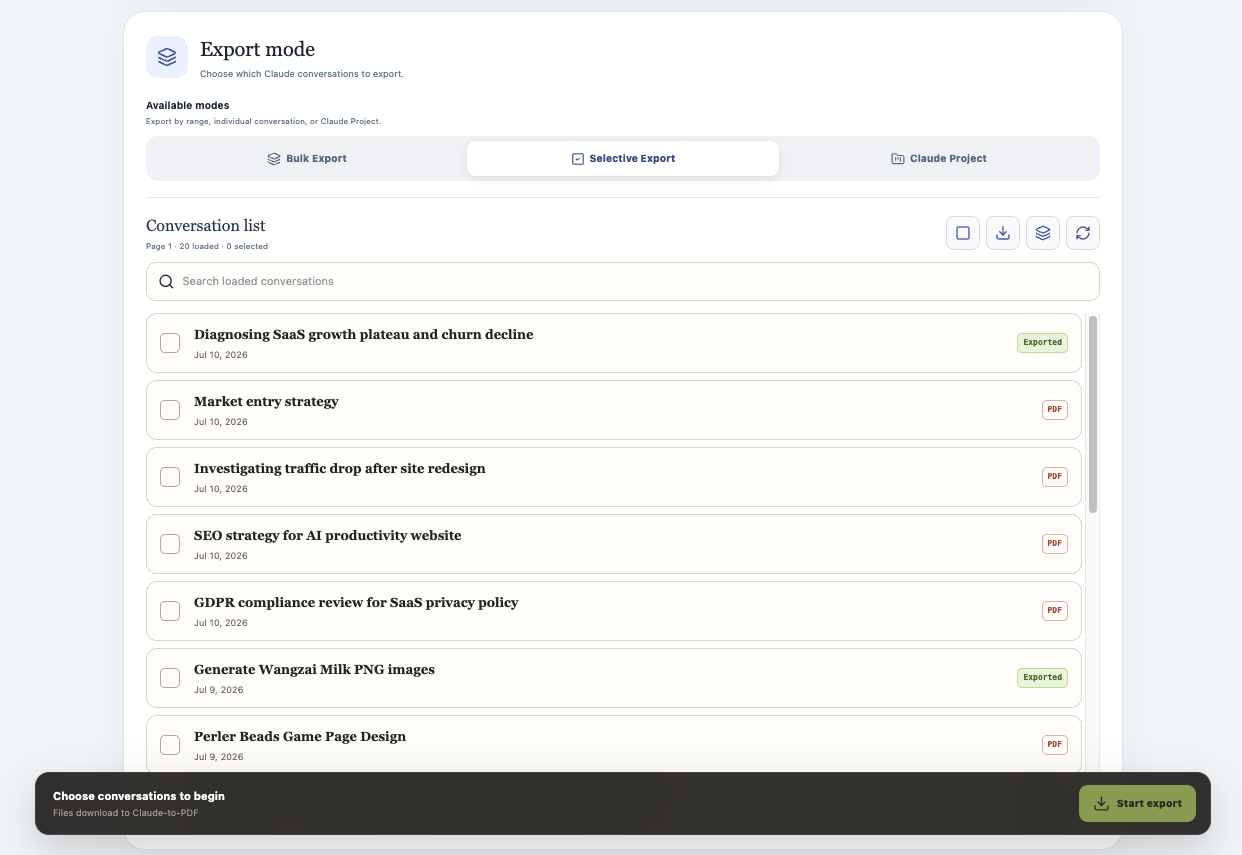
Selective Export is the most quota-efficient option for free users because the free plan includes five successful exports per local day.
Method 6: Export Claude Projects
The Claude Project mode separates Projects from their conversations.
- Select a Project in the left column.
- Load its conversations.
- Select all conversations or only the ones that belong in the archive.
- Start the export.
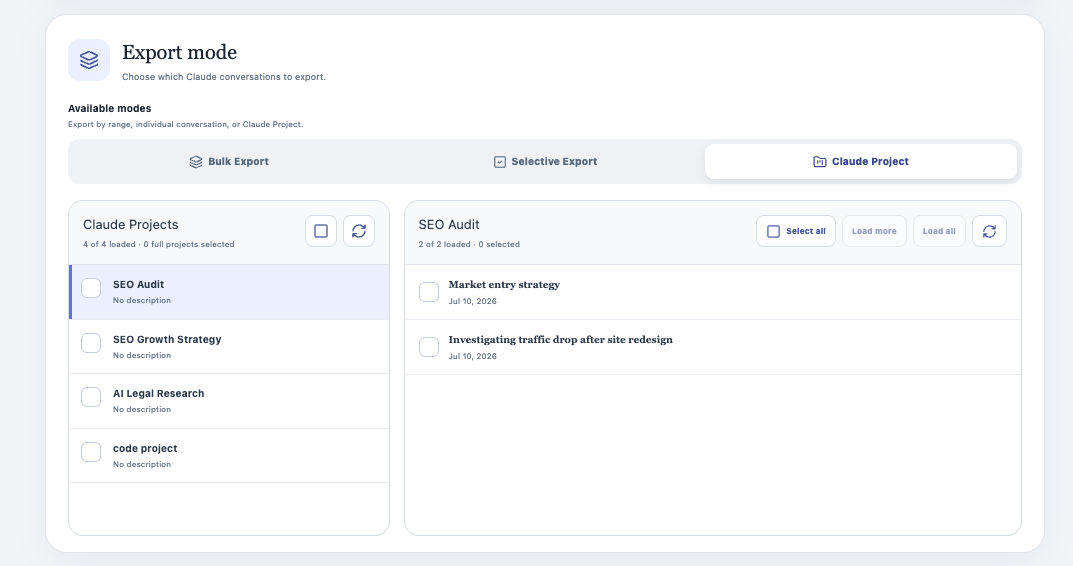
This is especially useful for client work, research programs, and project retrospectives where the Project itself supplies important context.
Choose the PDF appearance
Claude to PDF provides three message styles and three themes:
| Setting | Best use |
|---|---|
| Label emphasis | Clean printing and compact documents |
| Side accent line | Fast visual scanning between speakers |
| Label + side accent | Maximum role clarity in long chats |
| Light | Printing and conventional reports |
| Dark | Screen reading with a Claude-like feel |
| Eye-care | Long reading sessions on a warm paper tone |
Optional metadata can add dates, model, Project, source URL, and message count to the archive.
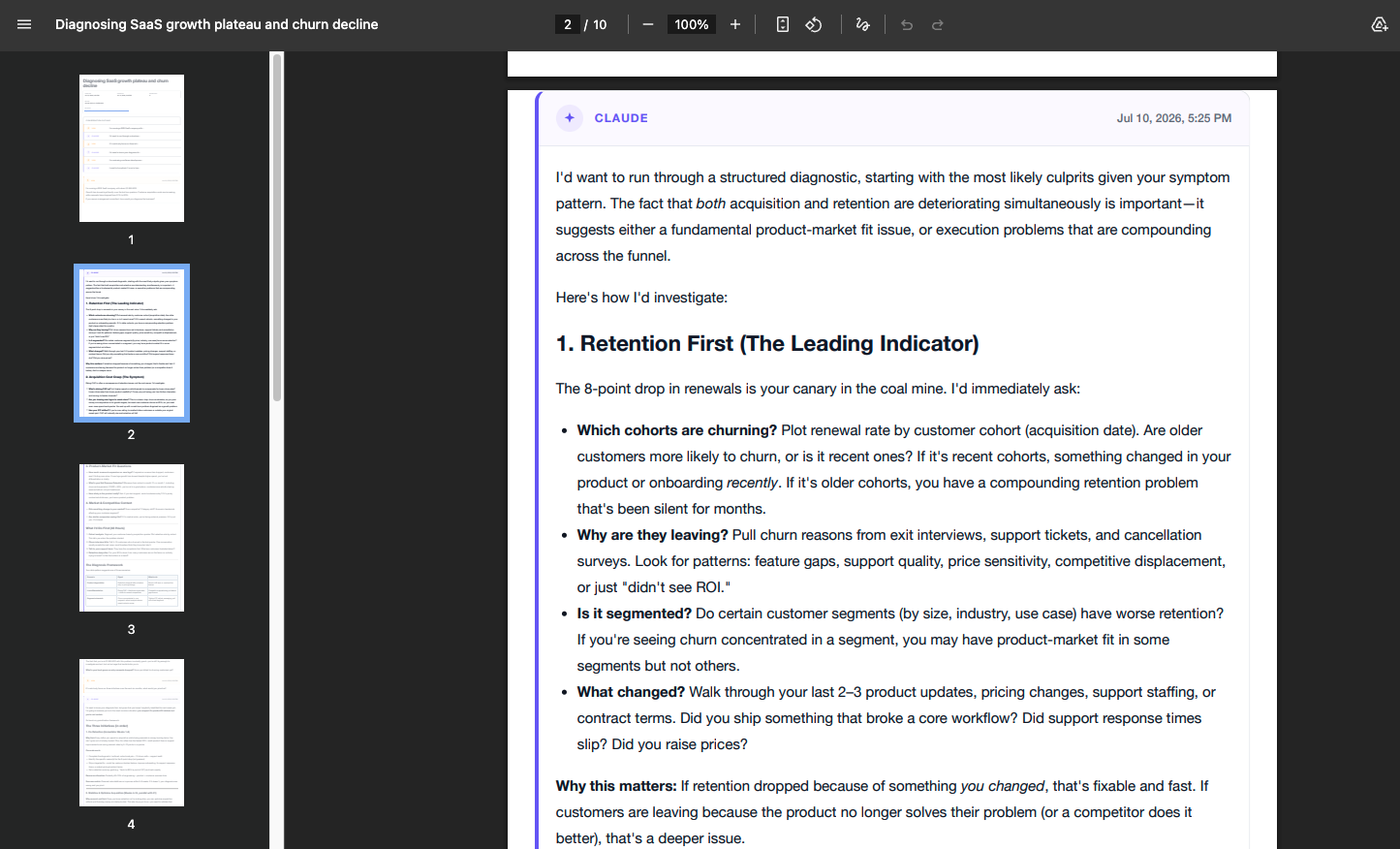
Check the result
Do not judge a long export only by its first page. Verify:
- The first prompt is present.
- The final response is complete.
- Tables and code blocks are readable.
- Important images or attachment references appear.
- Outline links move to the expected messages.
Is the export local?
The PDF generation step runs through Chrome’s local print-to-PDF capability. Chrome can show a debugger notification during that step. Subscription verification can contact the product service, while preferences, usage, duplicate records, and export history are stored in Chrome local storage.
Start with the smallest workflow that fits
Use a one-click export for a clean conversation, Custom Preview for a curated document, Selective Export for a small set from history, and Bulk or Project export for a durable archive.
See the Claude to PDF documentation for installation, batch configuration, and troubleshooting.