
Overview & Getting Started
Learn what Claude to PDF exports, choose the right workflow, and create your first readable Claude conversation archive.
Claude to PDF is a Chrome extension for turning conversations from your signed-in Claude session into polished PDF archives.
It handles quick saves and larger backup jobs without forcing every task through the same workflow.
Choose an export workflow
| You want to save | Use this workflow |
|---|---|
| The conversation open in the active tab | Export this conversation |
| Only useful messages from the active chat | Custom Preview |
| Every Claude conversation currently open in Chrome | Export Opened Tabs |
| The current history page or complete history | Bulk Export |
| Specific conversations from history | Selective Export |
| A complete Project or selected Project conversations | Claude Project |
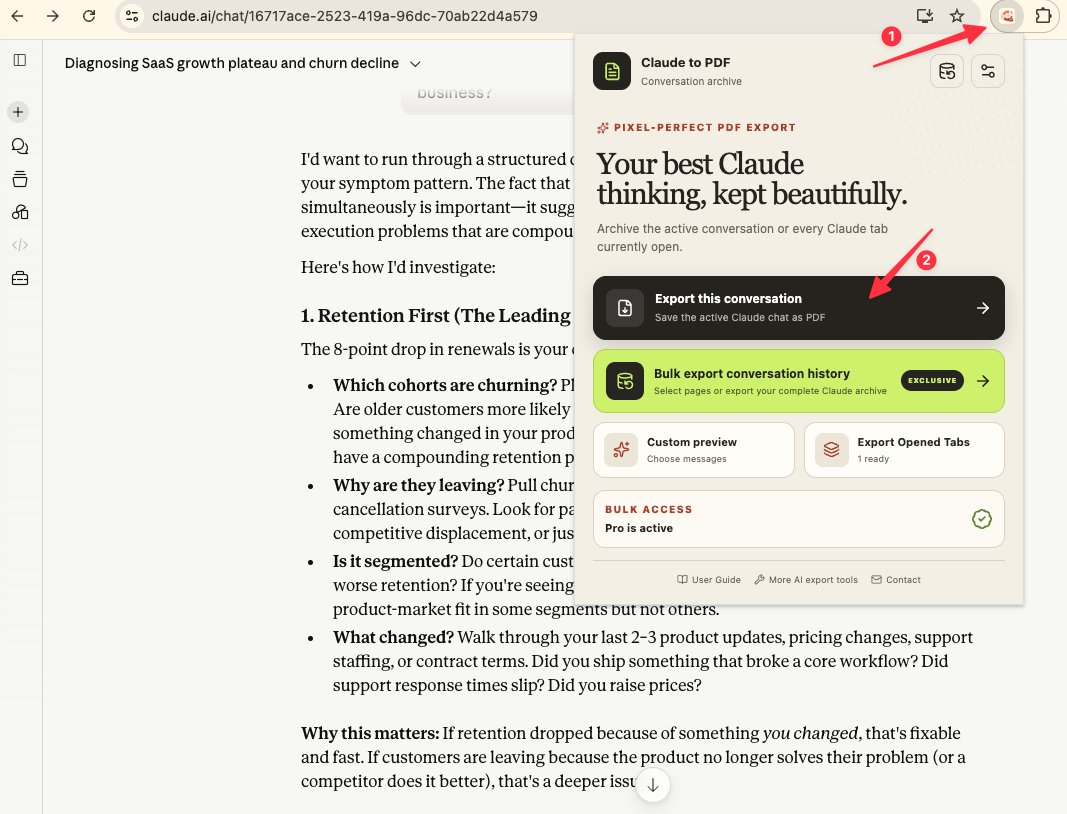
What the PDF can include
Depending on the source conversation, an export can preserve:
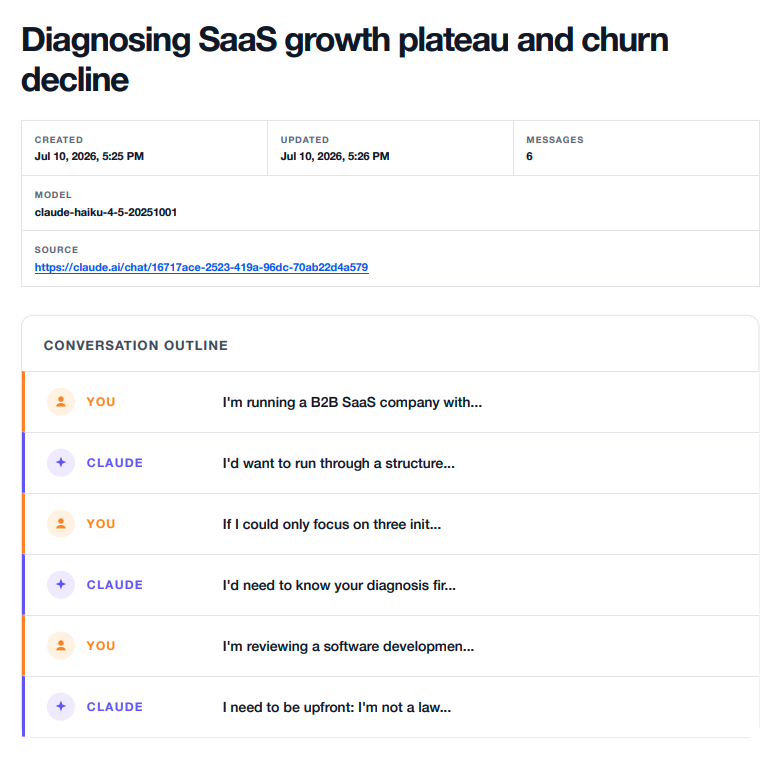
- Conversation title and source URL
- Creation and update dates
- Message count, model, and Project name
- User and Claude messages in distinct cards
- Headings, lists, links, quotes, and Markdown structure
- Code blocks and tables
- Supported images and attachment references
- Claude Artifact versions found in the conversation data
- A linked conversation outline for navigating long exports
Before your first export
- Sign in at
claude.ai. - Keep at least one Claude tab open.
- Open a real conversation, not only the Claude home page.
- Let the conversation and its images finish loading.
- Open the extension and choose a workflow.
The extension uses your existing signed-in browser session. You do not paste a Claude password or API key into the extension.
Local PDF generation and permissions
The PDF is created with Chrome’s print-to-PDF capability. Chrome can display a debugger notification while that step runs; this is expected for the local export pipeline.
The extension also uses Chrome permissions for downloads and local storage. Export preferences, usage status, duplicate records, and export history stay in Chrome local storage. Subscription verification can contact the product service, but the conversation is not sent to a remote PDF rendering service.
Free and Pro plans
The free plan includes up to five successful conversation exports per local day. A successful item inside an open-tab or batch run counts as one export. Pro removes that limit.
For a limited allowance, keep Skip Already Exported enabled and use Selective Export when you only need a few conversations.
Next step
Continue with Installation, then create a first PDF with One-Click & Open-Tabs Export.
Ready to try Claude To Pdf?
Open the product page for feature details, screenshots, pricing, and the Chrome Web Store install link.