
One-Click & Open-Tabs Export
Export the active Claude conversation or every open Claude conversation tab as polished PDF files.
The popup provides two fast paths: save the conversation in front of you, or export every valid Claude conversation tab already open in Chrome.
Export the active conversation
- Open the Claude conversation you want to save.
- Wait for the answer, images, and attachments to finish loading.
- Click the Claude to PDF icon.
- Choose Export this conversation.
- Keep the tab open until Chrome finishes the PDF download.
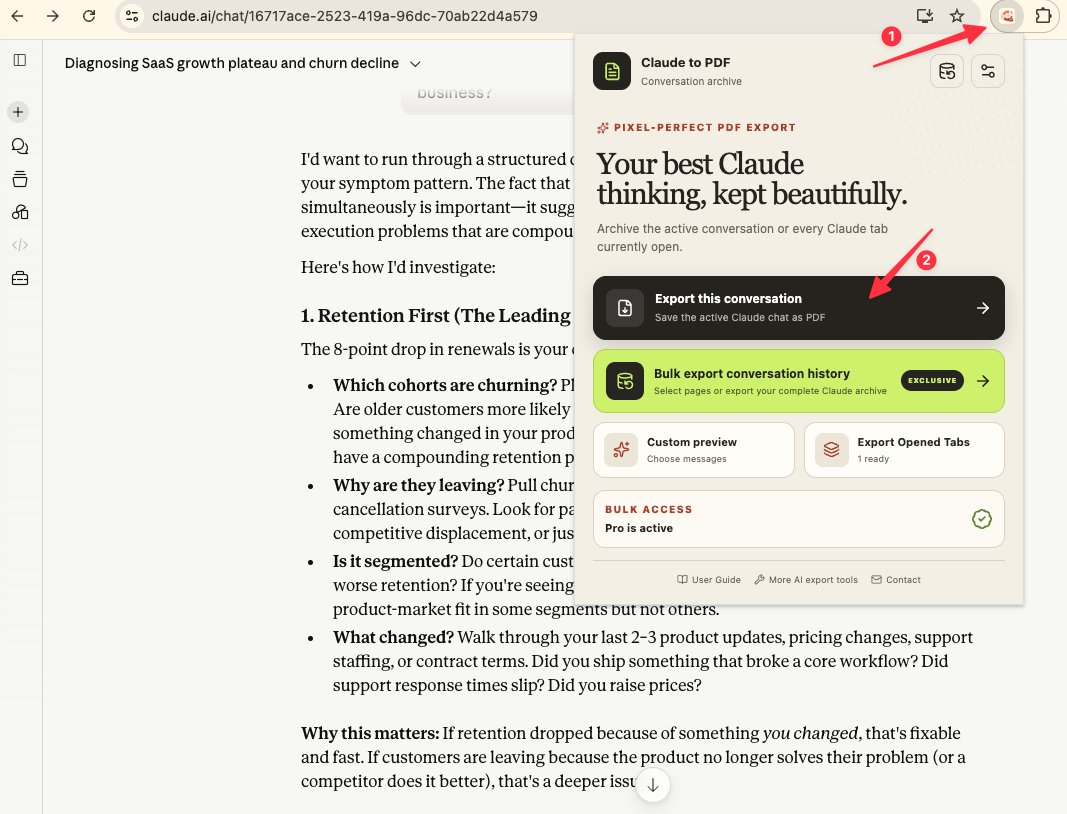
This workflow saves the complete conversation. If you only want part of it, use Custom Preview.
Export all open Claude tabs
Use Export Opened Tabs when a research or work session already spans several browser tabs.
- Keep each desired Claude conversation open in its own tab.
- Open the extension from any Claude tab.
- Check the ready count shown under Export Opened Tabs.
- Click the action and let the run finish.
Only tabs that point to valid Claude conversations are included. The Claude home page, settings pages, and unrelated tabs are ignored.
Shared export settings
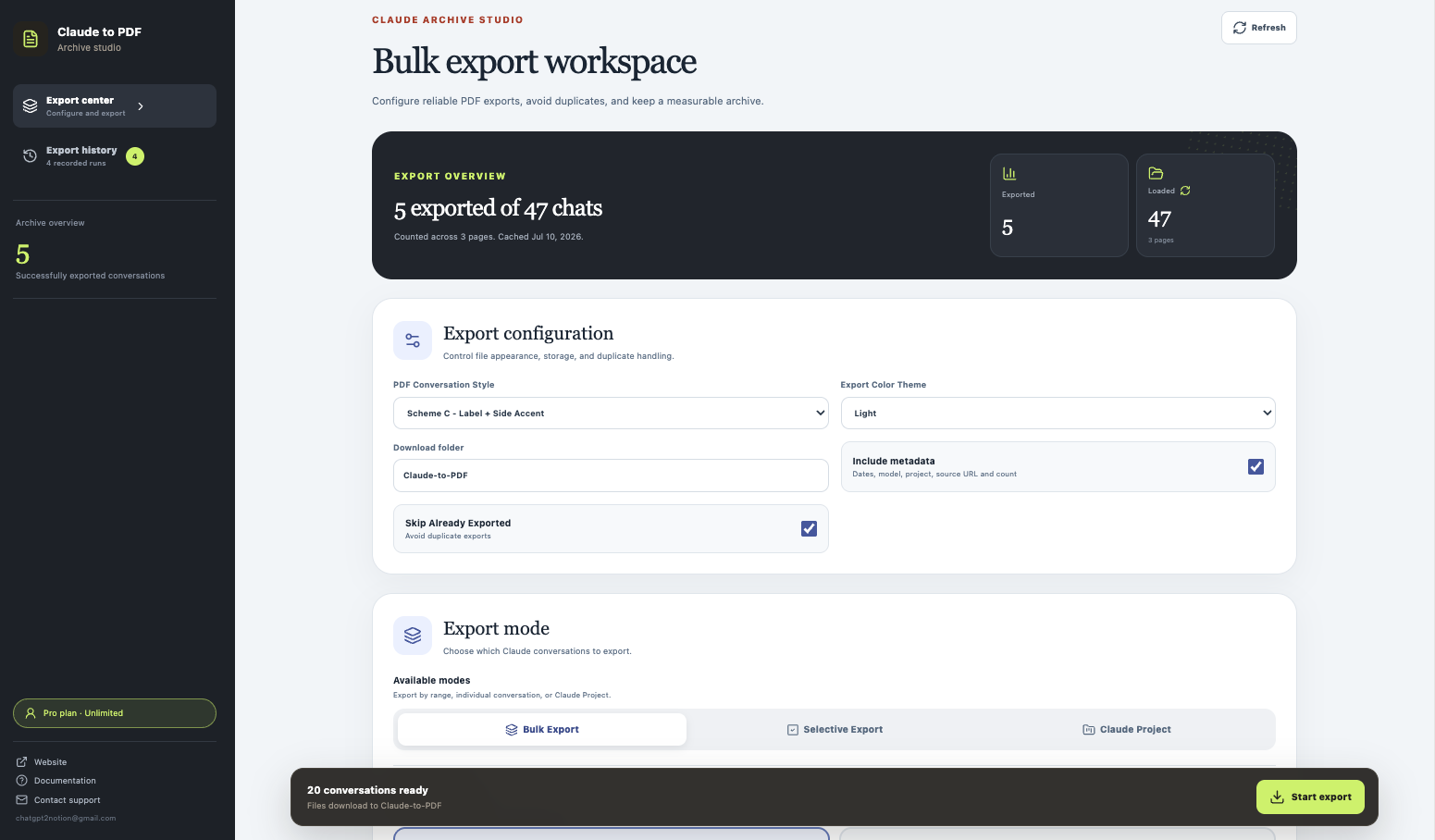
Quick exports use the saved configuration from the Export Center:
- PDF conversation style: three ways to distinguish participants
- Color theme: Light, Dark, or Eye-care
- Download folder: defaults to
Claude-to-PDF - Include metadata: dates, model, Project, source URL, and message count
- Skip already exported: useful for recurring multi-tab and history exports
Verify the downloaded PDF
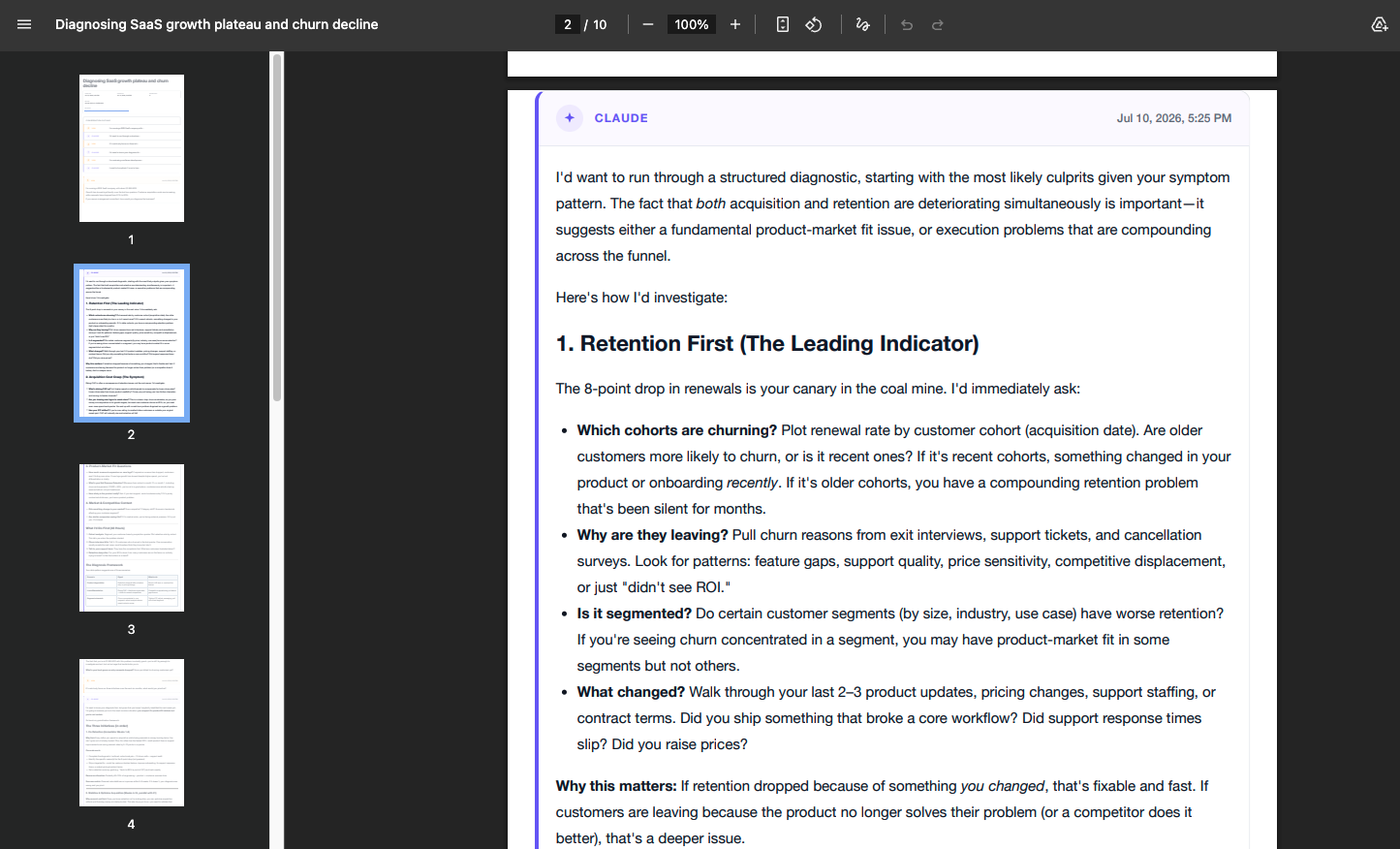
For an important archive, check:
- The title and first prompt are present.
- The final Claude response is complete.
- Code blocks and tables remain readable.
- Images or attachment references are present when the source exposed them.
- Outline links move to the expected message.
When to use another mode
- Use Custom Preview to remove setup messages or keep only prompts/responses.
- Use Selective Export to choose conversations from history without opening each one.
- Use Claude Project to keep project-based archives together.
- Use Bulk Export for a page or complete history backup.
Continue with Batch, Selective & Project Export for larger jobs.
Ready to try Claude To Pdf?
Open the product page for feature details, screenshots, pricing, and the Chrome Web Store install link.