
Exporting Individual Conversations
Learn how to save single Gemini conversations to Notion with one-click export
Quick Start
After installing the extension and connecting to Notion, you can export any Gemini conversation with a single click.
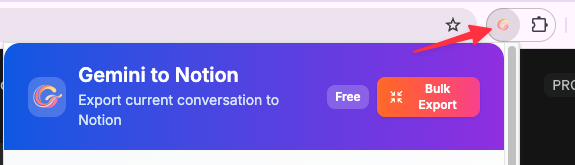
Initial Setup
Complete this one-time authorization before saving conversations.
Notion Authorization
- Click the extension icon and select “Connect to Notion”
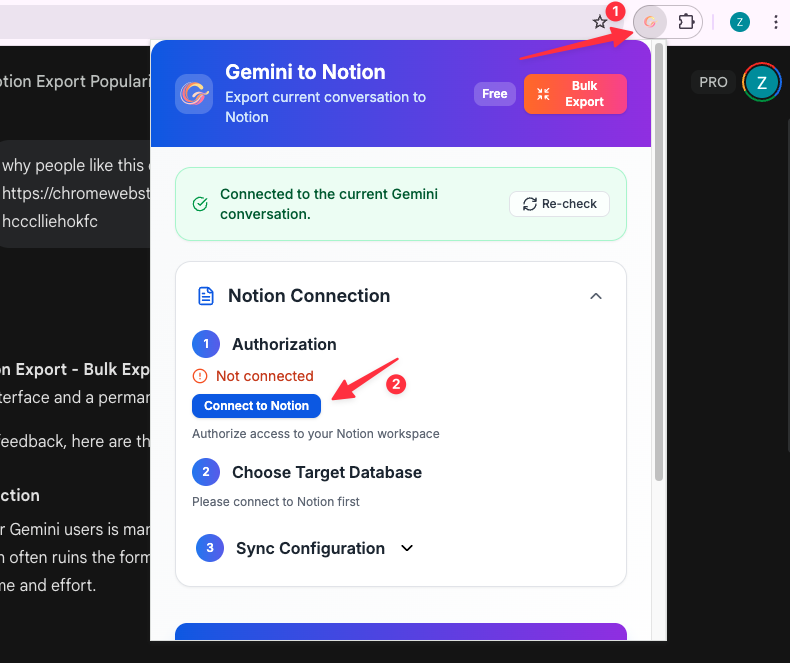
-
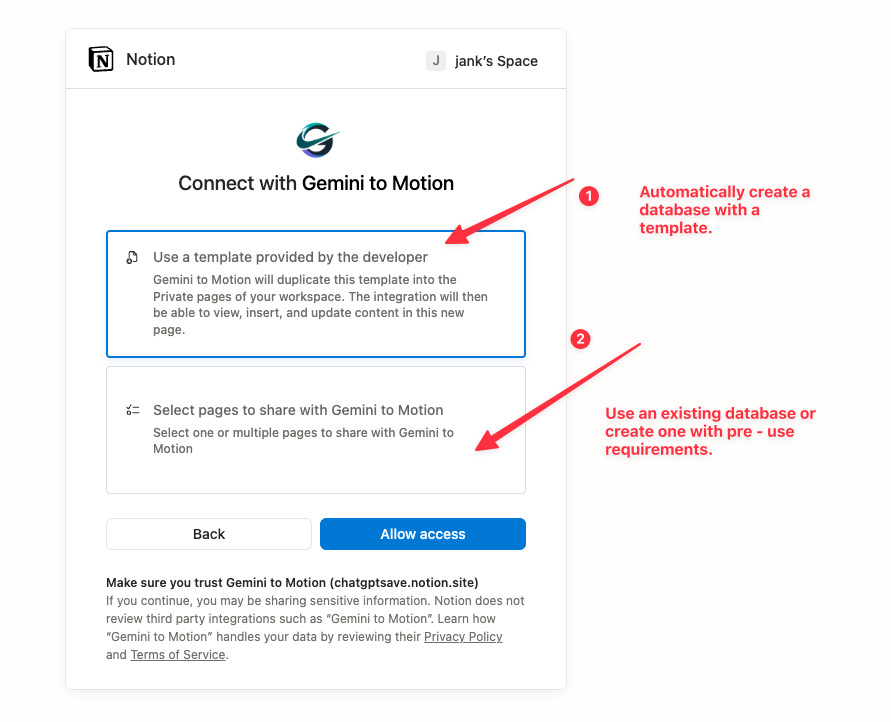
In the Notion authorization window:
- Select your workspace
- Click “Next”
-
Choose your save location:
- Select “Save Page”
- Choose an existing page or create a new one
- Click “Allow Access”
-
After authorization:
- You’ll be redirected to Notion
- Close the page and return to Gemini
- Select your target database from the dropdown
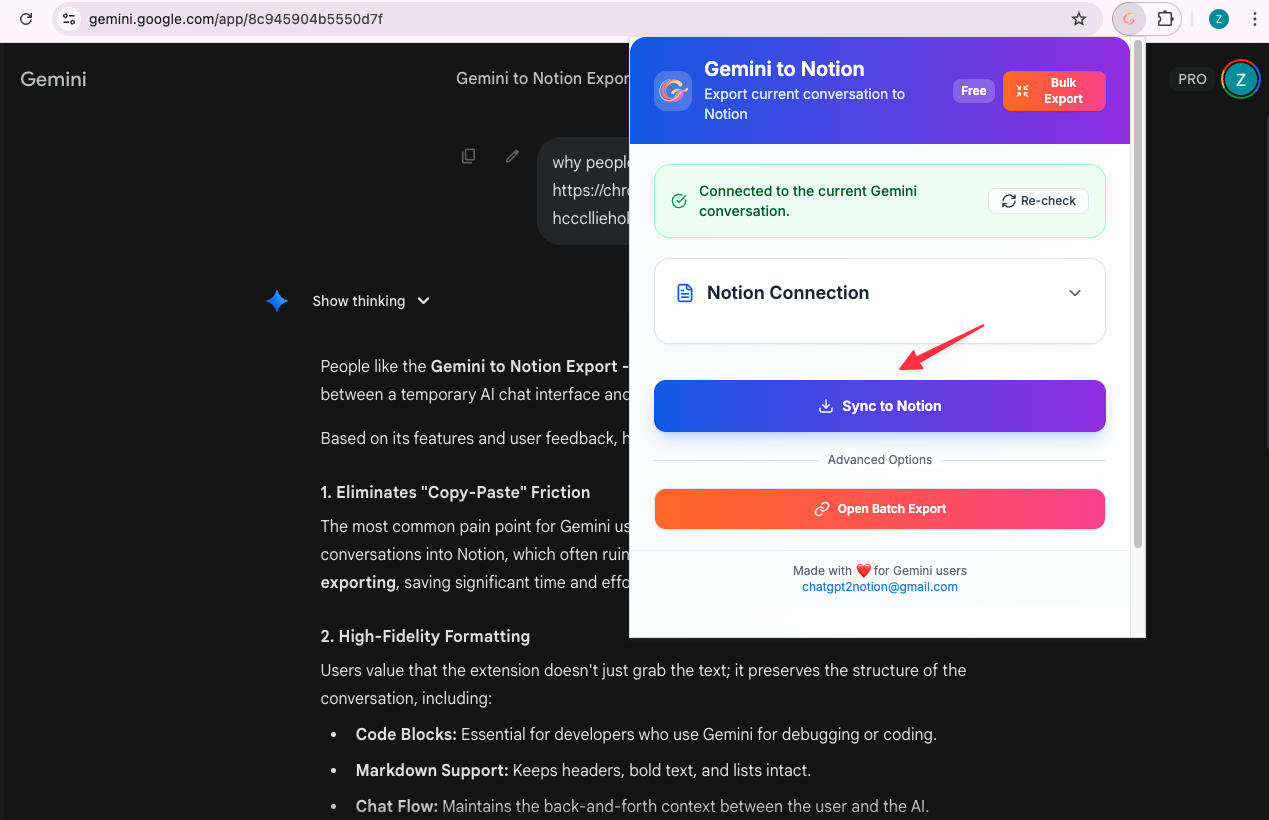
Exporting Current Conversation
The simplest way to save a conversation:
- Open any Gemini conversation at https://gemini.google.com/
- Click the extension icon in your browser toolbar
- Ensure your target database is selected
- Click “Sync to Notion” button
- Wait for the export to complete
- View the saved page via the success notification
What Gets Exported
Each exported conversation includes:
- Title: The conversation title from Gemini
- URL: Source link to the original conversation
- ChatTime: Timestamp of the conversation
- Content: Full conversation with preserved formatting
- User prompts
- AI responses
- Code blocks
- Images
- Lists and tables
Export Status
The extension shows real-time status:
- Exporting: Export in progress
- Success: Conversation saved successfully
- Error: Export failed (see error message)
Free Tier Limits
Free users can:
- Export unlimited individual conversations via popup
- Batch export up to 5 conversations
Tips
- Pin the extension for quick access
- Ensure stable internet connection during export
- The extension works on https://gemini.google.com/ pages only
- Each export creates a new page in your selected database
Troubleshooting
If export fails:
- Ensure you’re on a Gemini conversation page
- Check Notion authorization is valid
- Verify you have edit permissions for the database
- Refresh the Gemini page
- Try exporting again
“Not on Gemini page”:
- Make sure you’re on https://gemini.google.com/
- The extension only works on Gemini chat pages
“Database not found”:
- Your database may have been deleted
- Re-authorize Notion connection
- Select a different database
“Export failed”:
- Check internet connection
- Verify Notion is accessible
- Try again in a few moments
For more help, contact [email protected]
Ready to try Export Gemini to Notion?
Open the product page for feature details, screenshots, pricing, and the Chrome Web Store install link.
Independent tool notice
Built for exporting from Google Gemini. This project is independent and is not affiliated with Google LLC.