
How to Backup ChatGPT Projects
Build a practical backup workflow for ChatGPT Projects so important project conversations do not stay trapped in one sidebar.
Guide summary
- Search intent
- High commercial intent: users want to back up ChatGPT Projects before useful knowledge gets lost.
- Best next step
- Back up Projects with ChatGPT to Notion
- Topics
- ChatGPTProjectsBackupNotionObsidianPDF
The safest way to back up ChatGPT Projects is to move important project conversations into a second system on a regular schedule. Use Notion for searchable project knowledge, PDF when you need a stable archive, and Obsidian or Markdown for local notes you want to keep alongside the backup. A backup is only useful if you can find it, verify it, and restore the context later, so the process should include export, review, and organization, not just file generation.
Table of contents
- Why ChatGPT Projects need a backup plan
- What a good backup looks like
- Step-by-step backup workflow
- Recommended backup structure
- Troubleshooting
- FAQ
Why ChatGPT Projects need a backup plan
Projects collect exactly the kind of conversations that become operational memory:
- product strategy
- research notes
- hiring plans
- customer insights
- coding decisions
- long prompt experiments
That memory is valuable because it captures the path to the answer, not just the final output. If the project lives only inside ChatGPT, the team depends on one interface for retrieval. That creates several risks:
- old decisions become hard to locate
- project context gets scattered across many conversations
- handoffs become weaker
- compliance or review copies are harder to prepare
- the project archive becomes messy before anyone notices
Backing up ChatGPT Projects solves those problems by making the knowledge portable and searchable outside the original interface.
What a good ChatGPT Project backup looks like
A good backup has three properties.
1. It is selective enough to stay useful
Do not dump everything forever into one folder without naming rules. That is storage, not backup quality.
2. It has metadata
Project name, date, topic, and source URL make recovery much easier.
3. It uses a repeatable schedule
Weekly is usually enough for most users. Daily may be better for teams that use Projects heavily. Event-based backups also matter before launches, renewals, account changes, or client handoffs.
Step-by-step backup workflow
1. Choose your backup destinations
For most ChatGPT Projects, use one working backup and one fallback backup.
- Working backup: Notion
- Fallback backup: PDF
- Local note layer: Obsidian or Markdown for selected project notes
This gives you both retrieval and resilience. ChatGPT to Notion is strong for project databases and team visibility. ChatGPT to PDF is strong for fixed review copies. ChatGPT to Obsidian is useful when selected project notes should also live as local Markdown files.
2. Define what gets backed up
Create a simple rule for each project. For example:
- export final decision threads
- export research threads longer than one session
- export reusable prompt conversations
- export implementation discussions before major releases
This is more sustainable than trying to back up every low-value message.
3. Use Projects mode in the batch workflow
Open a product workflow that explicitly supports Projects mode, such as ChatGPT to Notion or ChatGPT to PDF. Switch from regular chat pages to Projects mode, then choose one project or all projects depending on the review cycle. If the project is new, start with a small export sample. If the project is mature, use a full export window during a scheduled backup session.
4. Keep dedupe behavior on when possible
If you already reviewed and organized earlier exports, use skip-synced behavior or equivalent dedupe settings when available. That reduces duplicate pages or files and protects manual edits in the destination workspace.
5. Verify the result immediately
After each backup session, check:
- number of successful exports
- number of failed or skipped items
- whether the project label is visible
- whether long conversations rendered correctly
- whether files landed in the right folder or database
If something looks off, fix it before the next batch gets larger.
6. Add a restore-friendly summary
Backups are much easier to reuse when the top of each record includes a short human summary. For example:
- what the conversation was about
- what decision it led to
- what follow-up is still open
You do not need to summarize every chat. Do it for the ones you would actually need in a handoff or recovery scenario.
Recommended backup structure
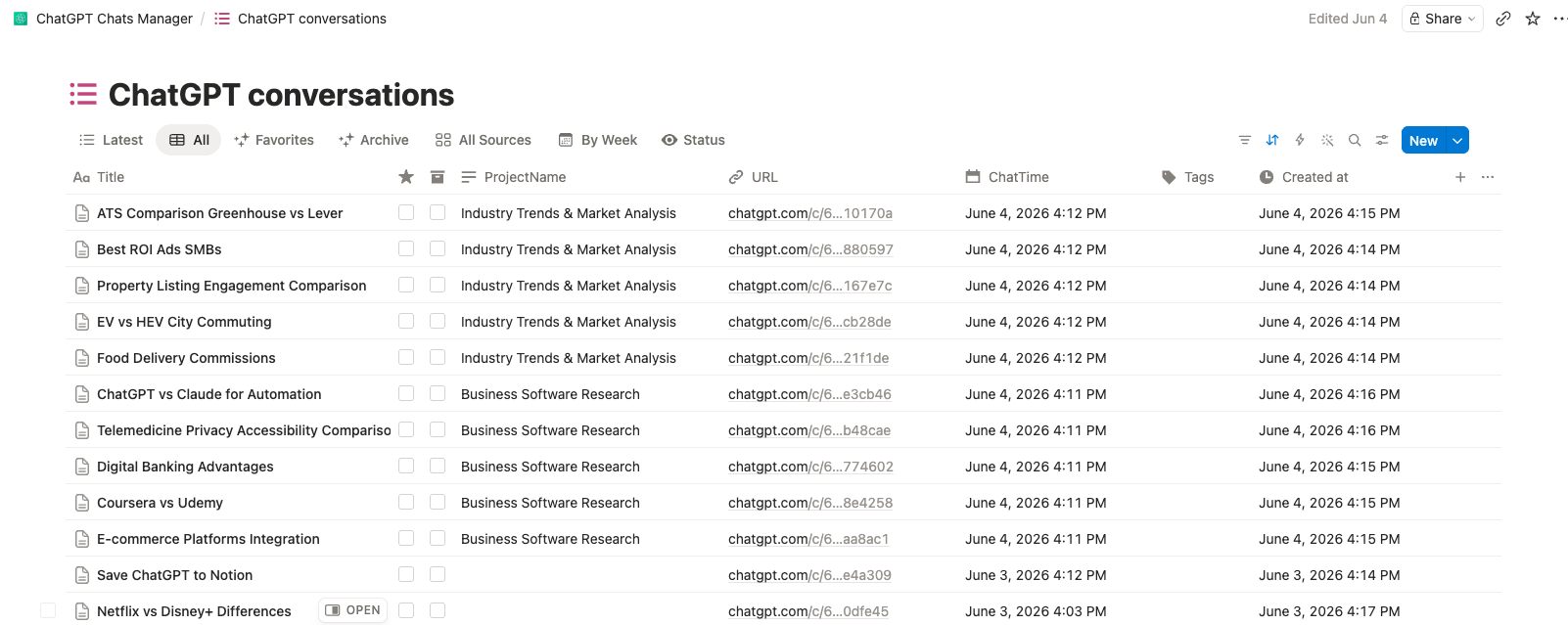
Notion database setup
Recommended properties:
- Title
- Project
- Topic
- Export date
- Source tool
- Status
- Backup type
- Original chat URL
Suggested views:
- Recent backups
- By project
- Needs review
- Final decisions
- Prompt library
Local folder setup
For Obsidian or Markdown companion notes:
chatgpt-project-backups/active/chatgpt-project-backups/archived/chatgpt-project-backups/client-work/chatgpt-project-backups/research/
You can also organize by project name first if the total count is manageable.
PDF archive setup
Keep a clean folder naming rule such as:
2026-06-product-launch/2026-06-client-acme/2026-06-research/
PDF works best when used as the stable copy, not the only searchable system.
Backup mistakes to avoid
Treating one export as permanent protection
Projects evolve. One backup taken once does not solve the long-term problem.
Forgetting the original context
If the export destination supports original chat URL or project name, keep it. That makes it much easier to trace back later.
Making the archive impossible to search
Good titles and tags matter more than people expect. A messy backup is not much better than a messy sidebar.
Ignoring failed items in large batches
Large runs sometimes produce skipped or failed items. Review the summary and retry the failures before you assume the backup is complete.
Troubleshooting
Some Project conversations did not back up
Start with a smaller range or one project at a time, then retry the missing items. It is easier to isolate issues when the run is narrow.
I have too many duplicates
Use skip behavior when available and keep stable metadata like project name and original URL. That makes dedupe much easier.
Long threads are hard to use after backup
Add a short summary at the top of the destination record. The raw thread stays intact, but the summary makes restore and review much faster.
Should I use PDF only?
Only if your main goal is storage or sharing. If you want active retrieval and ongoing reuse, pair PDF with Notion or Markdown.
FAQ
Can I back up ChatGPT Projects in bulk?
Yes. Use a product workflow that explicitly supports Project-oriented batch export, such as ChatGPT to Notion or ChatGPT to PDF, which makes regular project backups practical.
What is the best backup format for ChatGPT Projects?
Notion is best for structured project archives, PDF for fixed copies, and Obsidian or Markdown for local companion notes.
How often should I back up ChatGPT Projects?
Weekly is a good default. Also back up before launches, handoffs, plan changes, or account cleanup.
Should I back up every message?
Usually no. Prioritize high-value conversations with durable research, decisions, prompts, and deliverables.
How do I know the backup is complete?
Check the export results, open sample files or pages, and verify that metadata, long sections, and project labels look right.
Build a backup habit before Projects get messy
ChatGPT Projects are most useful when their knowledge survives beyond the original workspace. Set up a repeatable backup flow with ChatGPT to Notion or ChatGPT to PDF, then keep local Markdown notes with ChatGPT to Obsidian when that helps your personal archive.