
Batch Export & Backup
Export multiple Sora creations with flexible delivery modes
Batch export lets you download prompts, images, and videos from your Sora library in one operation.
Quick Start
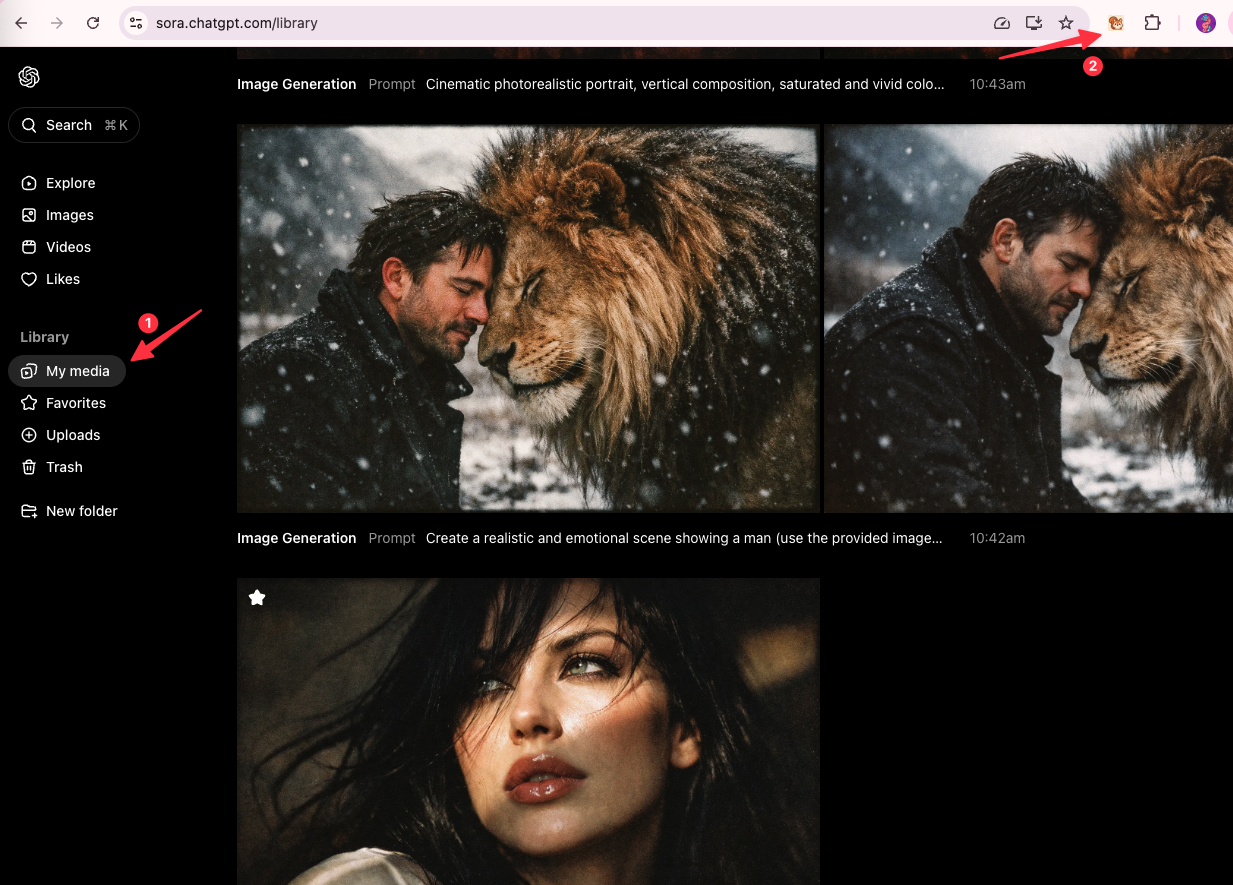
- Open https://sora.chatgpt.com/library
- Click the extension icon
- Configure export settings
- Click “Start Export”
Export Source
All Items: Export everything in your library Filtered Items: Export only what’s visible after applying filters
Use filters to export by date range or specific projects.
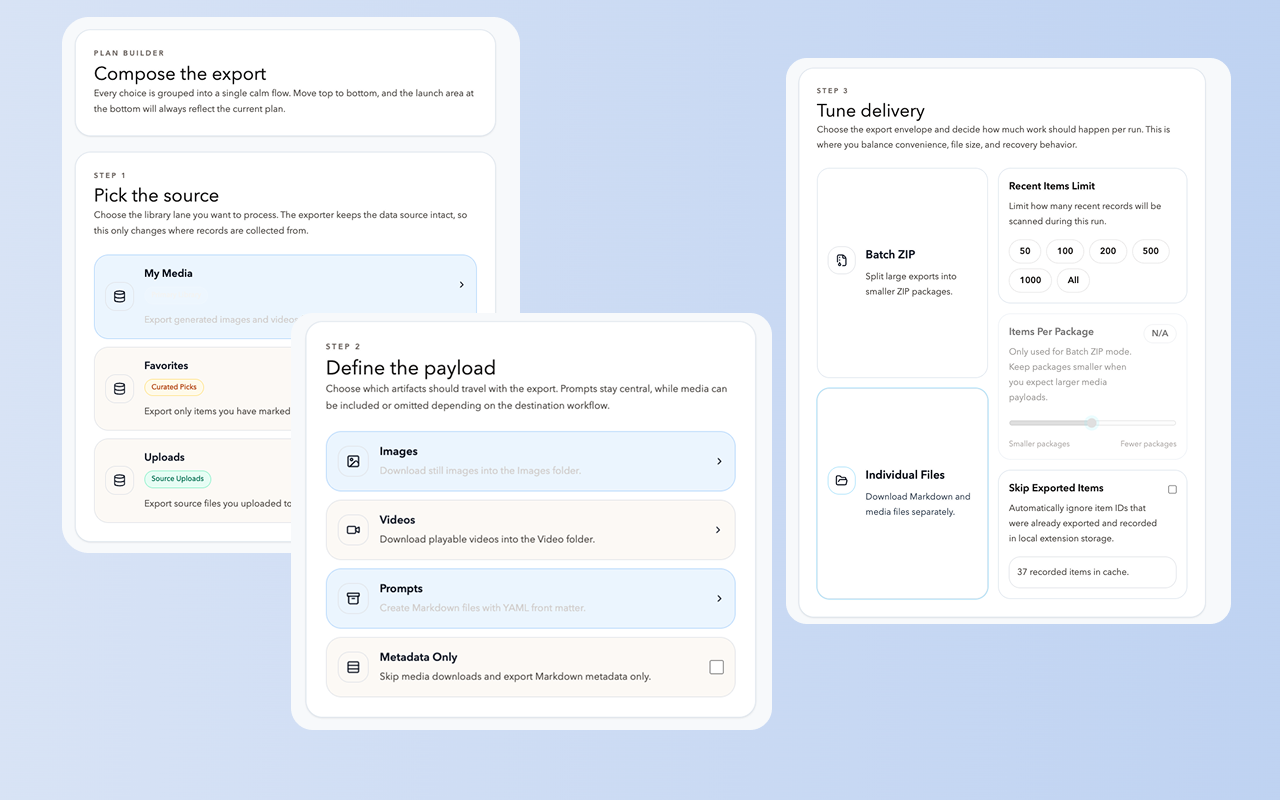
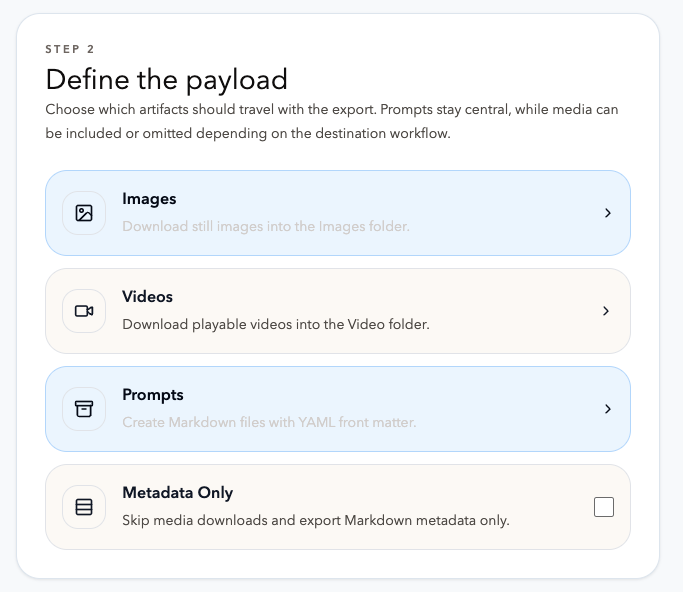
Content Selection
Choose what to export:
- Prompts: Text prompts (always included)
- Images: Generated images (PNG/JPG)
- Videos: Generated videos (MP4)
Or enable Metadata Only to export Markdown files without downloading media.
Delivery Modes
Batch ZIP
Groups items into ZIP archives. Configure items per package (default: 50).
Downloads/sora-exports/
  sora-export-batch-1.zip
  sora-export-batch-2.zip
Use for: backups, sharing, archiving
Individual Files
Saves each file directly to organized folders.
Downloads/sora-exports/
  prompts/
    prompt-001.txt
  images/
    image-001.png
  videos/
    video-001.mp4
Use for: active projects, direct access
Metadata Only
Exports Markdown metadata without media downloads.
Downloads/sora-exports/
  metadata/
    creation-001.md
Use for: cataloging, prompt analysis, minimal storage
Export Settings
Items Per Package
Only for Batch ZIP mode. Controls how many items go into each ZIP file. Smaller packages = easier to manage, more files.
Download Folder
Custom subfolder name (default: “sora-exports”). Files save to Downloads/[folder-name]/
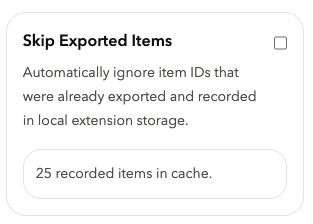
Skip Already Exported Items
Enable to skip items already in local cache. Prevents duplicate downloads and speeds up incremental backups.
The extension tracks exported items in local storage. Check the counter to see how many items are cached.
Start Export
- Review your settings
- Click “Start Export”
- Keep the library tab open
- Monitor progress:
downloaded files / total files
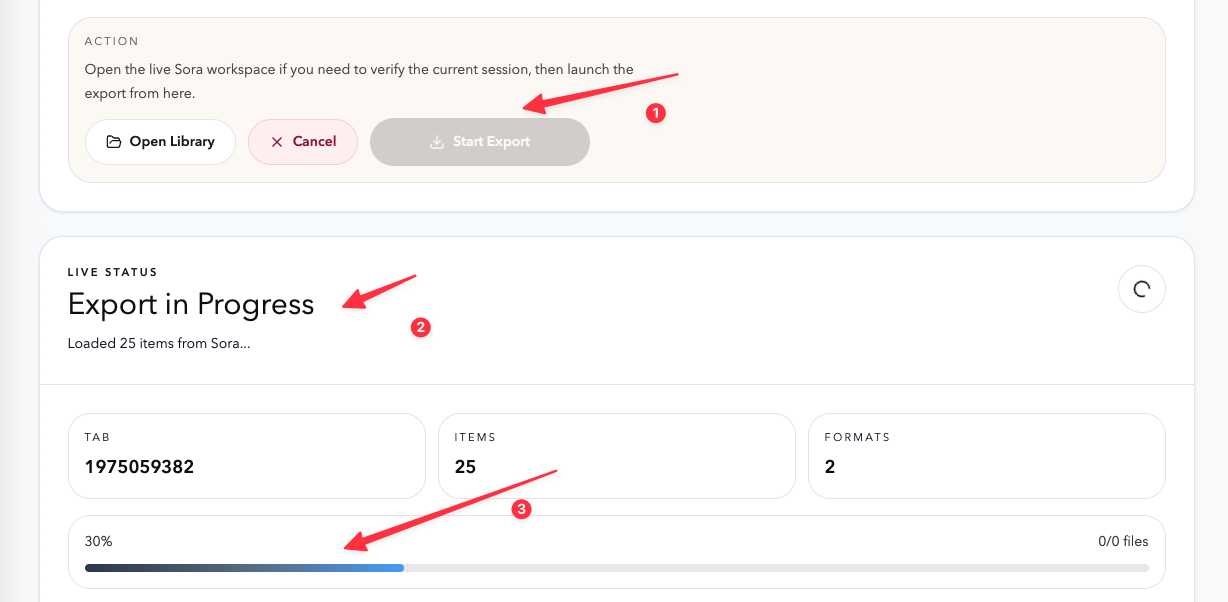
Click “Cancel Export” anytime to stop. Already-downloaded files remain in your folder.
Export Results
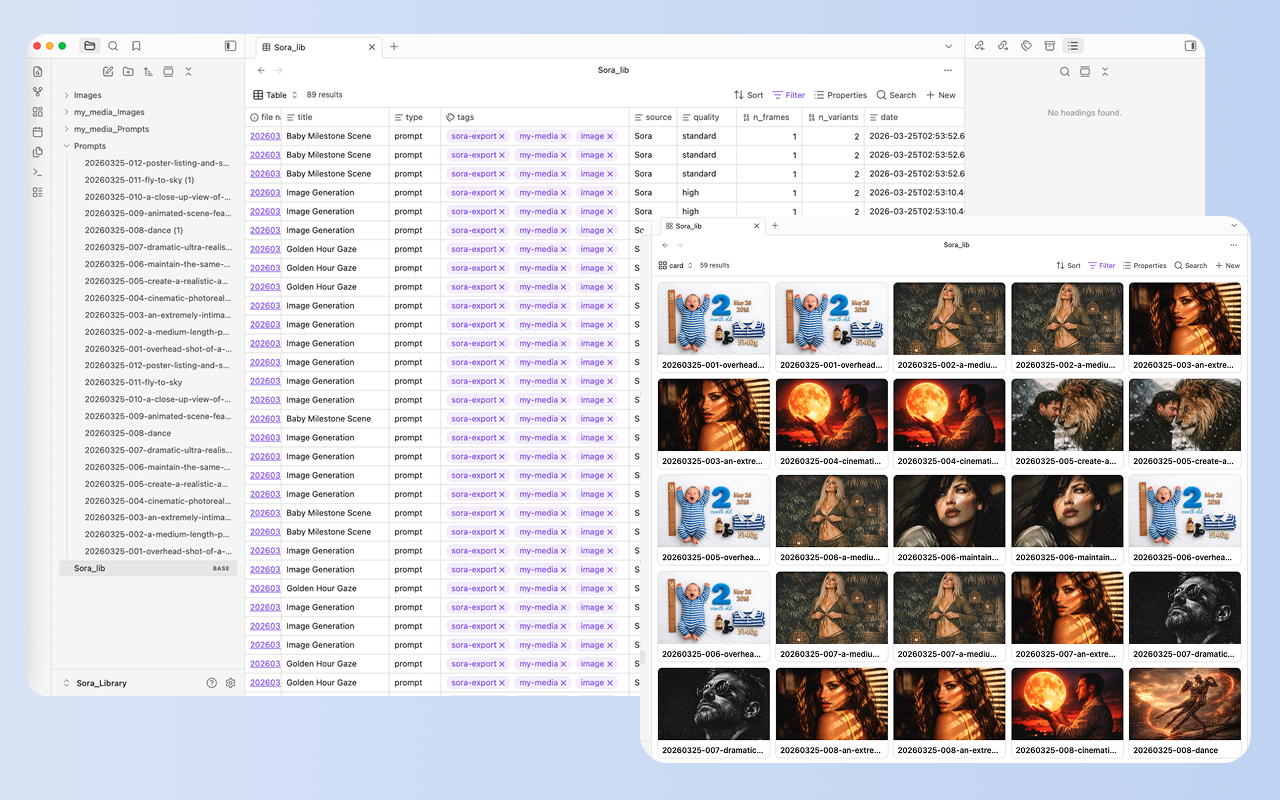
After completion:
- Exported: Successfully downloaded items
- Failed: Items that couldn’t be exported
- Skipped: Items already in cache (if skip enabled)
- Location: Path to your files
Export History
View past exports in the History tab:
- Timestamp and mode
- Content types
- Success/failed/skipped counts
- Delete records or clear all history
Troubleshooting
“Sora library page required”:
- Open https://sora.chatgpt.com/library in a tab
- Navigate to your library
- Refresh the page
- Try export again
“Extension can’t connect to Sora”:
- Refresh your Sora library page
- Wait a few seconds
- Click the extension icon again
Export stops midway:
- Check internet connection
- Ensure Sora library page is active
- Refresh the page and retry
- Try exporting in smaller batches
Some items failed to export:
- Check export history for error details
- Failed items can be retried individually
- May be due to network issues or access restrictions
“Daily limit reached”:
- Free users have daily export limits (50 items)
- Upgrade to premium for unlimited exports
- Quota resets at midnight UTC
Insufficient disk space:
- Check available disk space
- Clear old exports if needed
- Use metadata-only mode to reduce storage
Best Practices
- Start small: Test with a few items first
- Use skip mode: Prevents duplicate downloads
- Monitor progress: Don’t close browser during export
- Check results: Review export history after completion
- Regular backups: Schedule periodic exports to keep your archive up to date
- Organize folders: Use different folders for different projects or time periods
- Choose appropriate mode: ZIP for archiving, individual files for active work
Cancel Export
If you need to stop an export in progress:
- Click the “Cancel Export” button
- Already-exported files will remain in your Downloads folder
- You can resume later by starting a new export with “Skip Already Exported” enabled
FAQ
Q: Can I export while browsing Sora? A: Yes, but keep the library page active. Don’t navigate away during export.
Q: How long does batch export take? A: Approximately 3-5 seconds per item, depending on file size and network speed.
Q: Can I export only new creations? A: Yes. Enable “Skip Already Exported Items” and the extension will only export new items.
Q: Can I cancel a running export? A: Yes, click “Cancel Export”. Already-exported files will remain in your Downloads folder.
Q: Do I need to keep the page open? A: Yes, the export process requires the Sora library page to remain open.
Q: What happens if my computer goes to sleep during export? A: The export will pause. Wake your computer and restart the export with skip mode enabled.
Q: Can I export from multiple Sora accounts? A: Yes, but you’ll need to switch accounts in your browser and run separate exports.
Q: Are exported files compatible with other tools? A: Yes. Images are standard PNG/JPG, videos are MP4, and metadata is JSON/TXT format.
For more help, contact [email protected]
Ready to try Exporter For Sora?
Open the product page for feature details, screenshots, pricing, and the Chrome Web Store install link.