
Overview & Getting Started
Bulk export your Sora prompts, images, and videos with a clean, reliable workflow for backup and organization
Bulk export your Sora prompts, images, and videos with a clean, reliable workflow. This extension helps you back up and organize your Sora creations locally before they get buried or lost.
Why Bulk Exporter for Sora?
Your Sora creations represent hours of creative work, experimentation, and valuable prompts. But they’re scattered across your Sora library, difficult to organize, and at risk of being lost. Bulk Exporter for Sora solves this by giving you complete control over your creative assets with local backups and organized exports.
Key Features
One-Click Export
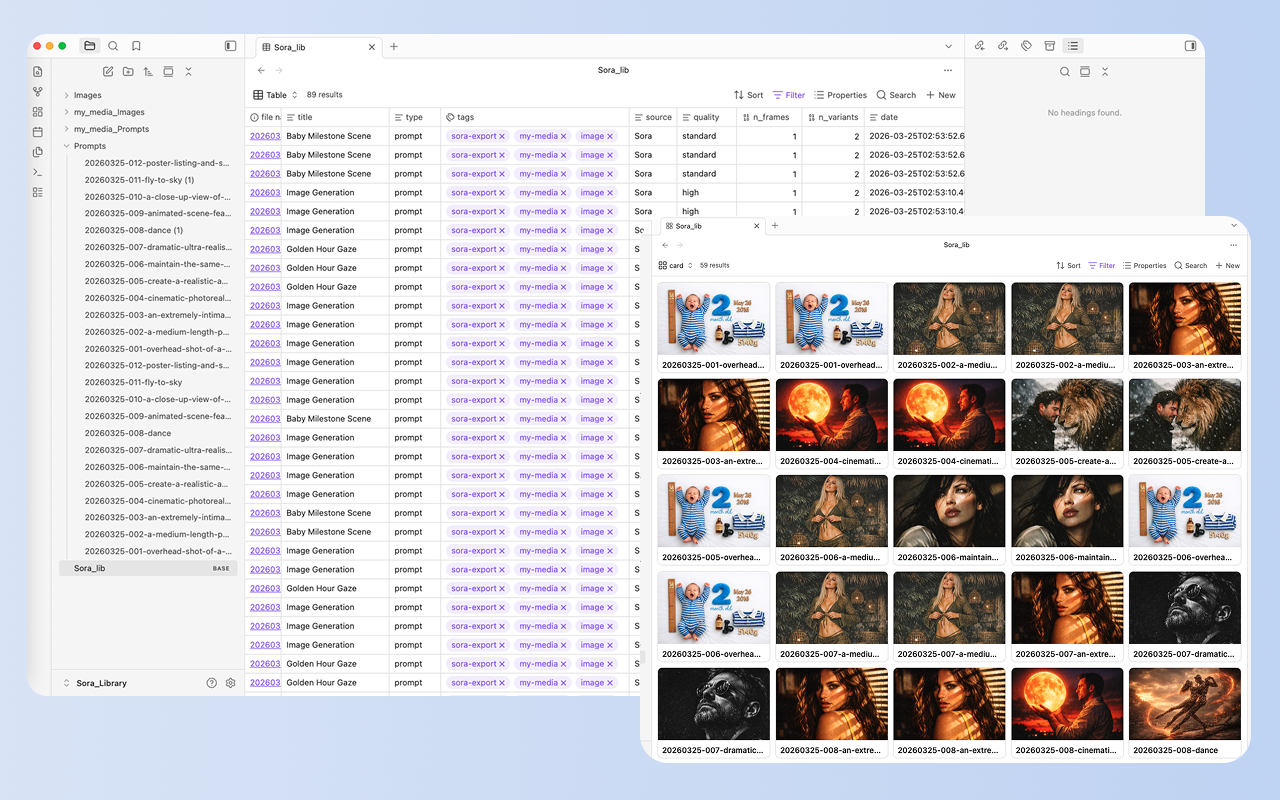
Export prompts, images, videos, or metadata from your Sora library with a simple, streamlined workflow. No manual downloading, no scattered files—just organized exports ready to use.
Batch ZIP Export
Package many items into grouped ZIP files for easier backup and transfer. Perfect for archiving entire projects or sharing collections with your team. Export hundreds of items in minutes, not hours.
Individual File Export
Save each item into a structured folder layout for direct access. No unpacking required—your files are organized and ready to use immediately. Ideal for organizing your Sora library by project or theme.
Metadata-Only Mode
Export prompt data without downloading media when you only need the text record. Perfect for cataloging your work, analyzing prompt patterns, or creating a searchable archive of your creative process.
Smart Skip Logic
Avoid duplicate work by reusing locally recorded export history. Skip already-exported items automatically, saving time and bandwidth on repeat runs.
Live Progress Tracking
See export status, item counts, and completion feedback in real time. Know exactly what’s happening at every step of the export process.
Cancellation Support
Stop an export safely while keeping partial batch results when needed. Resume later without losing your progress or already-exported items.
Who Is This For?
Video Creators: Back up entire projects and share them with clients as organized packages.
AI Artists: Catalog prompts and analyze what works without filling up storage.
Content Producers: Maintain direct access to your Sora library without unpacking archives.
Creative Directors: Run daily exports and only get new items—no duplicates, no wasted bandwidth.
Filmmakers: Track large exports with real-time progress and cancel if needed.
Designers: Organize Sora work by project with clean folder structures.
How It Works
- Install: Add the extension to Chrome
- Open Sora: Navigate to your Sora library at sora.com
- Configure: Choose source, content type, and delivery mode
- Export: Start the export and monitor progress in real time
- Access: Find your organized exports in your Downloads folder
What You Get
Each export includes:
- Prompts: Original text prompts used to generate content
- Images: Generated images in PNG/JPG format (optional)
- Videos: Generated videos in MP4 format (optional)
- Metadata: JSON or TXT files with creation details (optional)
- Organized Structure: Clean naming convention and folder hierarchy
Export Modes
ZIP Package Mode
- Multiple items grouped into archive files
- Easy sharing and storage
- Perfect for project backups
- Compressed for efficient transfer
Individual File Mode
- Each item saved to structured folders
- Direct access without unpacking
- Ideal for active projects
- Clean file organization
Metadata-Only Mode
- Prompt data as text files
- No media downloads
- Perfect for cataloging
- Minimal storage footprint
Recent Updates
March 2026: Added metadata-only export mode for cataloging without downloading media.
February 2026: Introduced individual file export with organized folder structure.
January 2026: Launch with batch ZIP export, skip logic, and live progress tracking.
Next Steps
Ready to get started? Follow our Installation Guide to set up the extension.
Ready to try Exporter For Sora?
Open the product page for feature details, screenshots, pricing, and the Chrome Web Store install link.