
Overview & Getting Started
Choose the right Perplexity to Obsidian 3.1 workflow for individual, selective, opened-tab, Computer Task, Space, and bulk Markdown exports
Perplexity to Obsidian 3.1 exports Perplexity research to local Markdown through Chrome Downloads. It supports standard /search/ conversations, Perplexity Computer Tasks, opened tabs, Perplexity Spaces, selective Q&A export, a full Custom Export Preview, and repeatable batch backups.
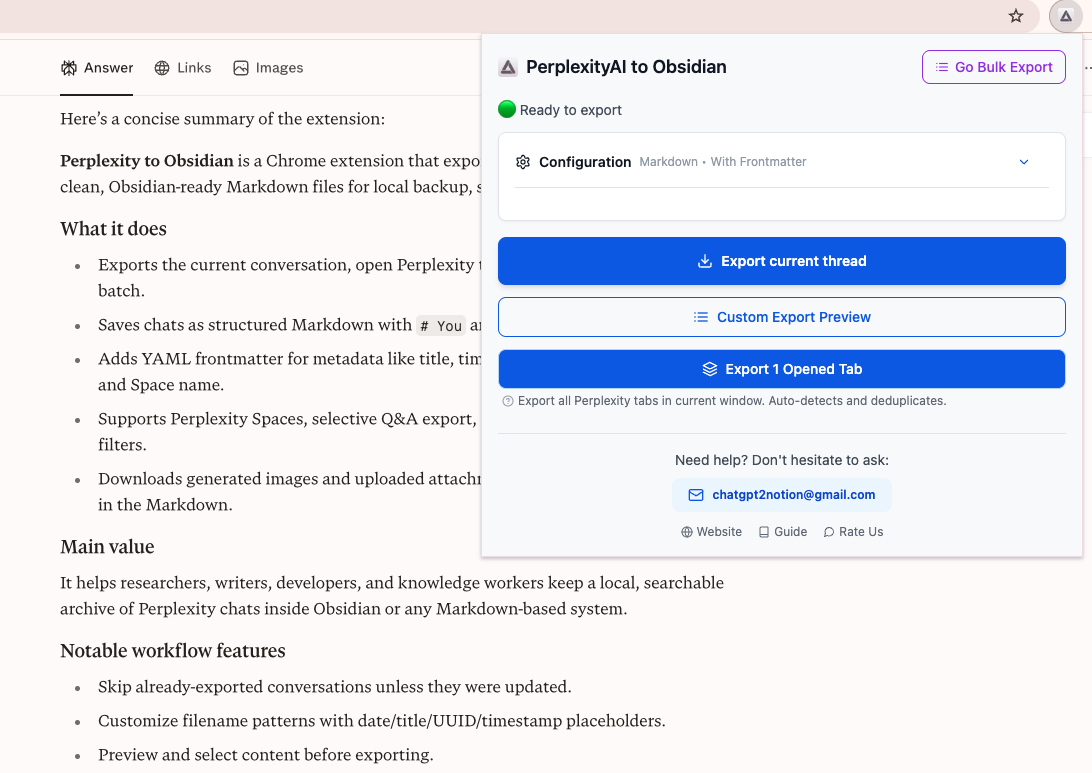
Choose an export workflow
| Goal | Use this workflow | What it exports |
|---|---|---|
| Save the current conversation quickly | Popup → Export Current Thread | Full current thread and, when enabled, companion assets |
| Review before downloading | Popup → Custom Export Preview | Individually selected prompts and responses as Markdown |
| Save several already-open conversations | Popup → Export Opened Tabs | Deduplicated supported Perplexity tabs in the current window |
| Pick complete Q&A pairs in place | Checkbox controls on a /search/ page | Selected Q&A pairs to the clipboard or a -selected.md file |
| Back up history, tasks, or Spaces | Popup → Go Bulk Export | Selected items or all loaded records from a bulk data source |
What the Batch Export page supports
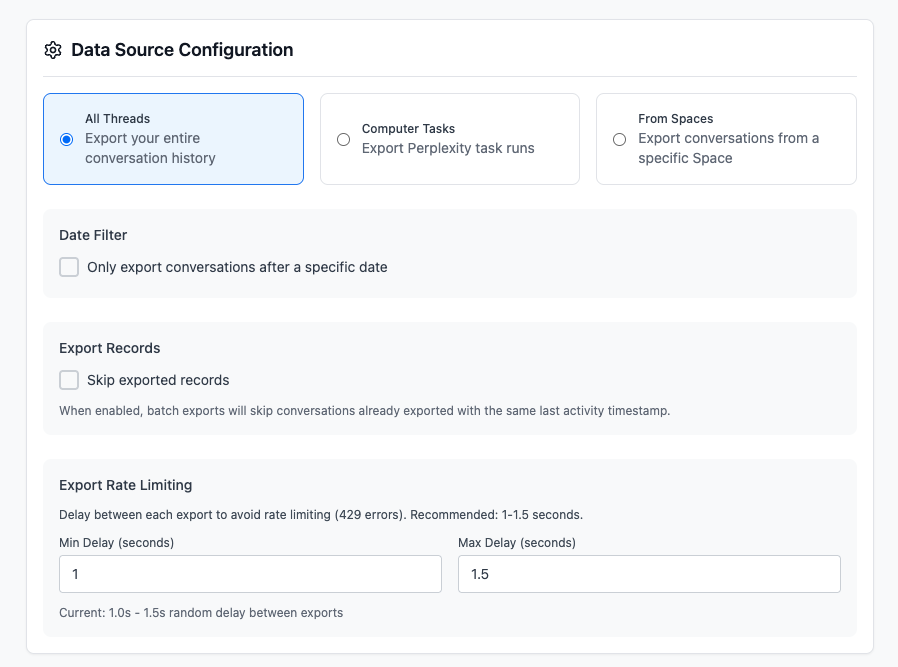
The current page has three data sources:
- All Threads for regular conversation history
- Computer Tasks for supported Perplexity task runs
- From Spaces for one or more selected Spaces
You can filter by last activity date, skip records that have not changed since their previous export, select individual rows, load additional pages, export all records, adjust the delay between requests, cancel a run, and review recent history or failures.
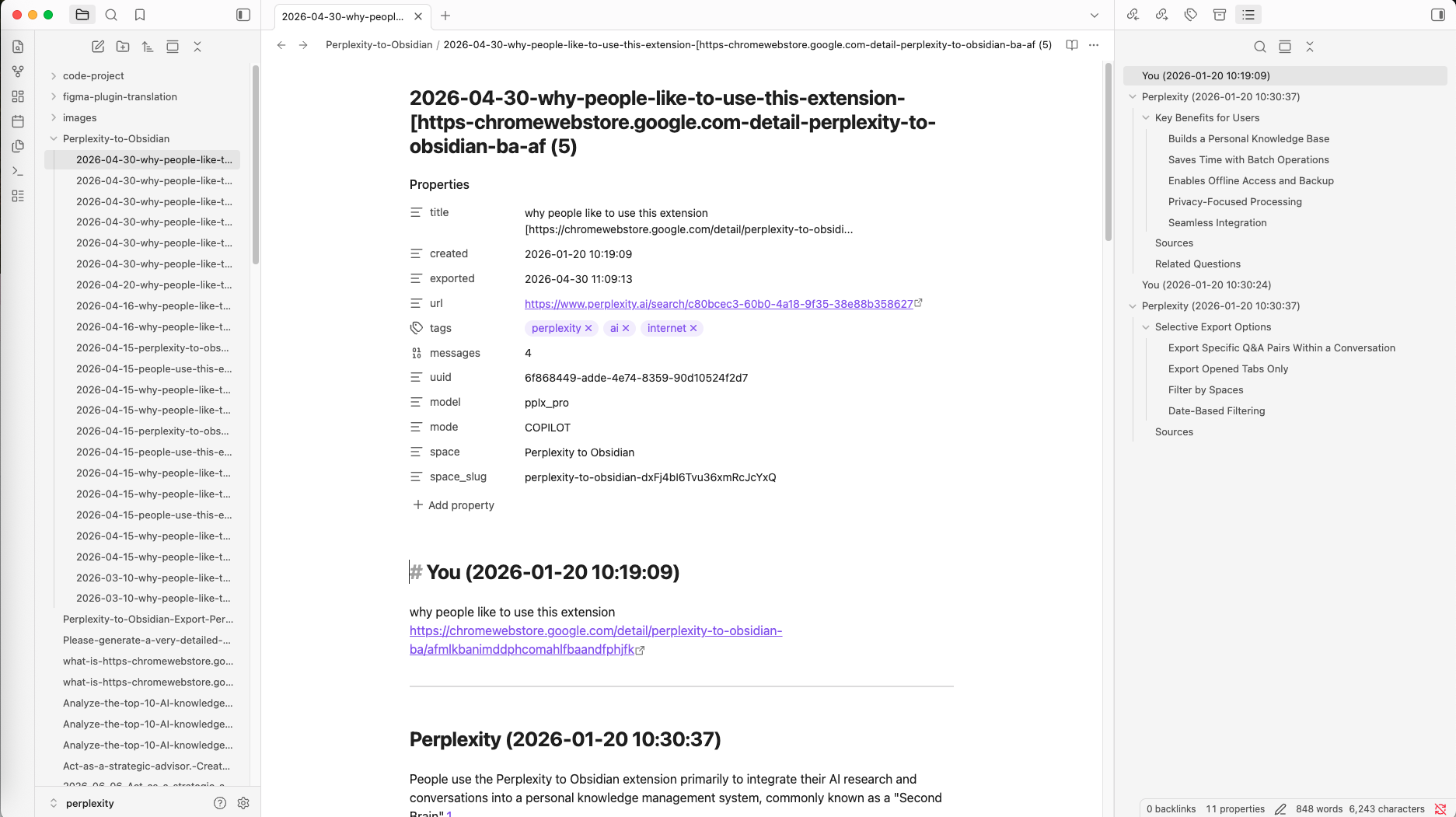
Markdown output
Standard notes use clear sections:
# You

Your prompt

---

# Perplexity

The formatted answer
The converter preserves Markdown headings, lists, links, tables, code blocks, blockquotes, Sources, and Related Questions when the source data is available.
Optional YAML frontmatter can include:
- title, created, updated, and exported times
- platform, source URL, source ID, and UUID
- tags, message count, model, and mode when available
- Space name and slug when applicable
Dates are formatted in the browser’s current time zone.
Attachments, generated images, and documents
When Download user attachments is enabled, standard current-thread, opened-tab, and batch exports can download:
- uploaded or returned files under a sibling
attachments/folder - Perplexity-generated images under a sibling
images/folder
The note uses normal relative Markdown links and image syntax, not [[Obsidian wiki links]].
Perplexity document-style output may instead be embedded inside the note under Attached Documents. An embedded document is not guaranteed to be downloaded as a separate original file.
Important workflow boundaries
- The extension Save Path is relative to Chrome’s configured Downloads location. It cannot be an arbitrary absolute vault path.
- Inline Selective Export works on standard
/search/pages, not Computer Task pages. - Custom Export Preview and inline selective export download or copy Markdown only; they do not run the companion-asset downloader.
- The Sources and Related Questions setting is one combined toggle.
- Regular batch export stops when it encounters a 429. Multi-Space processing has a separate 60-second retry wrapper for the current Space.
- Conversation conversion and downloads happen in the browser. Subscription verification and diagnostic or usage events may contact product services.
Free and subscribed use
The Batch Export page limits free users to five conversations per batch. Subscription activation removes that batch limit.
Version 3.1 also contains a locally stored daily-operation check in the popup’s current-thread and opened-tab paths. If the popup displays a free-limit message, activate a subscription or use the options available in the current interface.
Recommended first export
- Install the extension and refresh an open Perplexity tab.
- Open a short English test conversation.
- Expand Configuration in the popup.
- Keep the default relative Save Path, such as
perplexity/. - Keep YAML, Sources and Related Questions, Space organization, and attachments enabled if you want a complete backup.
- Click the current-thread export action.
- Open the downloaded Markdown in Obsidian and verify any companion folders.
Continue with Installation, Individual Export, or Batch Export.
Ready to try Perplexity To Obsidian?
Open the product page for feature details, screenshots, pricing, and the Chrome Web Store install link.