
Genspark to Obsidian
Export, download, and back up Genspark conversations as clean Markdown files for Obsidian, Notion, Logseq, VS Code, Git repositories, and long-term offline storage. Save current chats, opened tabs, selected records, complete Hubs, archived Hubs, or your full Genspark history without copy-paste cleanup.
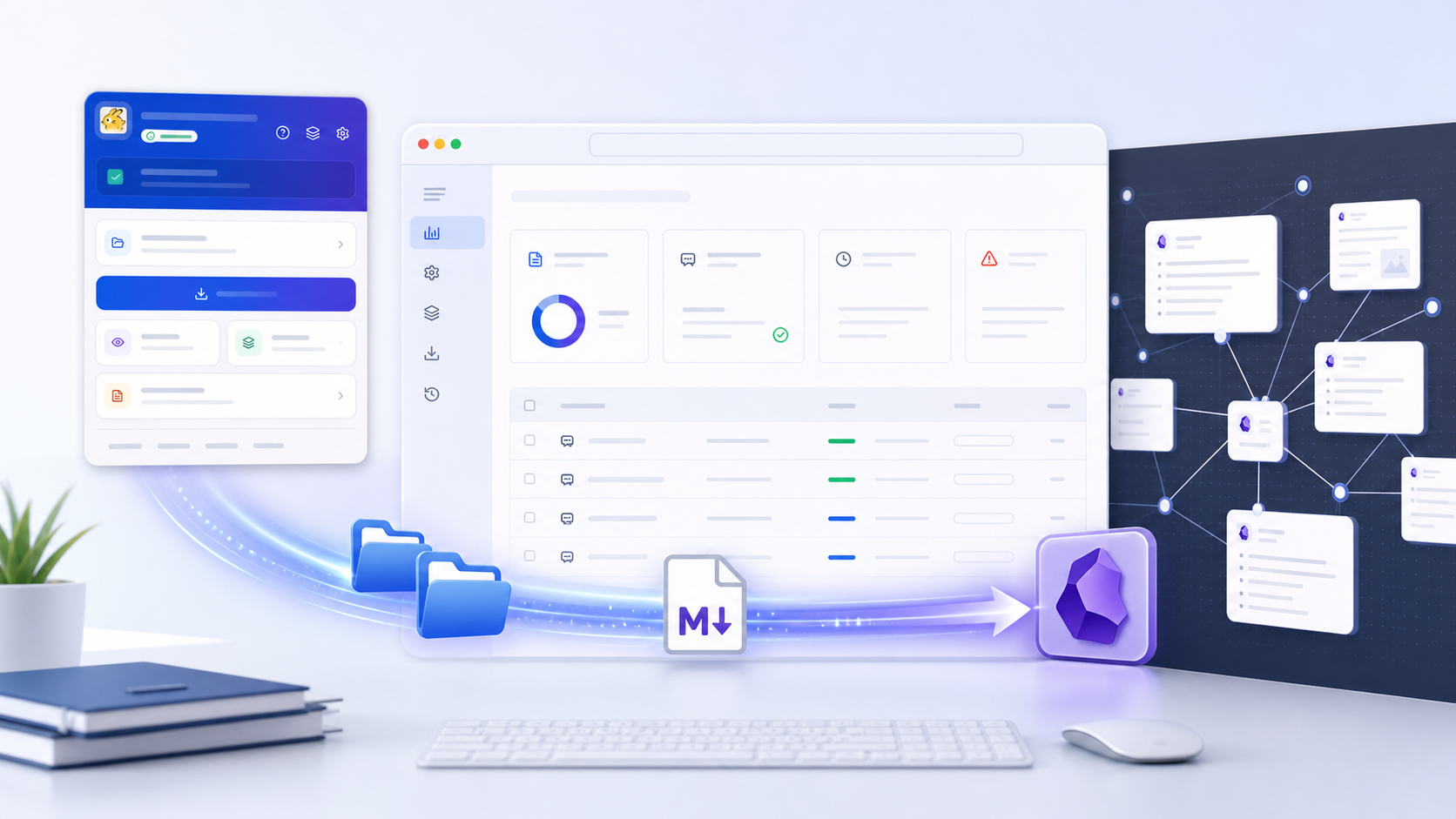
Built for clean, local, portable Genspark archives.
Compatibility matrix
What Genspark to Obsidian can export
A practical support table for real content types and destination behavior.
| Content type | Support | Export result | Notes |
|---|---|---|---|
| Current Genspark conversation | Supported | Markdown file with optional YAML frontmatter and related assets. | No special setup required. |
| Opened Genspark tabs | Supported | Exports every unique Genspark conversation open in the current browser window. | No special setup required. |
| Bulk history | Supported | Exports latest page or all available pages with progress and history tracking. | No special setup required. |
| Selective export | Supported | Search and export selected conversation records. | No special setup required. |
| Active and archived Hubs | Supported | Exports complete Hubs or selected conversations inside a Hub. | No special setup required. |
| Generated images | Supported when available | Downloads supported image files and inserts Markdown references. | No special setup required. |
| Presentation slides | Supported when available | Saves notes, HTML slide files, and manifests where Genspark exposes them. | No special setup required. |
Output proof
Real export examples
Use these examples to verify what exported files, folders, or destination pages look like before installing.
Obsidian Markdown archive
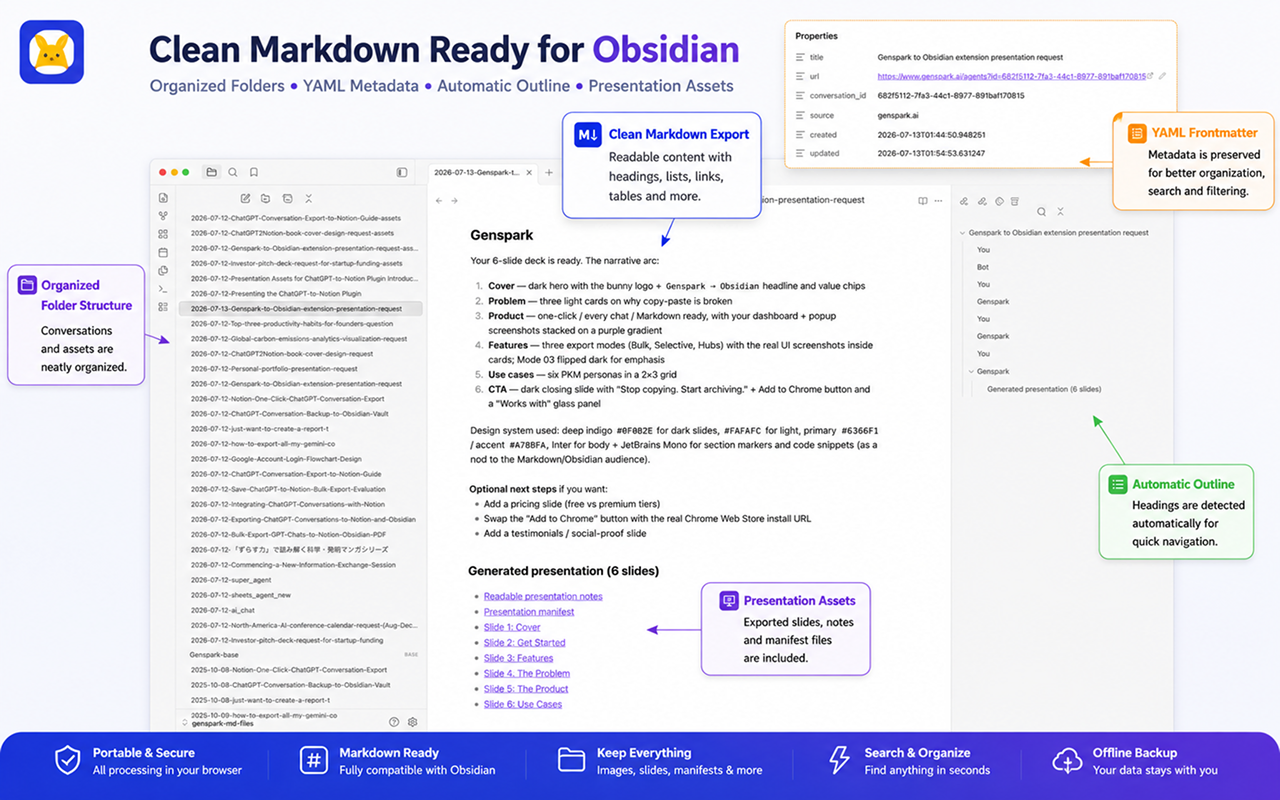
Exported Genspark conversations inside an Obsidian vault with YAML properties and conversation outline.
Annotated output structure
Shows organized folders, YAML metadata, clean Markdown, automatic outline, and exported presentation assets.
Four-step export workflow
A visual walkthrough from one-click export to preview, bulk backup, and Obsidian-ready Markdown.
See it in Action
Key Features
One-click current conversation export
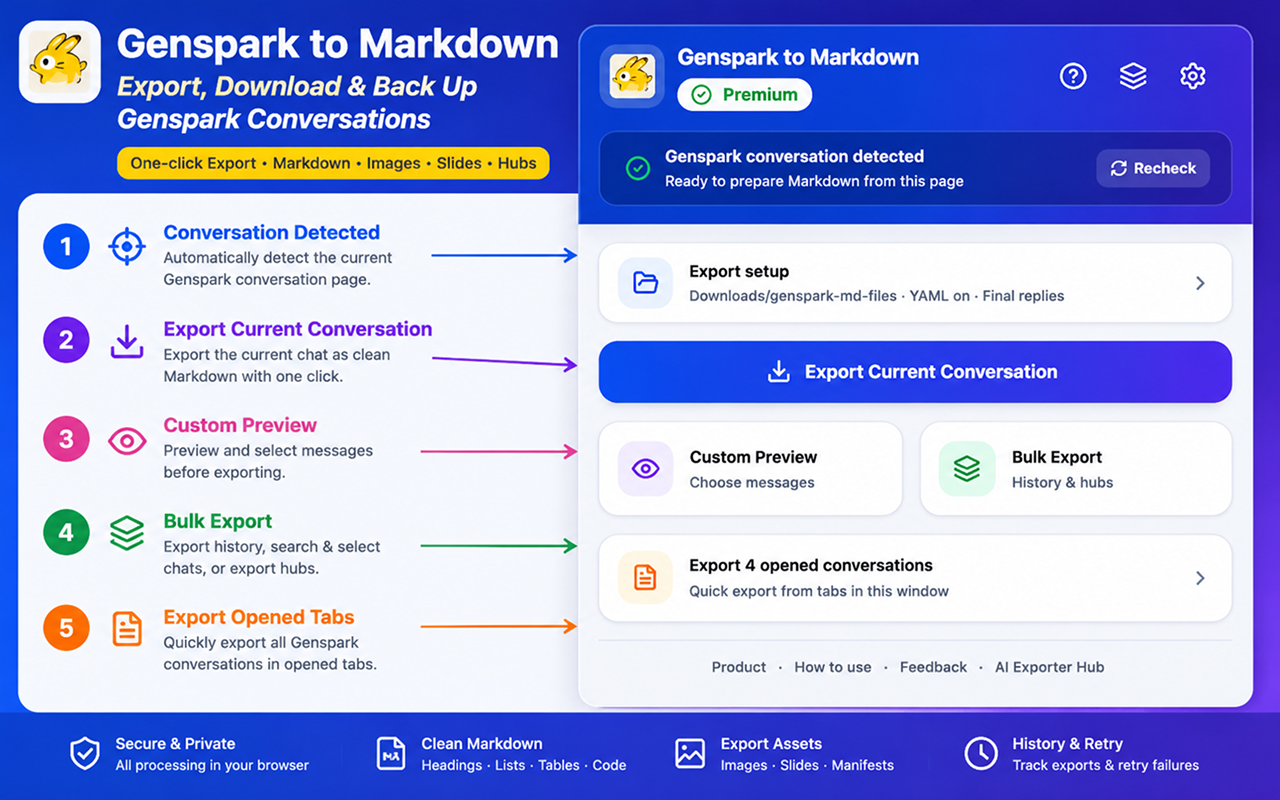
Open a Genspark conversation, click the extension, and save the current chat as Markdown. The popup shows page status, export setup, subscription status, Custom Preview, Bulk Export, and opened-tab export actions in one place.
Custom Markdown Preview
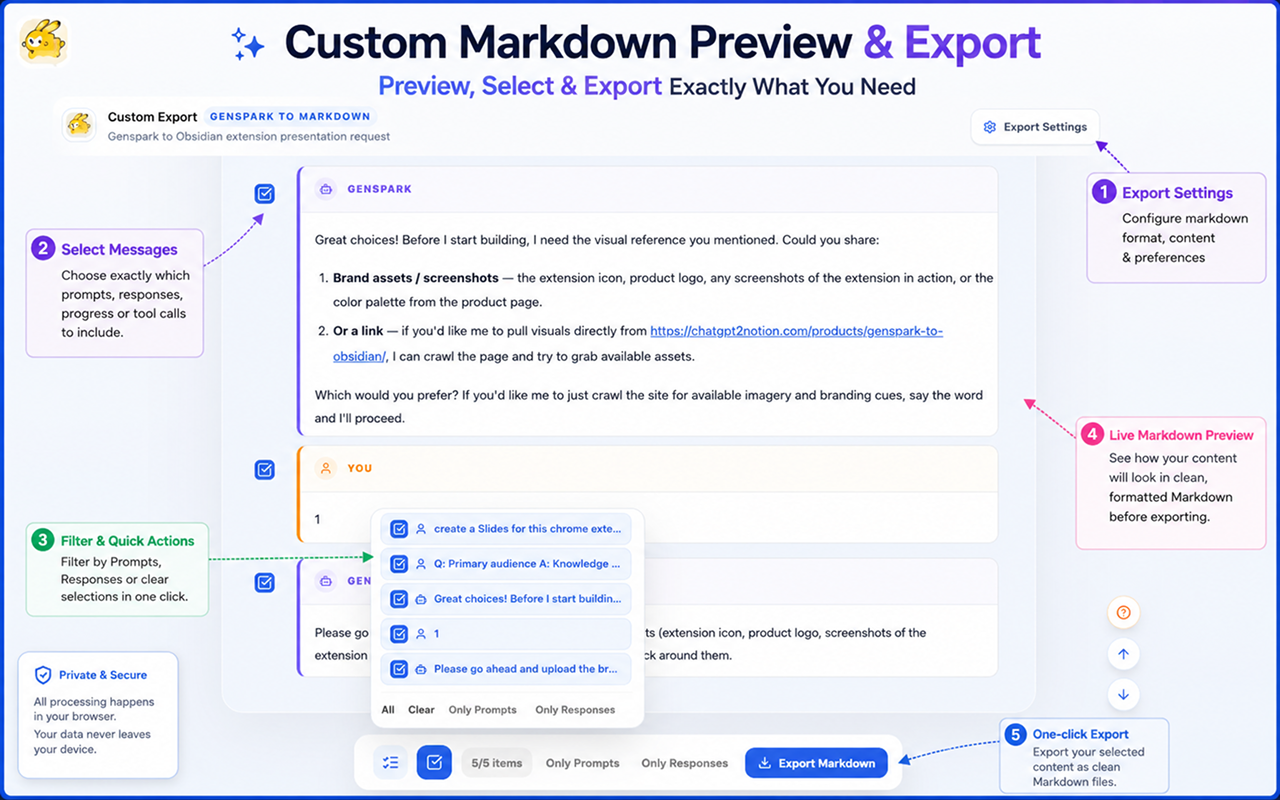
Review the final Markdown before downloading. Select or deselect prompts, final Genspark answers, intermediate Bot progress, and tool calls, then export only the records you want.
Bulk, selective, and Hubs export
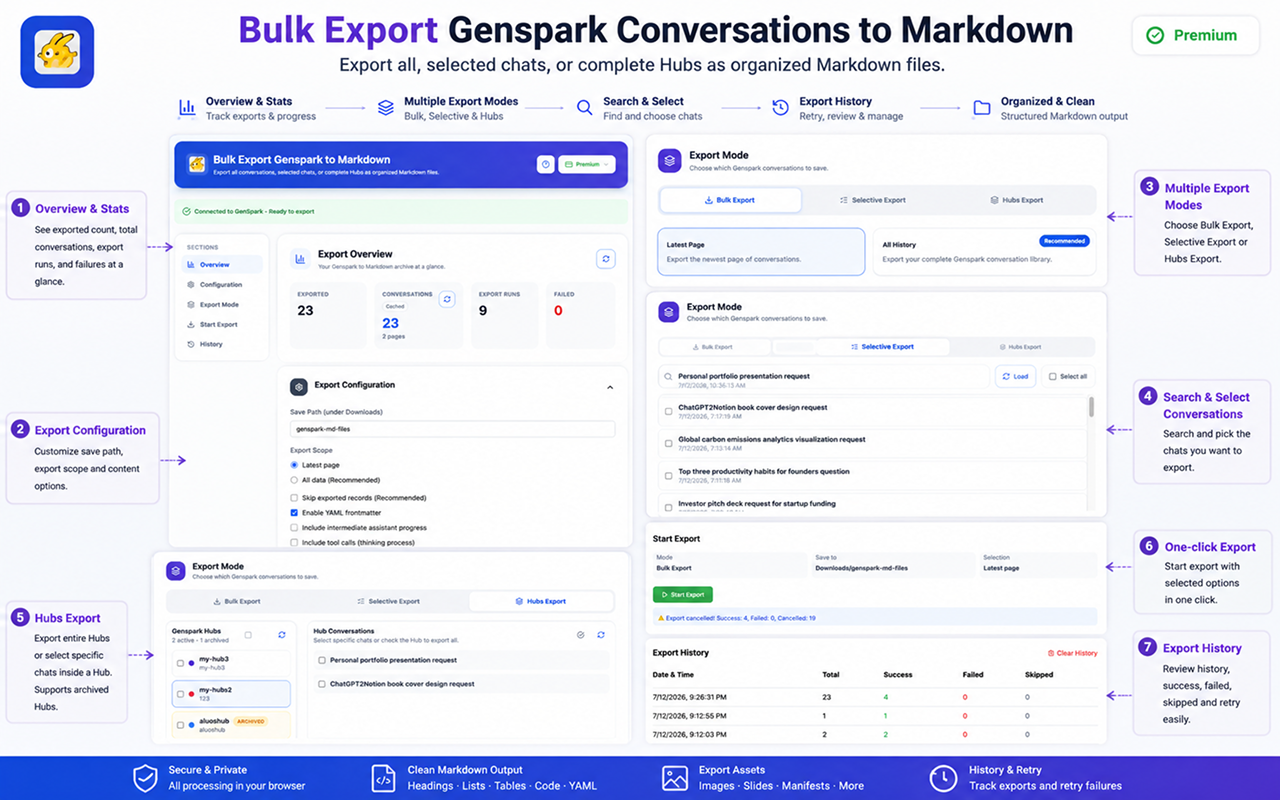
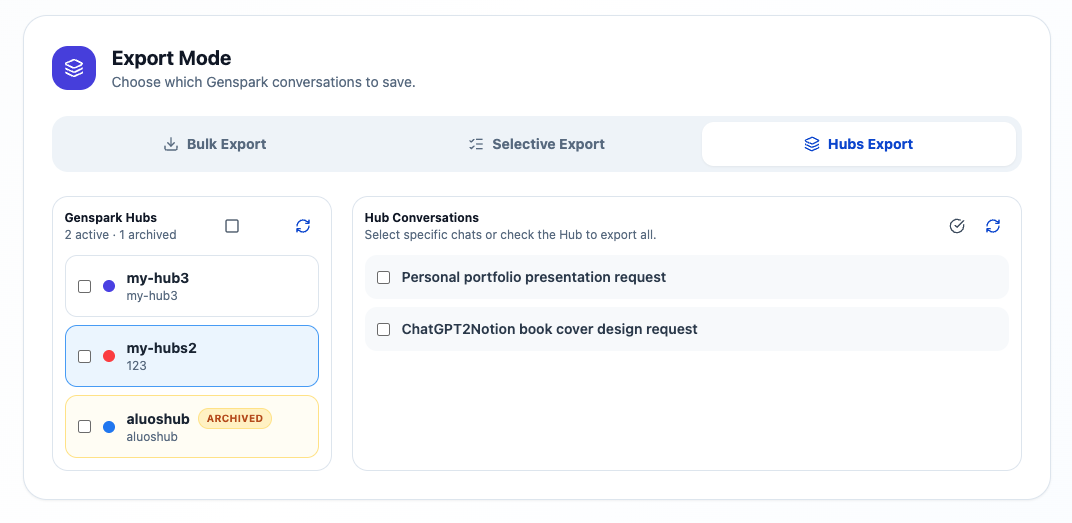
Export the latest page, all history, searched conversations, selected records, active Hubs, archived Hubs, or every Genspark conversation open in your browser window.
Four-step Genspark to Obsidian workflow
Move from current-chat export to preview, bulk backup, and clean Obsidian-ready Markdown with metadata, outline, generated images, and presentation assets.
Clean Markdown output in Obsidian
Exported conversations arrive as organized Markdown notes with YAML frontmatter, automatic outline, searchable folders, and related image or slide assets.
Key Features of Genspark to Obsidian
Everything you need to organize your Genspark conversations quickly and efficiently.
Clean final answers by default
Exports focus on your prompts and Genspark's final answers so the resulting notes are easier to read. Intermediate Bot progress and tool calls stay optional.
Custom Markdown Preview
Preview headings, lists, tables, links, quotes, fenced code blocks, Mermaid diagrams, YAML frontmatter, and images before saving the final Markdown file.
Bulk history export
Export the newest page for quick backups or scan all available pages to build a complete local archive of your Genspark history.
Selective export
Search conversations, select exactly the records you need, and export a focused set instead of downloading your full history.
Hubs and archived Hubs
Browse active and archived Genspark Hubs, select whole Hubs, or export specific conversations inside a Hub.
Opened-tab export
When several Genspark conversations are open in the same browser window, export them together from the popup.
Generated asset support
When available, generated images, presentation slides, slide manifests, HTML slide files, Mermaid diagrams, links, and code blocks can be saved with the Markdown export.
Organized asset folders
Related images, presentations, manifests, and slide files are grouped into conversation-specific folders with portable links.
Export statistics and history
Track exported conversations, total conversations, total pages, export runs, failed records, retry status, and cached counts for faster future exports.
Browser-based processing
Conversation parsing, Markdown generation, preview rendering, and download preparation happen inside your browser before files are saved through Chrome Downloads.
Known limits
Export boundaries and fixes
Clear limits build trust. These are the cases to check before running large exports.
Genspark formats can change
Genspark conversations may use different data structures depending on the agent, content type, and release version.
The parser supports multiple known formats and is updated when new structures appear.
Generated assets depend on availability
Some generated images or slide assets may not be downloadable if the source URL is expired, protected, or no longer exposed by Genspark.
Reopen the conversation, confirm the asset loads in Genspark, then retry the export.
Large all-history exports take longer
Full-history exports need to scan pages, fetch details, generate Markdown, and prepare downloads.
Keep the export page open, use cached counts for planning, and run smaller selective exports when needed.
How it Works
What Users Say About Genspark to Obsidian
Real workflows, backed up to Obsidian.
"The Custom Preview is the key feature for me. I can keep final answers clean and still include the full working process when a research thread needs it."
"It saves code blocks, Mermaid diagrams, and tool activity when I need a complete technical record. The default export is clean enough for daily notes."
"Hubs export makes it easy to turn study projects into an Obsidian folder without copying each conversation by hand."
Related resources Genspark to Obsidian
Use these guides and docs to solve common export, backup, and troubleshooting workflows.
What's New
Added Custom Markdown Preview with per-message selection, rendered Markdown preview, conversation statistics, local count caching, and updated product screenshots.
Redesigned the popup with current-chat export, opened-tabs export, bulk export, quick settings, and cleaner default exports focused on prompts and final Genspark answers.
Expanded export workflows for Bulk Export, Selective Export, active Hubs, archived Hubs, generated images, rich content, slide agents, presentations, and multiple Genspark response formats.
Frequently Asked Questions About Genspark to Obsidian
Have another question? Contact us on Discord or by email.
Can I export all Genspark conversations?
Yes. Use Bulk Export and choose the all-history option to scan available pages and download your Genspark conversations as Markdown files.
Can I export Genspark Hubs?
Yes. The Hubs export mode supports active Hubs, archived Hubs, whole-Hub selection, and selected conversations inside a Hub.
Can I preview the Markdown before downloading?
Yes. Custom Preview renders the final Markdown and lets you select prompts, final answers, intermediate Bot progress, and tool calls before saving.
Does the extension export generated images?
Yes, when generated images are present and accessible. Supported image formats include JPEG, PNG, WebP, GIF, AVIF, and SVG.
Does it export Genspark presentations and slides?
Yes, when presentation data is available. The extension can save presentation notes, individual HTML slides, and manifests, then link them from the main Markdown file.
What is included by default?
By default, exports focus on your prompts and Genspark's final answers. Intermediate Bot progress and tool calls are optional settings.
Does it support YAML frontmatter?
Yes. Optional YAML frontmatter can include the conversation title, source URL, conversation ID, source, created time, and updated time.
Where are files saved?
Files are saved through Chrome Downloads. You can choose a folder name under Downloads, and related assets are grouped into conversation-specific folders.
Is my data sent to external servers?
Conversation parsing, Markdown generation, preview rendering, and download preparation run inside your browser. Files are saved locally through Chrome Downloads.
Can I use the Markdown outside Obsidian?
Yes. The exported Markdown works with Notion import, Logseq, Git repositories, VS Code, Typora, and other Markdown-compatible workflows.
Unlock Unlimited Power
Batch export 100+ chats, Auto-Sync, and priority support with Universal Pass.
Get Universal Pass