
Installation
Install the Genspark to Obsidian Chrome extension and prepare your first Genspark Markdown export
Install from Chrome Web Store
- Open the Genspark to Obsidian Chrome Web Store page.
- Click Add to Chrome.
- Confirm the browser permission prompt.
- Pin the extension from the Chrome toolbar so it is easy to access.
Open Genspark
- Go to Genspark.
- Sign in to your Genspark account.
- Open any Genspark conversation URL.
- Click the extension icon.
When the extension detects a supported Genspark conversation page, the popup shows a ready status.
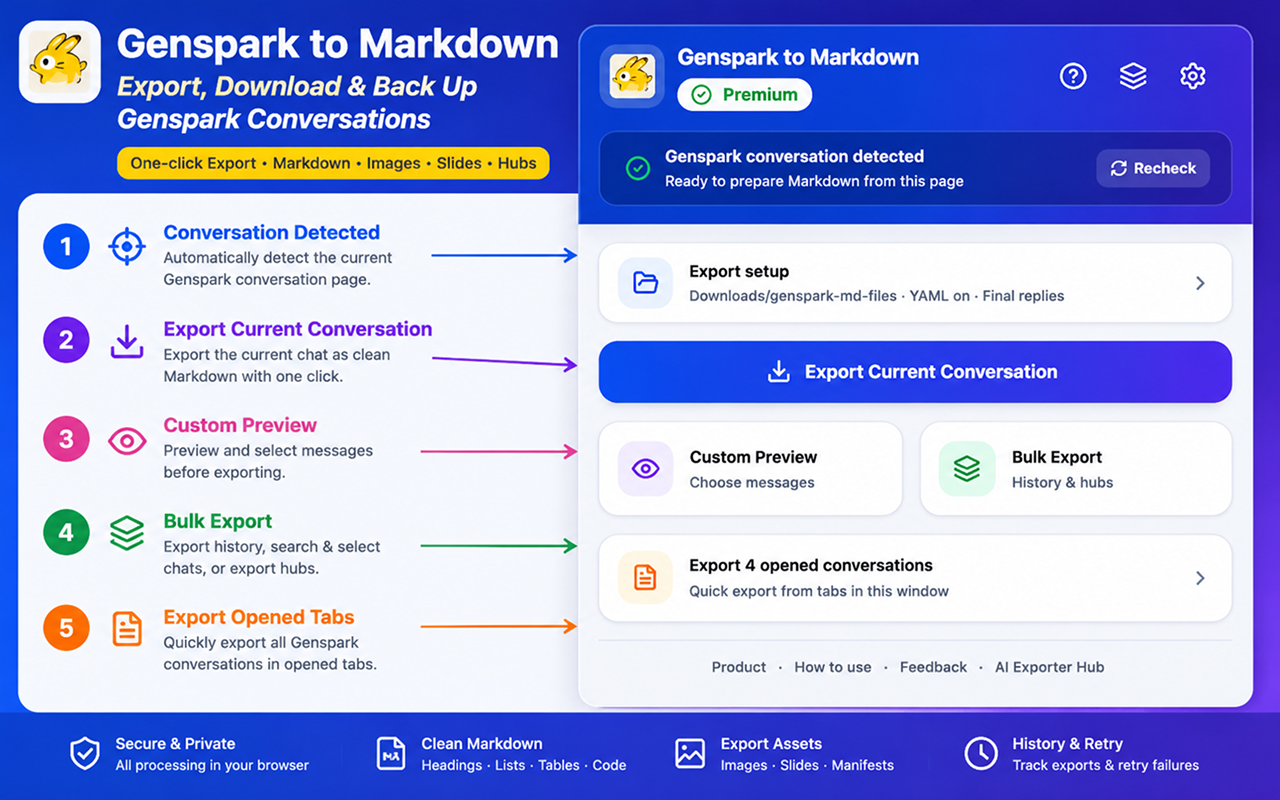
Choose your default export settings
Click Export setup or the settings icon in the popup to review:
- Save path under Downloads
- YAML frontmatter on or off
- Final replies on or off
- Intermediate assistant progress on or off
- Tool calls on or off
Recommended defaults:
- Save path:
genspark-md-files - YAML frontmatter: on
- Final replies: on
- Intermediate assistant progress: off
- Tool calls: off
These defaults create clean notes that are easy to read in Obsidian. Turn on intermediate progress and tool calls when you need a full audit trail of how Genspark produced the answer.
Browser compatibility
The extension is built for Chromium-based desktop browsers:
- Chrome
- Edge
- Brave
- Opera
- Other Chromium browsers where Chrome extensions are supported
Mobile browsers are not supported.
Next step
Follow How to Export Conversations to save your first Markdown file.
Installation troubleshooting
If the icon does not appear, open the puzzle-piece extensions menu and pin Genspark to Obsidian.
If the popup cannot connect to the page, refresh the Genspark tab, wait until the conversation finishes loading, then reopen the popup.
If installation fails, restart the browser and try installing again from the Chrome Web Store.
Ready to try Genspark To Obsidian?
Open the product page for feature details, screenshots, pricing, and the Chrome Web Store install link.