
Custom Markdown Preview
Preview Genspark Markdown exports, select messages, and choose prompts, final answers, Bot progress, or tool calls before downloading
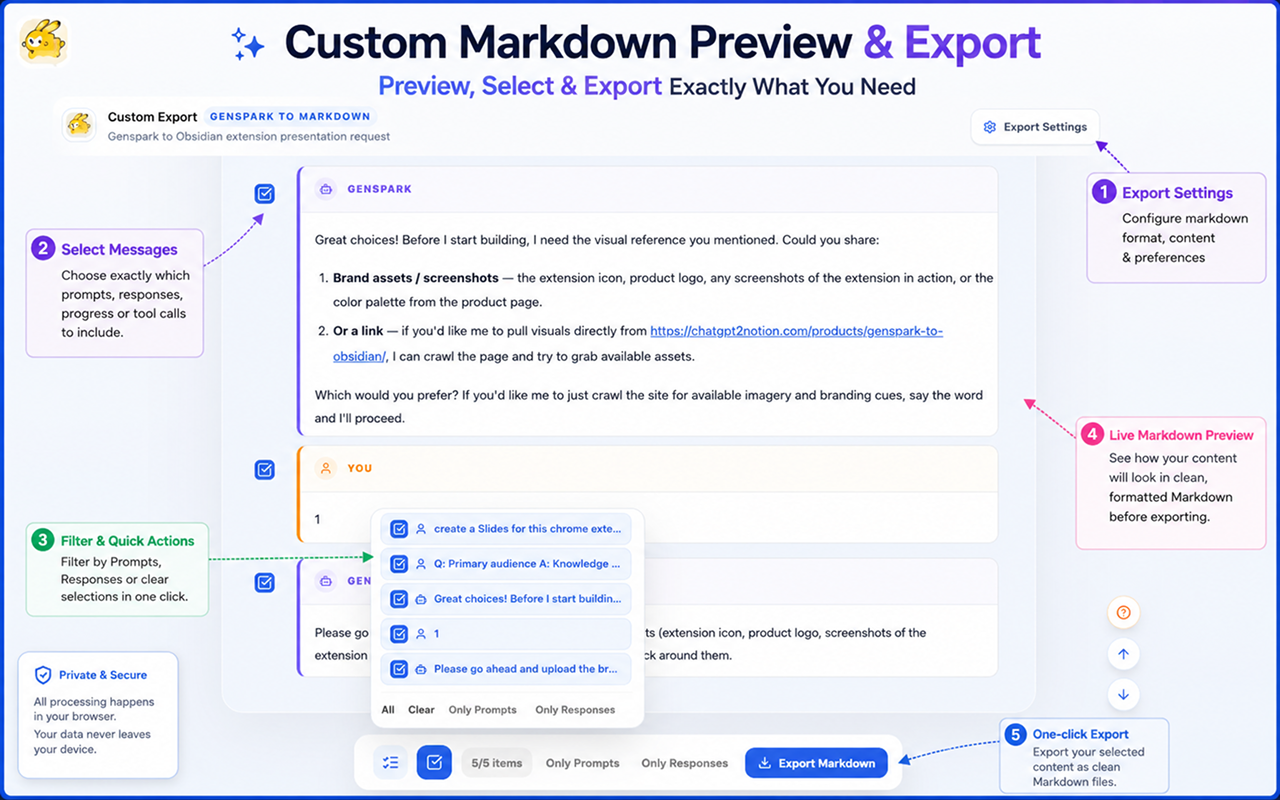
Custom Markdown Preview lets you inspect and shape the final Markdown before downloading it.
Use it when a conversation contains long research output, code, generated images, presentation notes, or tool activity and you want control over what goes into your Obsidian note.
Open Custom Preview
- Open a Genspark conversation.
- Click the extension icon.
- Click Custom Preview.
- A new preview tab opens.
The preview renders the conversation in a Markdown-like layout so you can review structure before saving.
Select messages
Each message block has a selection control. You can include or exclude:
- Your prompts
- Final Genspark answers
- Intermediate Bot progress
- Tool calls
Quick filters help you switch selections faster:
- All
- Clear
- Only Prompts
- Only Responses
The selection count shows how many message blocks will be exported.
Use export settings
Click Export Settings in the preview tab to review the same export options used by the popup:
- YAML frontmatter
- Final replies
- Intermediate assistant progress
- Tool calls
Use these settings with message selection to create either a clean reading note or a complete technical archive.
Preview supported Markdown
The preview is designed to help you inspect:
- Headings
- Lists
- Tables
- Links
- Quotes
- Fenced code blocks
- Mermaid diagrams
- YAML frontmatter
- Images
If generated assets are available, the final export can include asset references and local files next to the Markdown.
Export Markdown
After selection:
- Confirm the selected message count.
- Click Export Markdown.
- Save the file through Chrome Downloads.
- Move the Markdown and related asset folder into your Obsidian vault.
Recommended workflows
For clean notes:
- Select prompts and final Genspark answers
- Keep intermediate progress off
- Keep tool calls off
For technical records:
- Include final answers
- Include intermediate progress if it contains useful working notes
- Include tool calls if the conversation created files, ran commands, generated slides, or used tools you need to preserve
For study notes:
- Use Only Responses when you want a distilled answer sheet
- Use All when you need the full tutoring conversation
Ready to try Genspark To Obsidian?
Open the product page for feature details, screenshots, pricing, and the Chrome Web Store install link.