
Batch Export & Backup
Export the latest page, all Genspark history, selected records, opened tabs, active Hubs, or archived Hubs as Markdown
Batch Export is the best workflow when you want more than the current conversation. It can export the latest page, scan all available history pages, export selected records, or export Genspark Hubs.
Open Batch Export
From the popup, click Bulk Export.
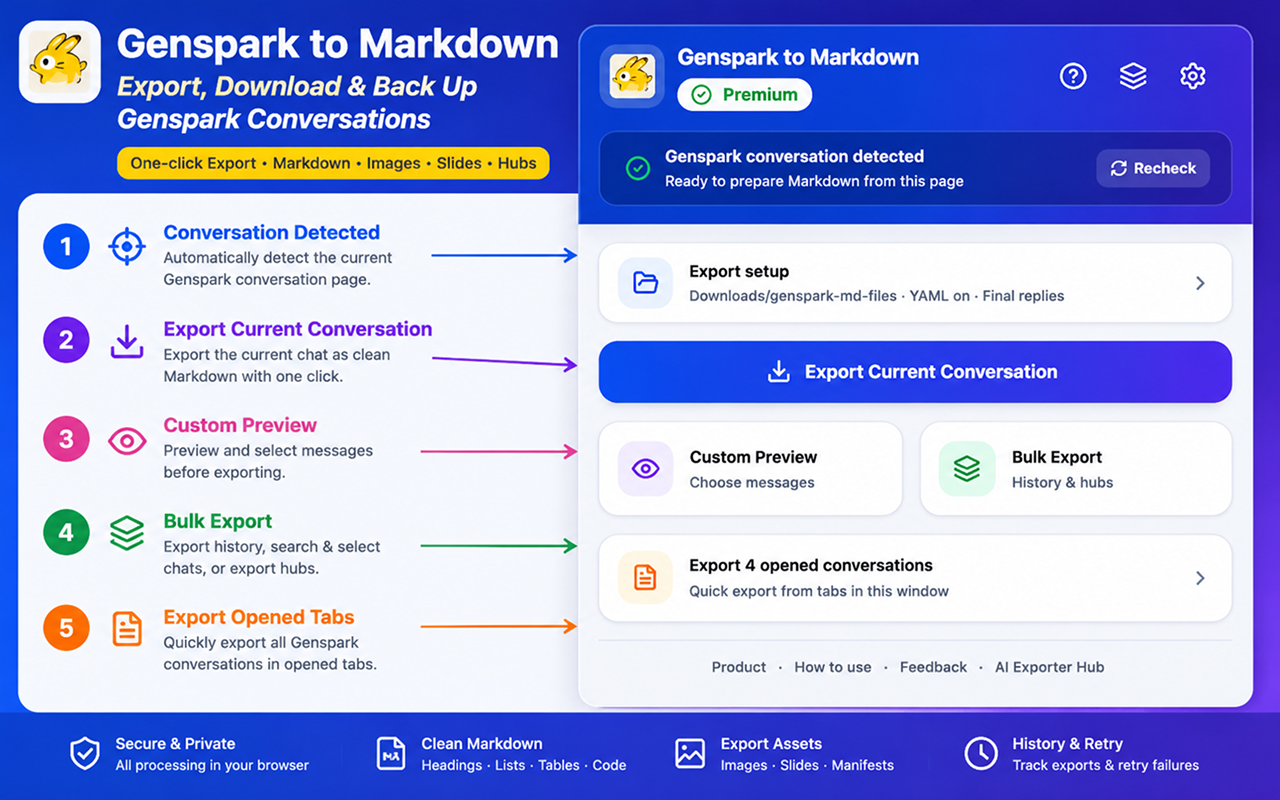
The export page shows connection status, summary statistics, configuration, export modes, start controls, export history, and failed records.
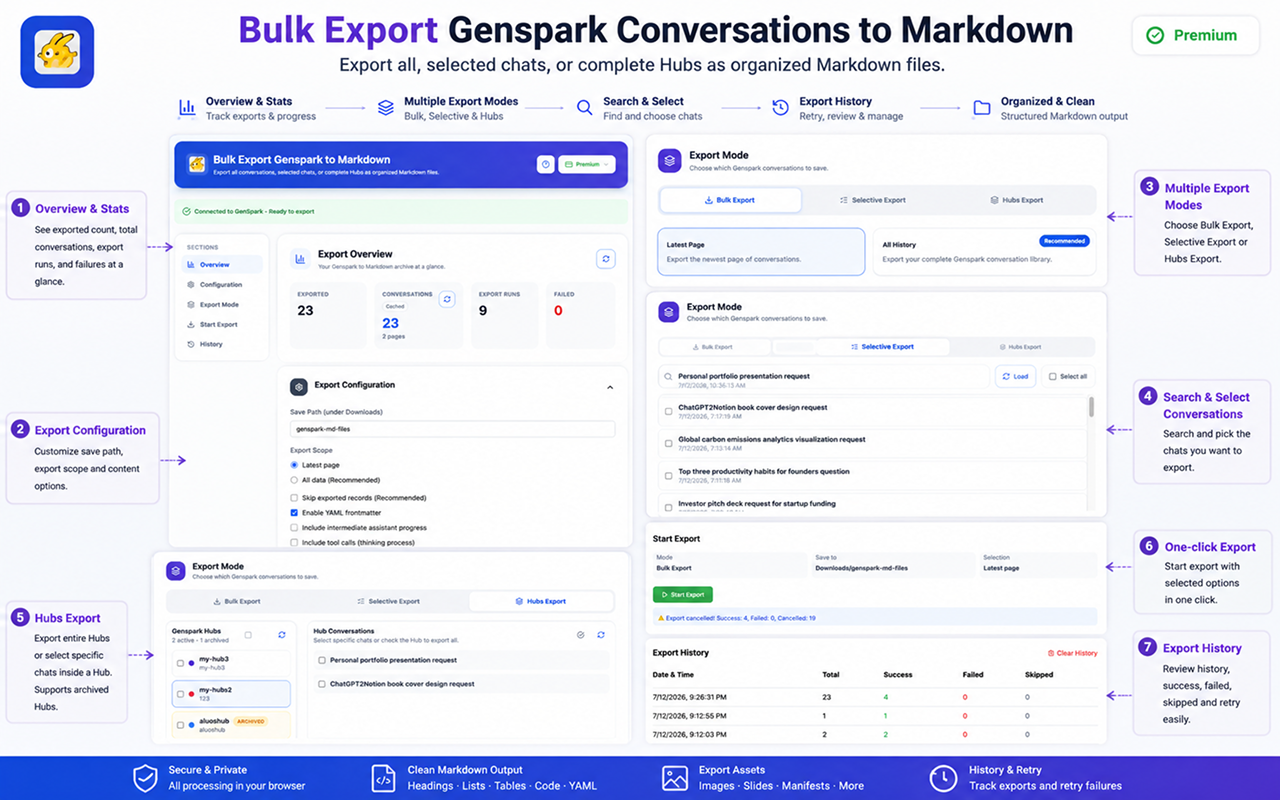
Review export statistics
The overview section shows:
- Exported conversation count
- Total conversation count
- Page count
- Export runs
- Failed exports
Conversation totals can be cached locally so the page loads faster next time. Use the refresh action when you want to rescan the latest counts.
Configure export settings
Before starting, review:
- Save Path: folder name under Downloads
- Export Scope: latest page or all data
- Skip exported records: avoids duplicate exports
- Enable YAML frontmatter: adds metadata to each Markdown file
- Include intermediate assistant progress: keeps Bot progress messages
- Include tool calls: keeps tool activity and tool results
Recommended settings for regular backups:
- Save Path:
genspark-md-files - Export Scope:
All datafor a full backup,Latest pagefor incremental work - Skip exported records: on
- YAML frontmatter: on
- Intermediate progress: off
- Tool calls: off
Choose export mode
The export page has three modes.
Bulk Export
Use Bulk Export to export the latest page or all available history pages.
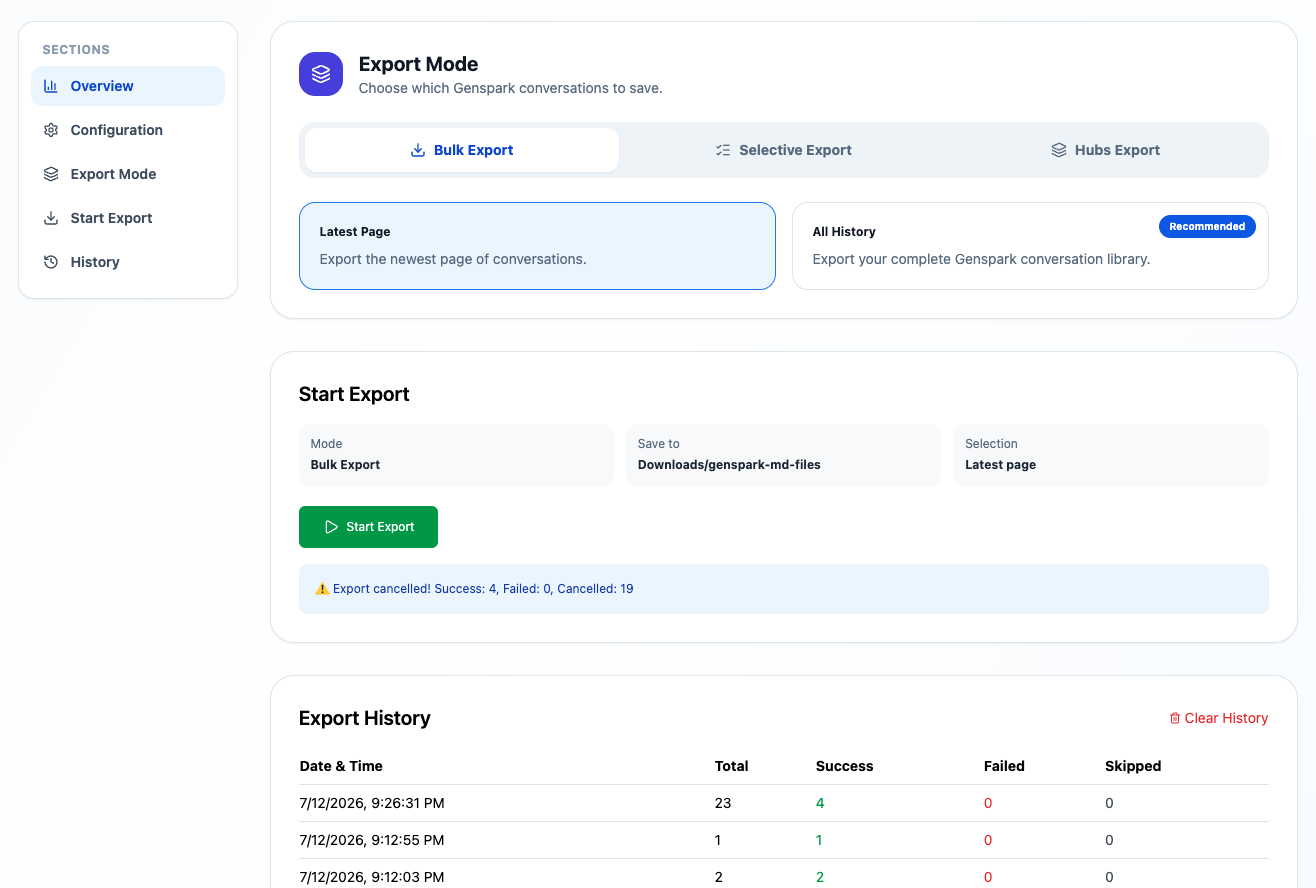
Choose:
- Latest Page for the newest page of conversations
- All History for your complete available Genspark conversation library
Selective Export
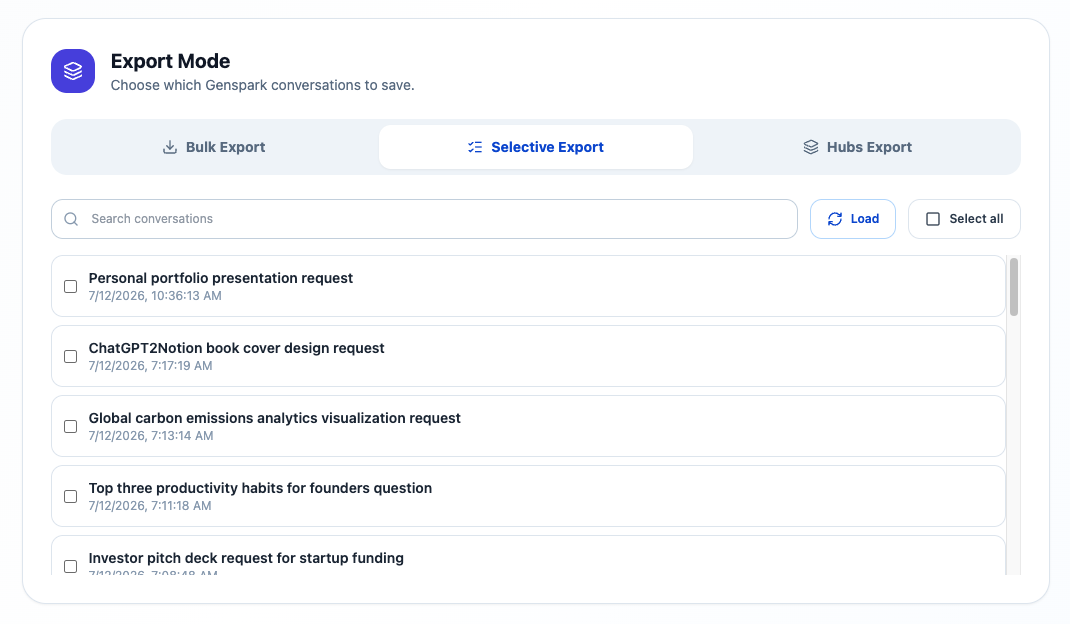
Use Selective Export when you want to search and choose specific conversations.
Hubs Export
Use Hubs Export for active Hubs, archived Hubs, or selected conversations inside a Hub.
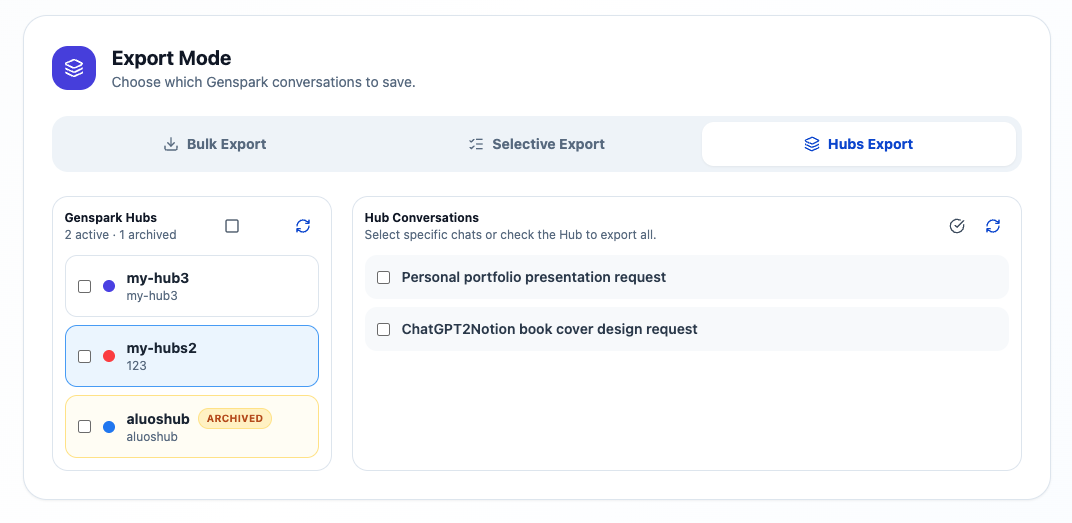
See Hubs Export for details.
Start an export
- Confirm the page says it is connected to Genspark.
- Choose the export mode.
- Review the save path and export settings.
- Click Start Export.
- Keep the export page open until the run finishes.
During export, the page shows progress, success count, failed count, skipped count, and status messages.
Export history
The export history table helps you audit and manage backup runs. It can show:
- Date and time
- Total records
- Successful exports
- Failed exports
- Skipped records
Use this after a large export to confirm whether any records need to be retried.
Failed records
When a conversation fails, the extension can keep a failed record so you can inspect and retry later.
Common causes:
- Genspark page not connected
- Conversation failed to load
- Temporary network issue
- Browser download interruption
- Genspark changed a response format
If only a few records failed, retry those records after refreshing the Genspark tab.
Performance tips
- Keep the export page open while it runs.
- Use Skip exported records for regular incremental backups.
- Use Latest Page for quick daily exports.
- Use All History when creating a fresh archive.
- Use Selective Export for a small focused set.
- Keep your computer awake during large exports.
Ready to try Genspark To Obsidian?
Open the product page for feature details, screenshots, pricing, and the Chrome Web Store install link.