
How to Export Conversations
Export the current Genspark conversation, opened tabs, or selected Genspark records as Markdown files
This guide covers the fastest ways to export Genspark conversations to Markdown.
Watch the tutorial
This video demonstrates the full Markdown backup workflow from Genspark to Obsidian.
Export the current conversation
- Open a Genspark conversation.
- Click the Genspark to Obsidian extension icon.
- Confirm the popup says the conversation was detected.
- Click Export Current Conversation.
- Open the downloaded Markdown file in Obsidian or another Markdown editor.
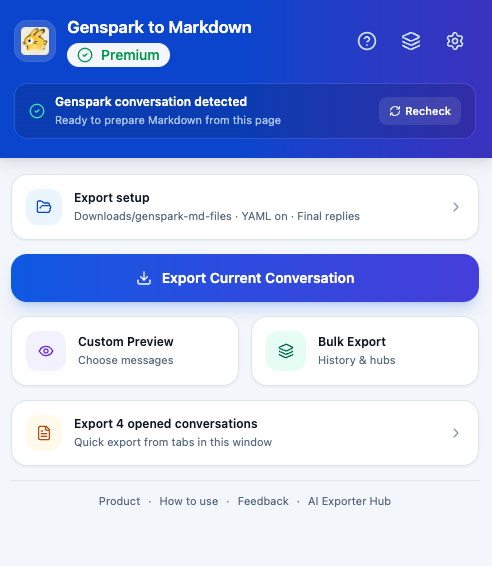
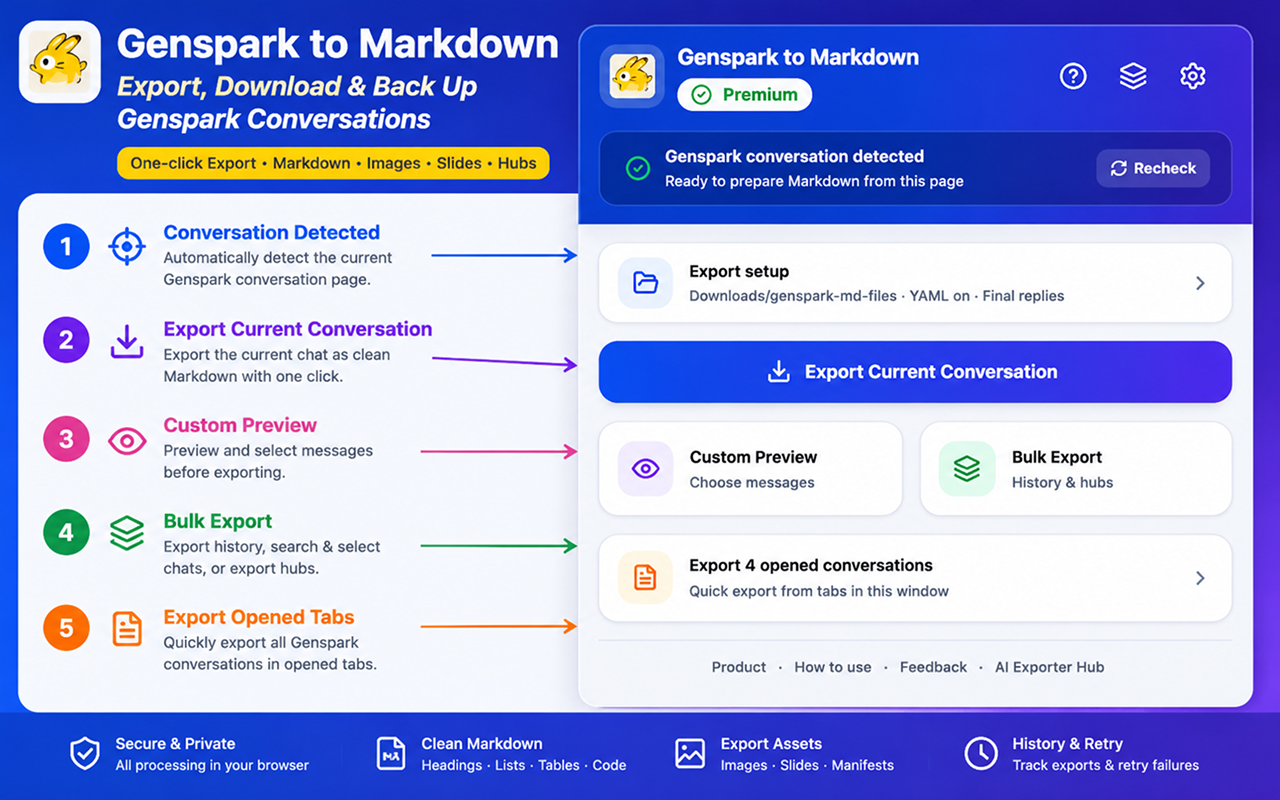
The popup gives you five main actions: detect the current conversation, export it immediately, open Custom Preview, open Bulk Export, or export every Genspark conversation already open in the current browser window.
Preview before export
Use Custom Preview when you want to choose the exact content included in the Markdown file.
- Click Custom Preview in the popup.
- Review the rendered Markdown.
- Select or deselect message blocks.
- Use quick filters such as All, Only Prompts, or Only Responses.
- Click Export Markdown.
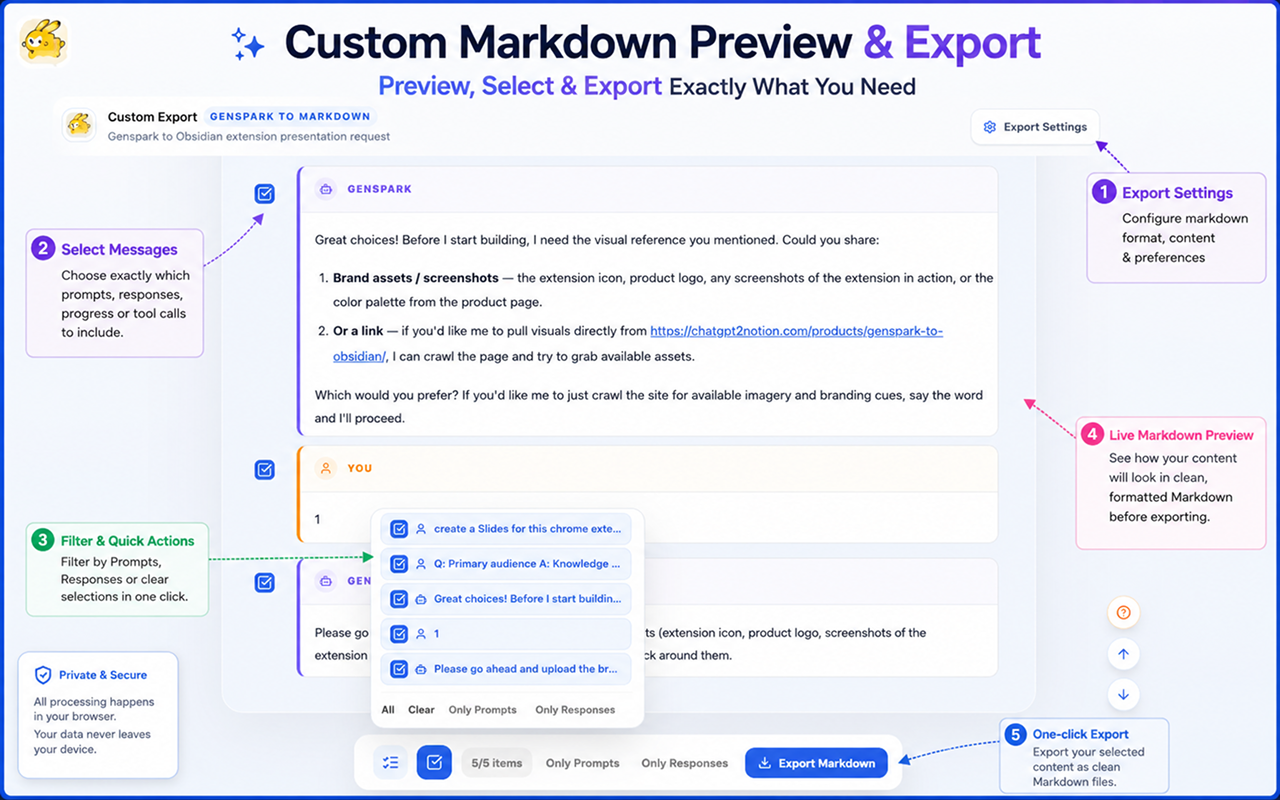
See Custom Markdown Preview for details.
Export opened conversations
If several Genspark conversation tabs are open in the same browser window, the popup can export those opened conversations together.
- Open the Genspark conversations you want to save.
- Click the extension icon.
- Look for Export opened conversations.
- Click the action and keep the browser window open until it finishes.
This is useful when you review a handful of related chats and want to save them as one quick batch.
Export selected conversations
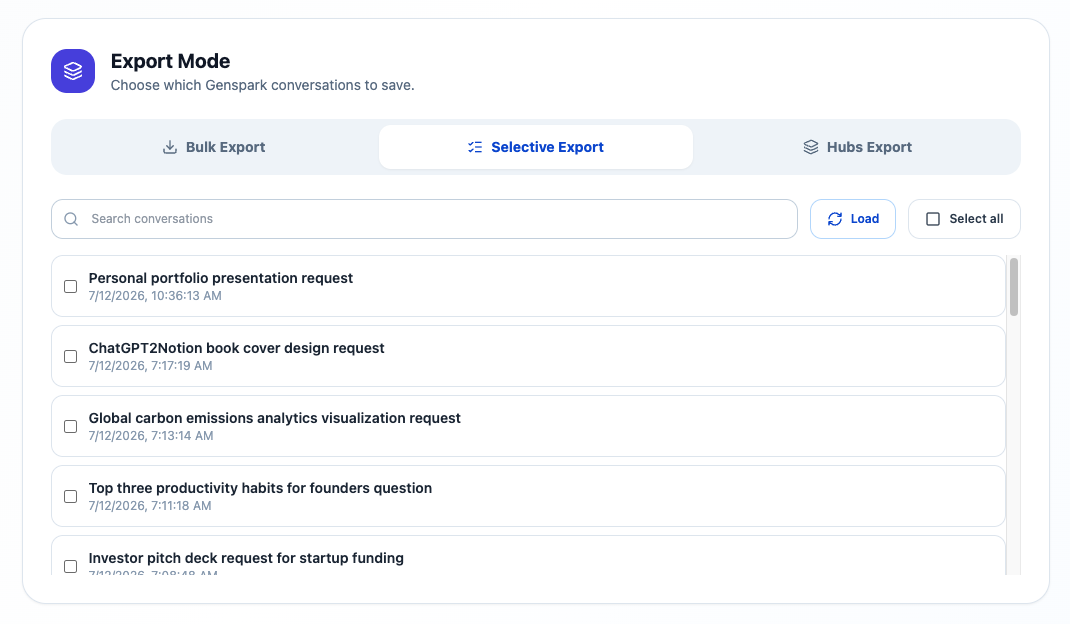
For a searchable list, open Bulk Export from the popup, then choose Selective Export.
- Click Bulk Export.
- Select Selective Export.
- Click Load.
- Search by conversation title if needed.
- Select the records you want.
- Start the export.
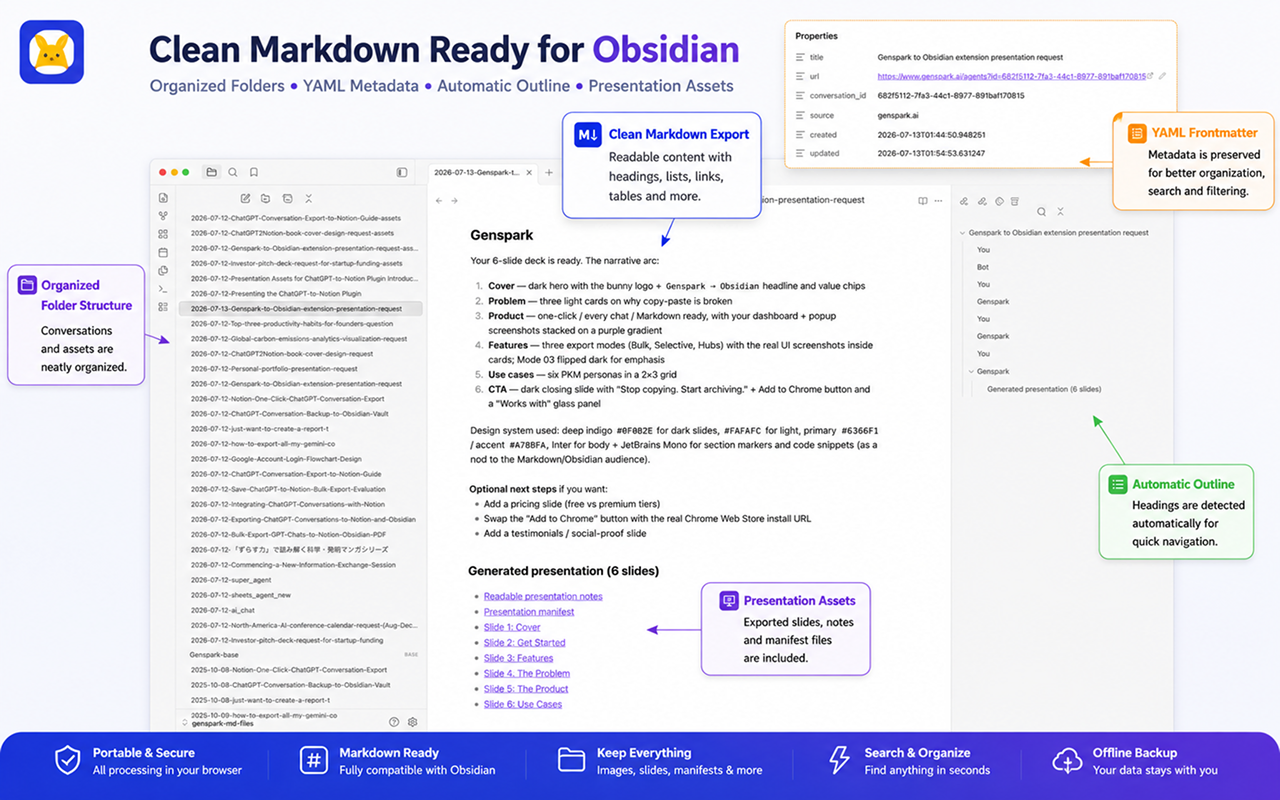
What a Markdown export includes
With default settings, each Markdown file includes:
- Optional YAML frontmatter
- Conversation title
- Your prompts
- Final Genspark answers
- Preserved Markdown formatting
- Code blocks and tables where present
- Mermaid diagrams where present
- Related generated assets where available
Example frontmatter:
---
title: "Genspark to Obsidian extension presentation request"
url: https://www.genspark.ai/agents?id=example-id
conversation_id: example-id
source: genspark.ai
created: 2026-07-13T01:44:50.948251
updated: 2026-07-13T01:47:04.957649
---
Example body:
# Genspark to Obsidian extension presentation request

## You

Create a presentation for this Chrome extension.

## Genspark

Here is a slide outline...
Move files into Obsidian
- Open your Obsidian vault folder.
- Move the downloaded Markdown files into the folder you prefer.
- Keep any generated asset folders next to the Markdown files.
- Open Obsidian and confirm the notes appear in the file explorer.
Tips
- Keep YAML frontmatter enabled if you want searchable metadata.
- Keep default final-answer-only export for clean reading.
- Enable intermediate progress when you need the full reasoning trail.
- Enable tool calls when you want to preserve file-writing, command, or tool activity from the conversation.
- Use a stable save path such as
genspark-md-filesso future exports are easy to find.
Ready to try Genspark To Obsidian?
Open the product page for feature details, screenshots, pricing, and the Chrome Web Store install link.