
Configure Auto-Sync
Schedule Perplexity to Notion v3.2 exports and understand the open-page, filter, and quota requirements
Auto-Sync uses a timer inside the Batch Export page. It runs only while that page is open and a refreshed Perplexity tab is available.
Prerequisites
- Notion authorized
- Compatible target database selected
- Signed-in Perplexity tab open and refreshed
- A manual test export completed
- Batch Export page kept open
Closing Batch Export, closing Chrome, or putting the computer to sleep pauses the schedule.
Configure the Schedule
- Open Batch Export.
- Click Configure beside Auto Off / Auto On.
- Enable Auto Sync.
- Choose an interval.
- Review the current page settings listed in the dialog.
- Click Save Configuration.
Supported normal intervals:
- 1, 2, 3, 4, 6, 8, 12, or 24 hours
The current v3.2 dialog also exposes a 2 minutes (test) option. It is intended for controlled testing and is not recommended for routine backups or large data sets.
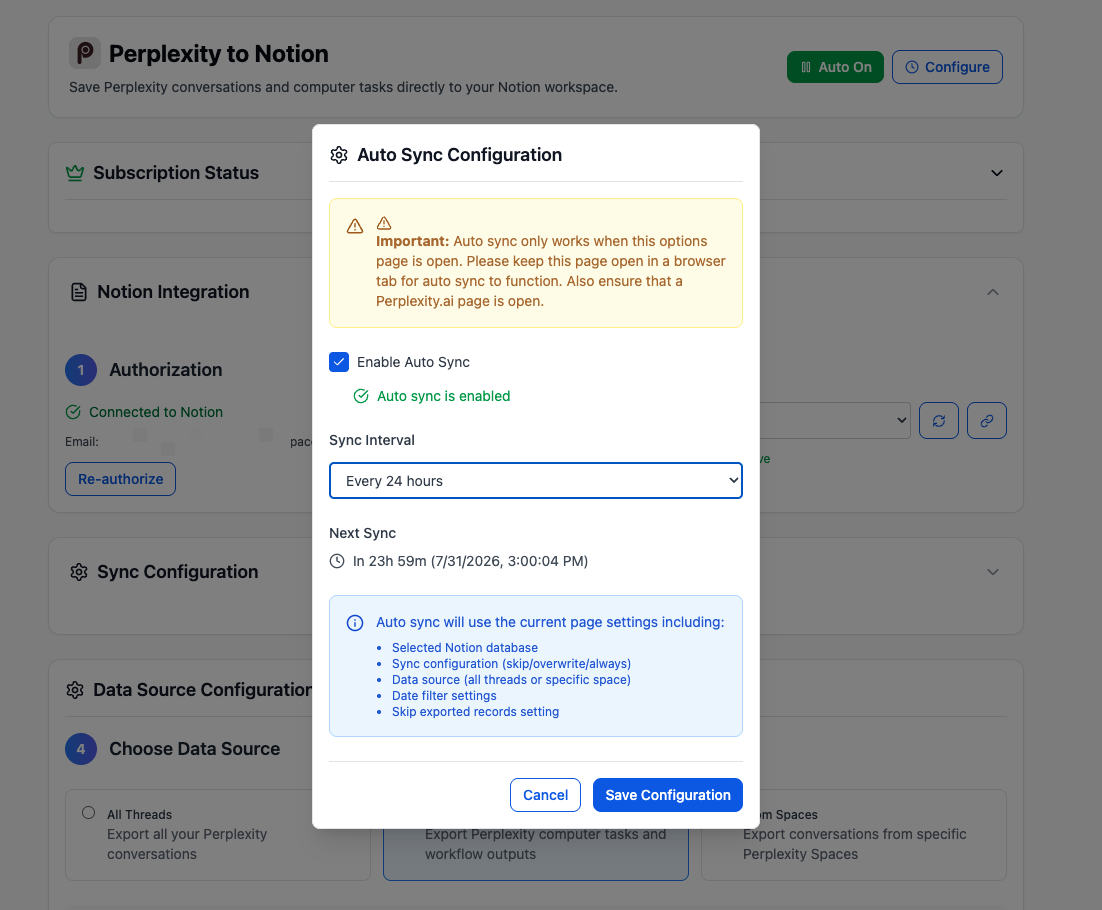
The Auto Sync dialog shows the open-page requirement, interval, next run, and the Batch Export settings used by scheduled runs.
Settings Used by Auto-Sync
The scheduled run uses the Batch Export page’s current state:
- Target Notion database
- Skip / Overwrite / Always insert new
- Skip exported records
- Include Sources & Related Questions
- All Threads, Computer Tasks, or selected Spaces
- Selected Space list
- Date filter
It performs the equivalent of Save All to Notion for matching items.
Header Controls
- Auto Off: enable the saved schedule.
- Auto On: disable the schedule.
- Configure: open the dialog and change interval or enabled state.
When enabled, the dialog can show Next Sync and Last Sync.
Quota Behavior
Auto-Sync uses the same export path as manual batch export:
- Free users are limited to five successful items per day.
- The run stops when the free daily allowance is exhausted.
- Premium users have unlimited batch export.
History and Failures
Scheduled runs are added to Export History with an Auto marker. Failed items are added to Export Failures with their error type and timestamp.
Recommended Setup
- Use Skip if exists.
- Keep Skip exported records enabled.
- Apply a recent date filter.
- Start with a 24-hour interval.
- Keep the Batch Export tab pinned.
- Review history periodically.
Troubleshooting
Auto-Sync did not run
- Confirm Batch Export stayed open.
- Confirm Chrome and the computer stayed awake.
- Confirm Auto On is visible.
- Reopen Configure and inspect Next Sync.
Perplexity page required
Open and refresh any signed-in https://www.perplexity.ai/* tab.
No new pages appeared
The matching items may have been stopped by the local exported-ID cache or Skip if exists. Check history for skipped totals.
Run stopped at five items
The Free batch allowance was exhausted. Wait for the daily counter to reset or activate Premium.
Ready to try Perplexity To Notion?
Open the product page for feature details, screenshots, pricing, and the Chrome Web Store install link.