
Save the Current Perplexity Search or Computer Task
Use the v3.2 popup to save one active Perplexity search or computer task to Notion
Supported Current Pages
The popup saves the active tab only when its URL matches:
https://www.perplexity.ai/search/{thread-id}
https://www.perplexity.ai/computer/tasks/{task-id}
Refresh the Perplexity tab after installing or updating the extension.
Prepare the Popup
- Open a supported English test search or computer task.
- Open Perplexity to Notion.
- Confirm Notion Authorization shows Ready.
- Confirm the correct Target Database is selected.
- Review Sync Configuration.
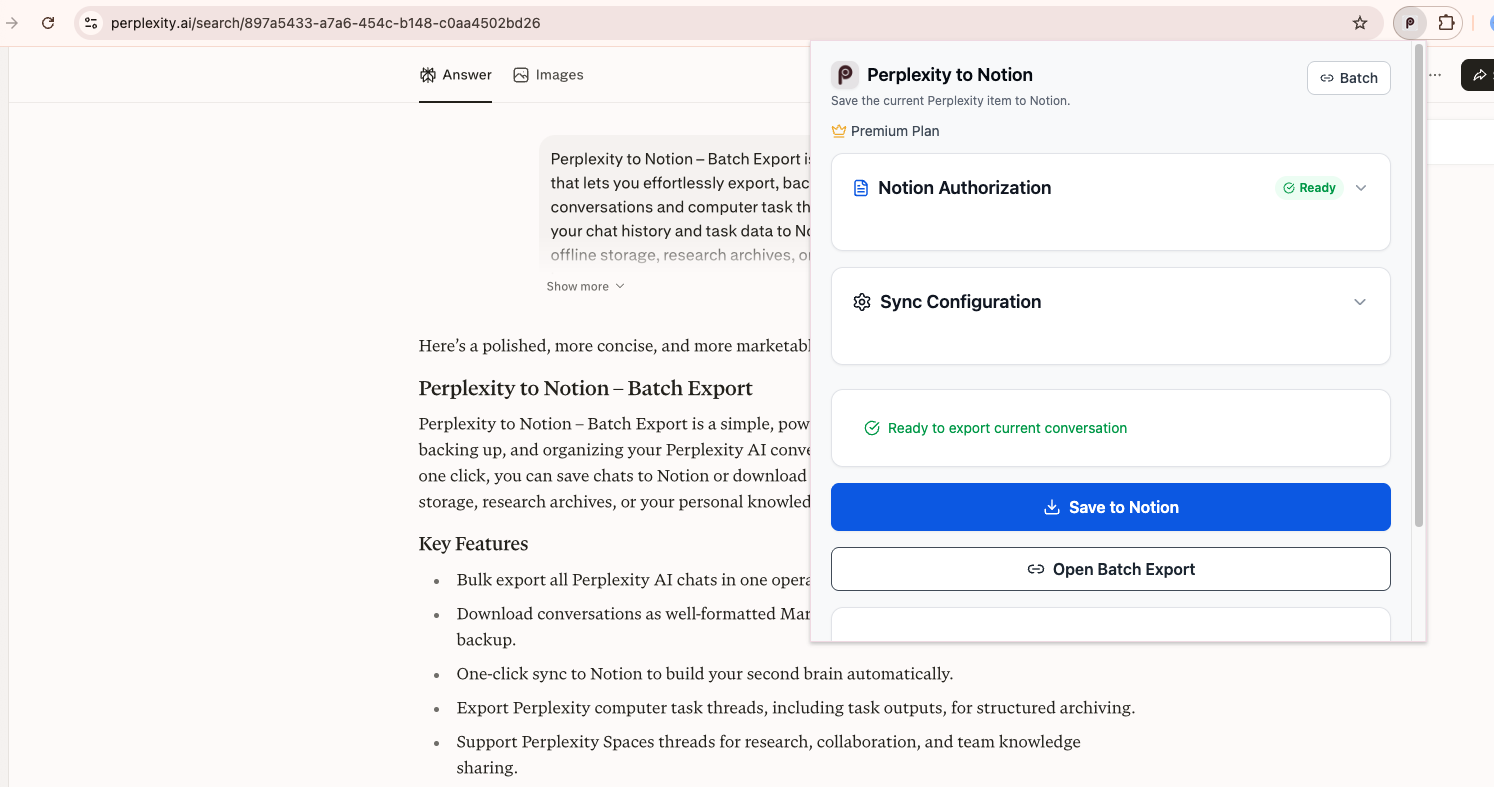
On a supported search, the popup shows the current-page ready state and both export actions.
Choose Repeat-Export Behavior
Expand Sync Configuration:
- Skip if exists: keep the first Notion page whose
URLmatches. - Overwrite if exists: move matching pages to trash, then create the new export.
- Always insert new: create a new page without checking the URL.
Additional settings:
- Skip exported records: stop locally recorded item IDs before the Notion check.
- Enable metadata tracking: keep the extension’s metadata-conversion option enabled.
- Include Sources & Related Questions: include or omit those two sections.
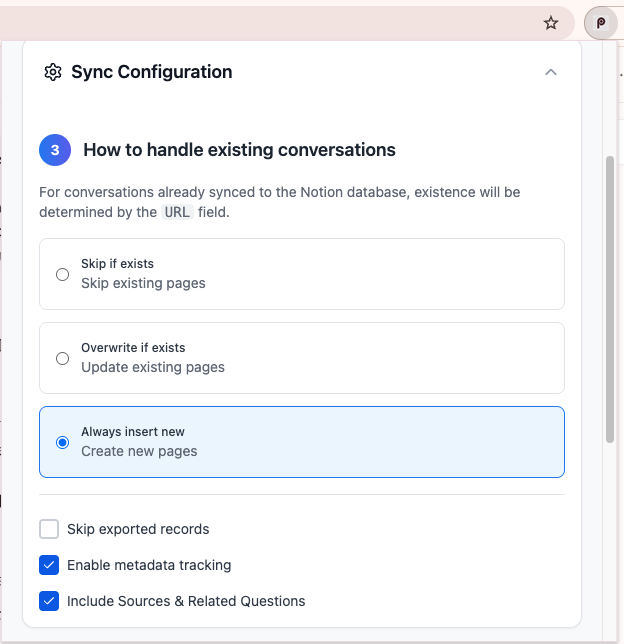
Sync Configuration combines the URL-based repeat-export rule with local-record, metadata, and source controls.
To overwrite or duplicate a previously saved item, disable Skip exported records first. Otherwise the local ID cache can stop the export before the URL rule runs.
Save a Standard Search
- Wait for Ready to export current conversation.
- Click Save to Notion.
- Keep the Perplexity tab open while the extension fetches every available entry.
- Follow the View on Notion link after success.
Save a Computer Task
The popup recognizes /computer/tasks/{id} and changes the ready message to Ready to export current computer task.
Computer-task output can include:
- The original task prompt
- Available workflow/final-answer content
- Sources when enabled
- Supported embedded document assets
- A
Tasktag in Notion
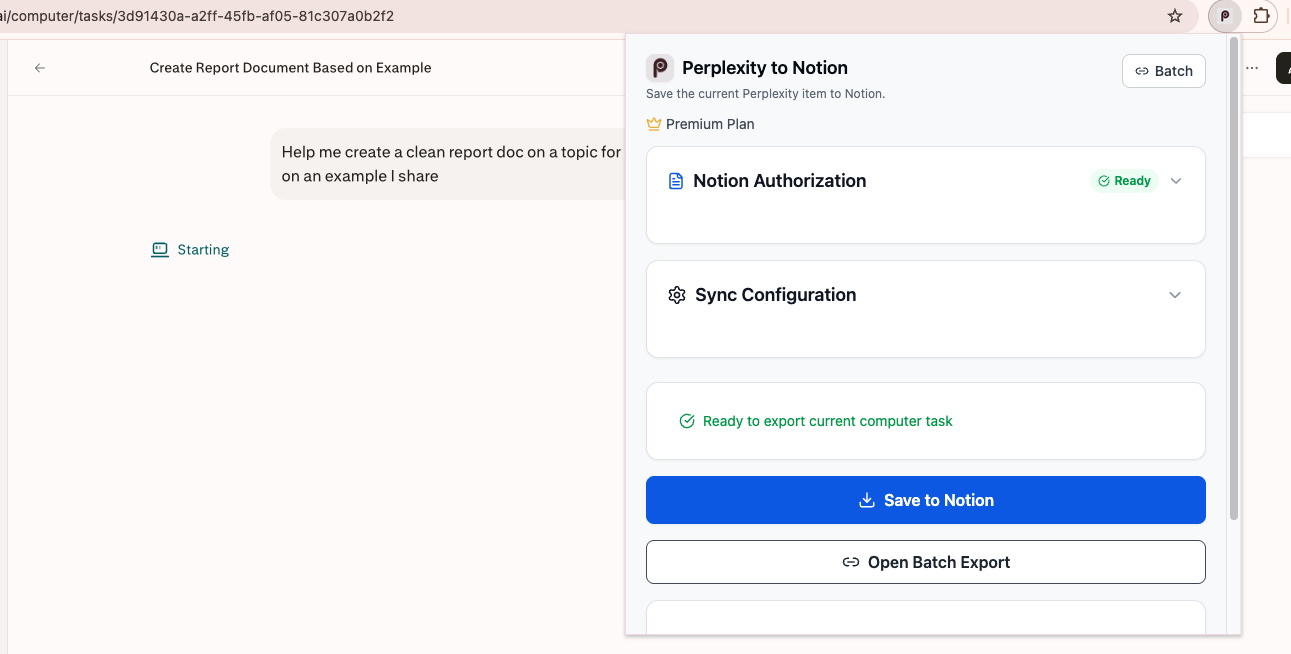
The popup recognizes a Perplexity computer-task URL and changes the current-page ready state accordingly.
Successful Result
On success, the popup displays Successfully saved to Notion! and a View on Notion link. If Skip if exists matched an existing URL, the popup explains that the item was skipped instead.
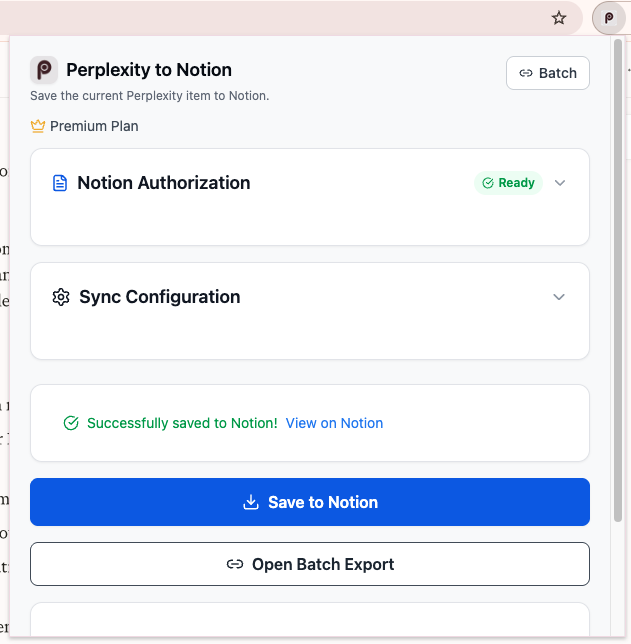
After a successful save, use View on Notion to inspect the exported page.
Free Plan Behavior
The current-page action is not blocked by the five-item batch limit. Each successful save still increments the daily usage counter used by free Batch Export, so several one-click saves can reduce the remaining batch allowance.
Troubleshooting
Not on a Perplexity exportable page
Open a specific /search/ or /computer/tasks/ URL. The Perplexity home page is not a current-item target.
Extension not connected
Refresh the Perplexity tab, wait for it to finish loading, then reopen the popup.
Item was skipped unexpectedly
Disable Skip exported records or clear the exported-record cache on Batch Export. Then choose the desired URL-based sync rule.
Notion property error
Verify the database property names and types in Connect Notion.
Ready to try Perplexity To Notion?
Open the product page for feature details, screenshots, pricing, and the Chrome Web Store install link.